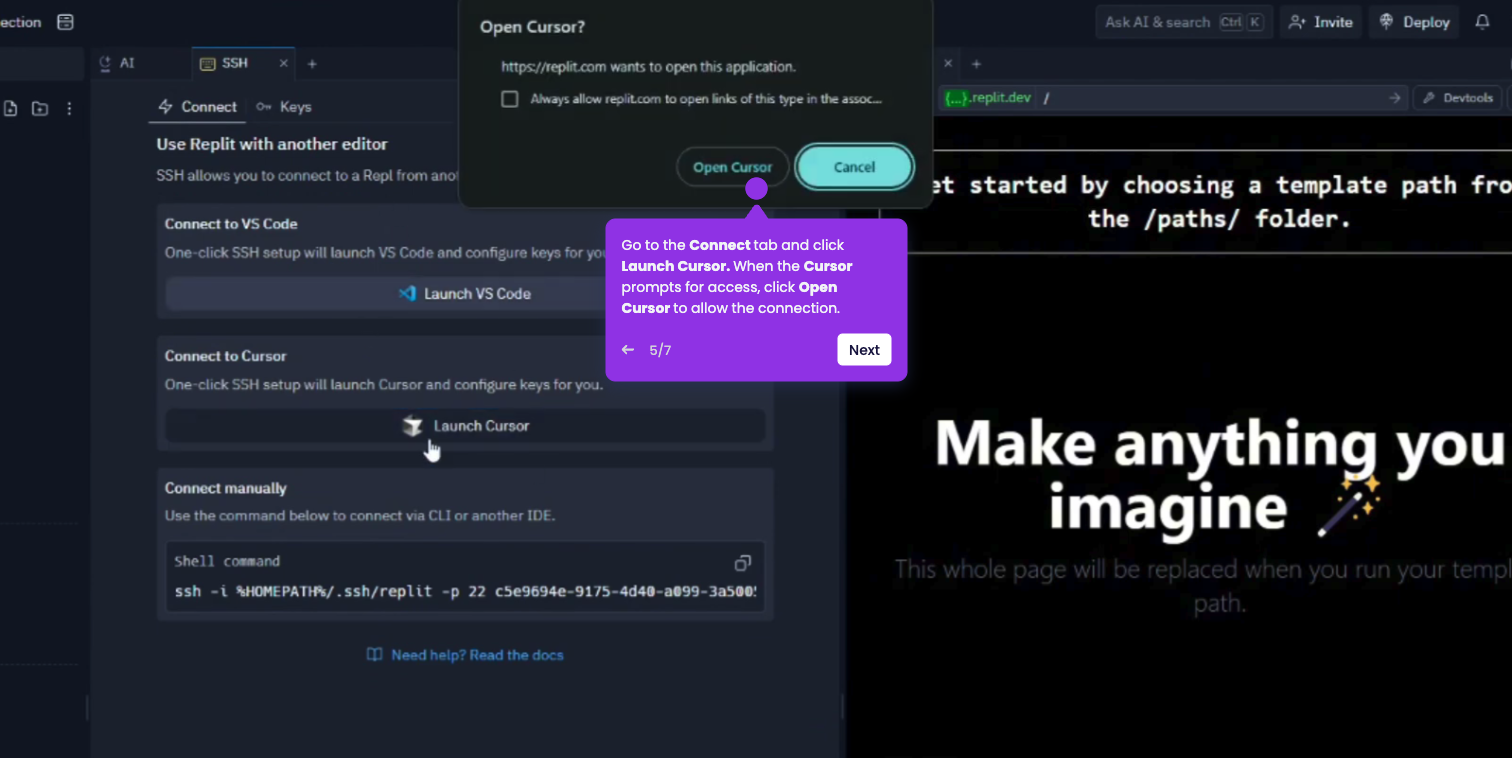
Installing Cursor on macOS is a quick process that involves moving the application to your local folder to ensure it can receive automatic updates and run correctly.
- Open your web browser, navigate to cursor.com, and click Download—it auto-detects Mac and provides the .dmg installer.
- Wait for the installer file to finish downloading, then locate it in your Downloads folder.
- Double-click the .dmg file to open it. A window will appear showing the Cursor icon and a shortcut to your Applications folder.
- Drag the Cursor icon into the Applications folder icon within that window. This step is critical; do not run the app directly from the DMG file.
- Open your Applications folder and double-click Cursor; click Open on the macOS security prompt for internet-downloaded apps.
- Follow the on-screen Onboarding steps, and you're all set!