If you're moving to LastPass from another password manager, you can bring your saved credentials over in bulk using a CSV file with no manual re-entry needed.
Note: LastPass supports importing up to 199 items at a time. If your CSV contains more, split it into smaller files before importing. On Mac, edit your CSV in TextEdit rather than Excel to avoid formatting issues.
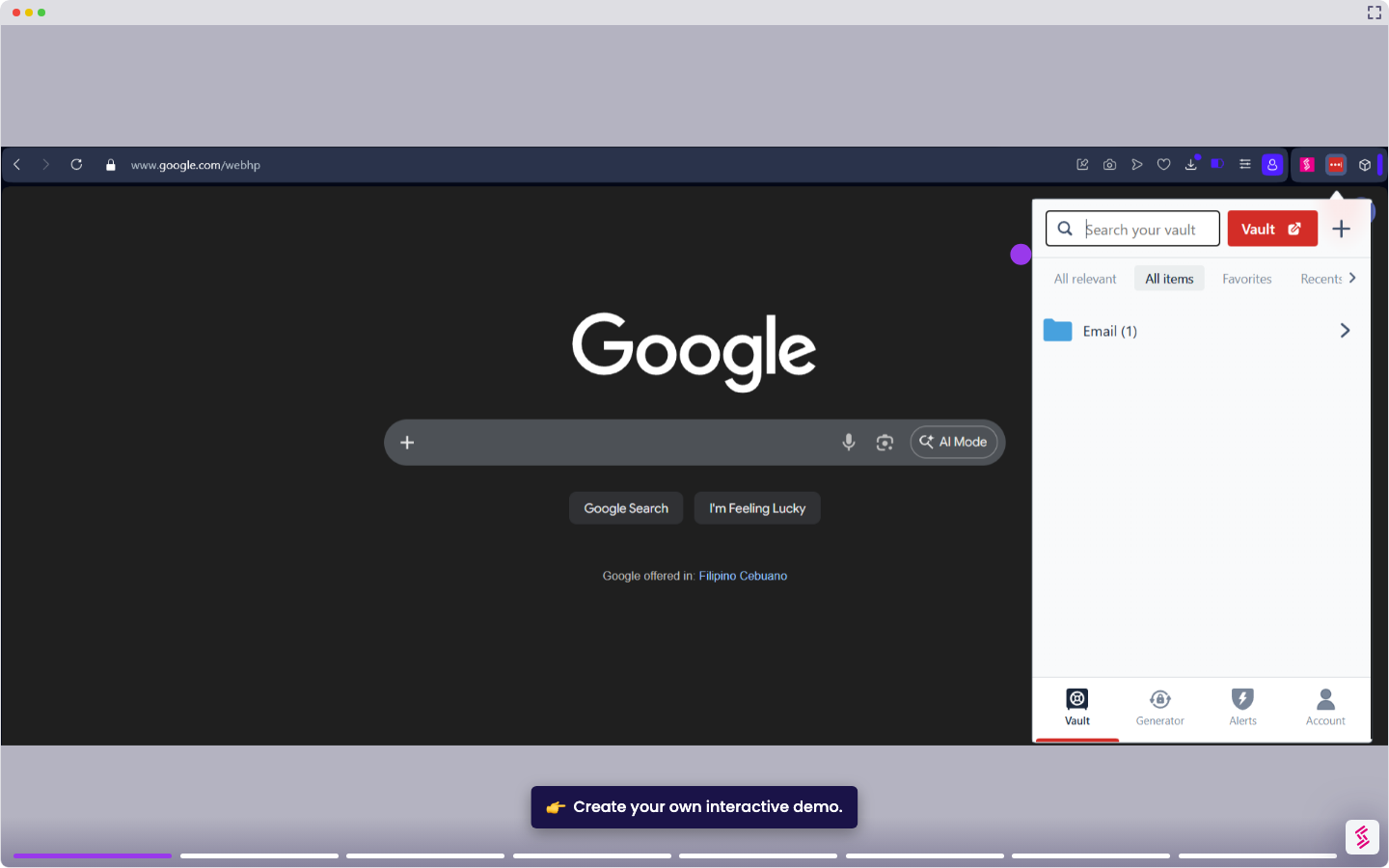
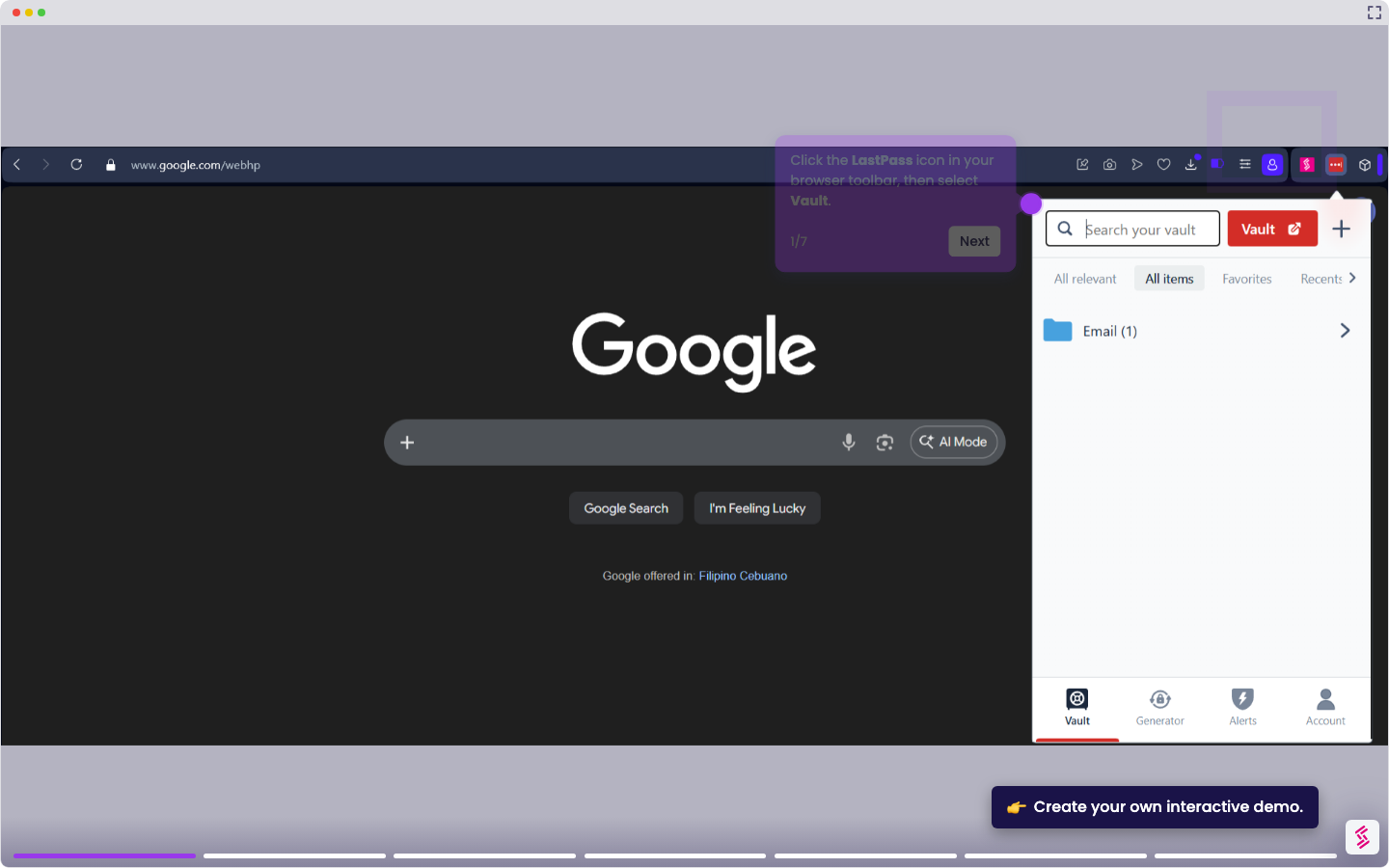
- Click the LastPass icon in your browser toolbar and select Vault.
- In the left navigation menu, select Advanced options, then Import.
- On the Where are your passwords now? page, select the appropriate icon for you.
- On the Export & Upload page, drag and drop your CSV file into the upload area, or click Browse your computer to locate and select the file.
- Click Review and Import. If LastPass detects incomplete items, such as entries missing a username, password, or URL, click Have a look, select the affected item, fill in the missing details, and click Save Changes.
- On the Review & Import page, all items are selected by default. Deselect any entries you don't want to import, then click Import All.