Use this interactive demo to learn how to host a Flask app on Replit.
Notes:
- You need a Replit account and a working Flask project. If you haven't built one yet, see How to Create a Flask App on Replit first.
- This method keeps your app alive within an active Replit session. For permanent 24/7 uptime, see How to Deploy a Flask App on Replit instead.
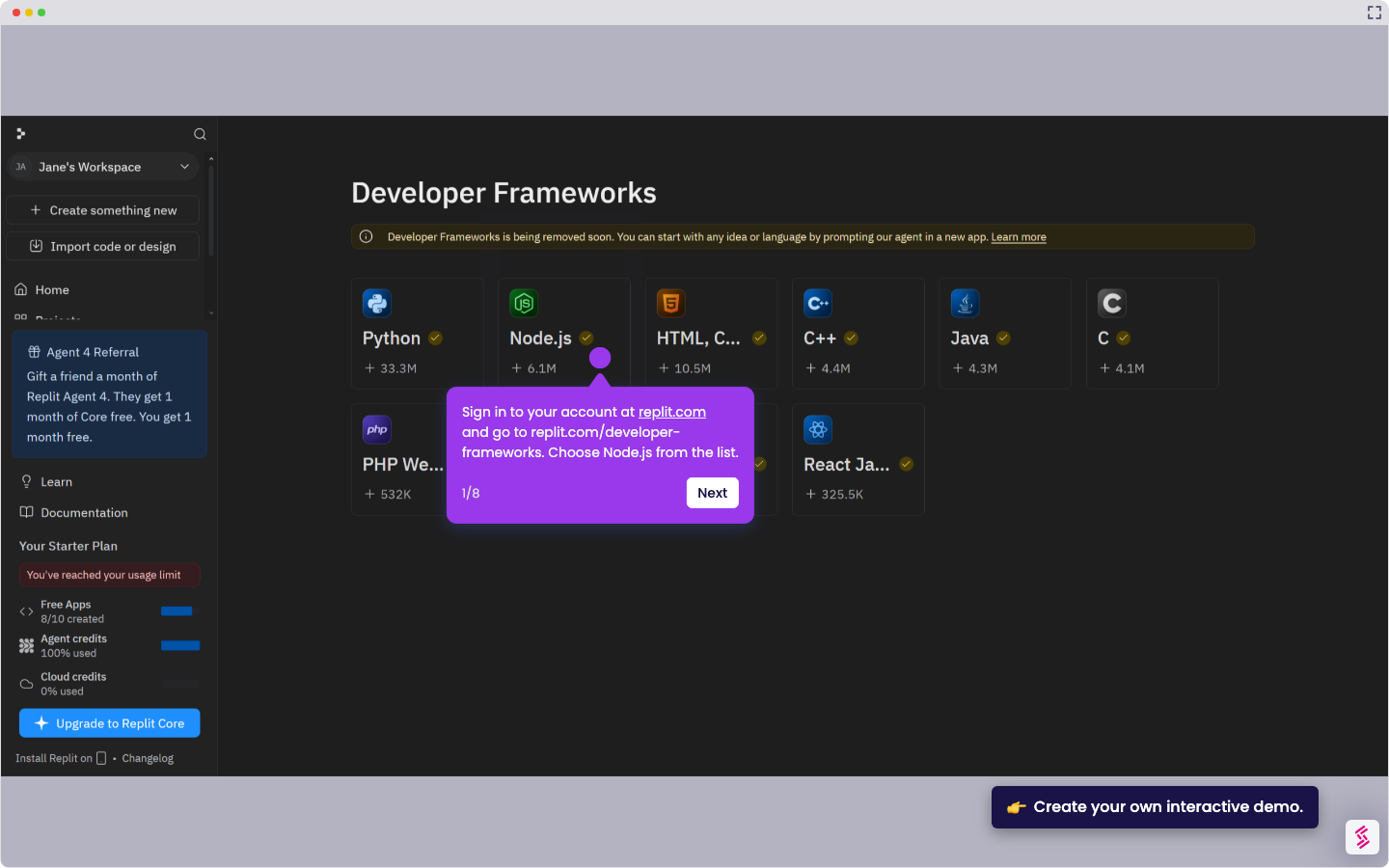
- Sign in at replit.com and open your Flask project from the dashboard.
- In your workspace, click New Tab and select Shell to open a terminal session.
- In the Shell, run your app using the command python main.py Flask starts and displays a local URL - usually http://0.0.0.0:5000.
Note: You may see a development server warning in the output - this is expected and won't affect functionality for hosting purposes. - To keep the app running after detaching from the session, start a new screen by typing screen -S [flaskapp] and pressing Enter, then run python main.py inside it.
- Detach from the screen session by pressing Ctrl+A, then D. Your Flask app continues running in the background.
- Open the Webview tab in your workspace to preview your running app, or copy the project URL from the browser address bar to share it.