This tutorial shows you how to use the LastPass password generator to create a strong, randomized password for any account.
Note: The password generator is available on all LastPass plans. You must have the LastPass browser extension installed and be logged in.
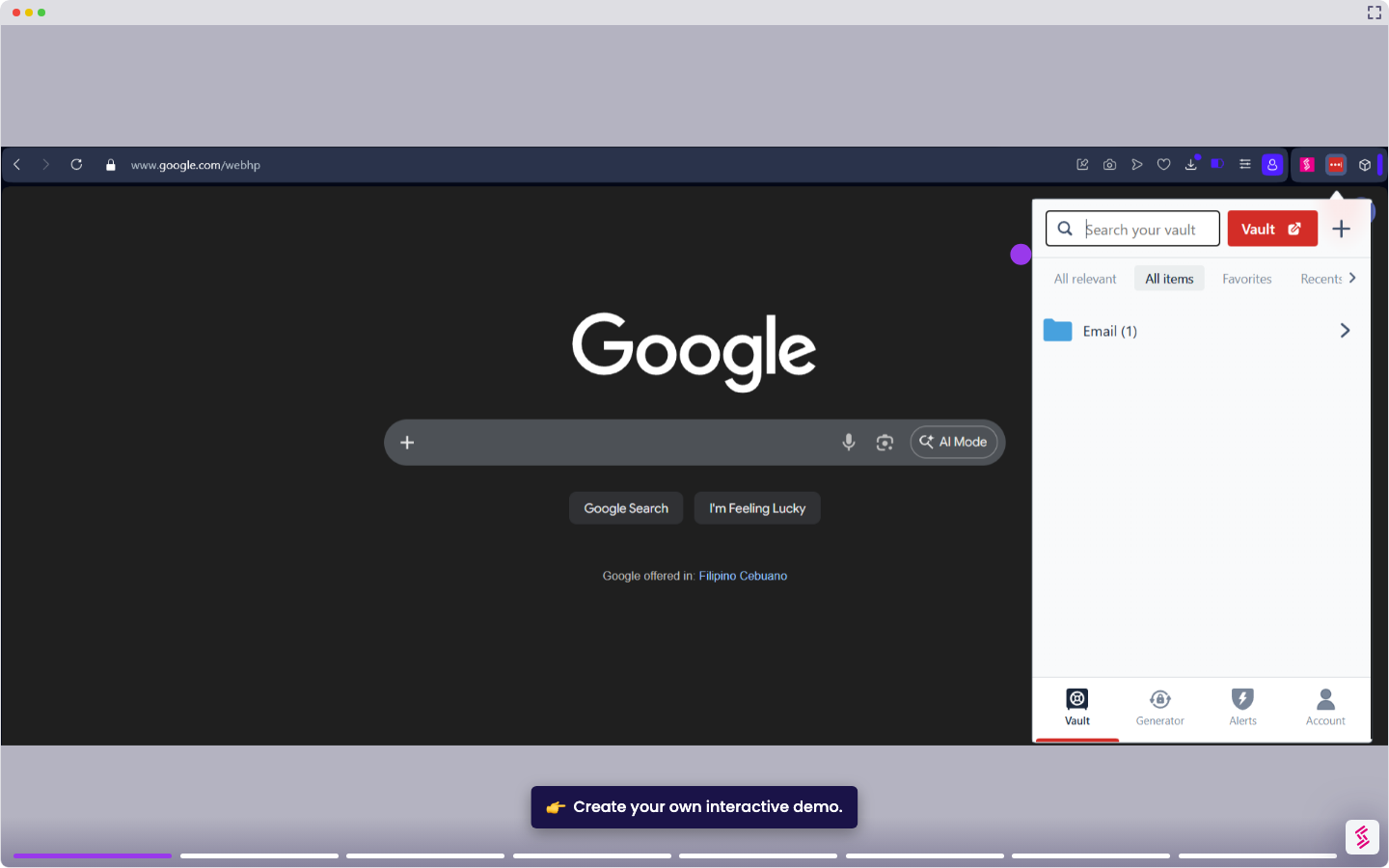
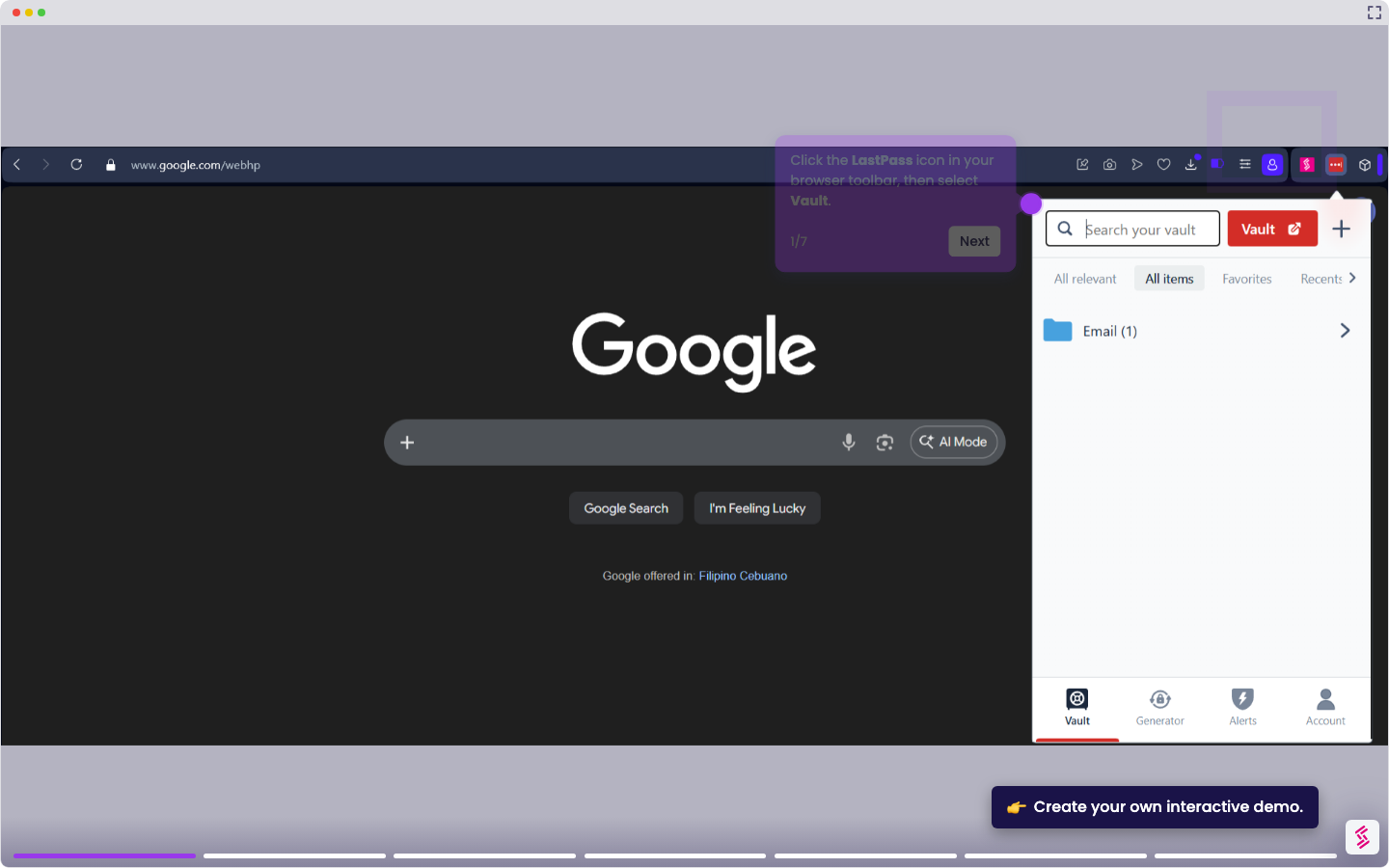
- Click the LastPass icon in your browser toolbar to open the extension menu.
- Select “Generator” from the menu.
- Set the password length using the Length slider or input field. For most business accounts, 20–24 characters is recommended.
- Toggle all the character types to make your password as strong as possible:
- Lowercase (abc)
- Uppercase (ABC)
- Numbers (123)
- Randomized symbols (!#$)
- Click the Generate icon to produce a new password. The result appears in the password preview field.
- Click the Copy icon to copy the generated password to your clipboard.
- Paste the password into the password field on the site, save your changes, then click Save or Add Password when LastPass prompts you to update your vault.