This tutorial shows how to permanently delete a LastPass account with a password.
Note: Deletion is permanent and irreversible. All vault data: passwords, secure notes, and form fills will be erased. Export your vault before proceeding. If you have an active paid subscription, cancel it before deleting your account, or you may continue to be charged. Deleting the account does not automatically cancel billing.
If you know your master password:
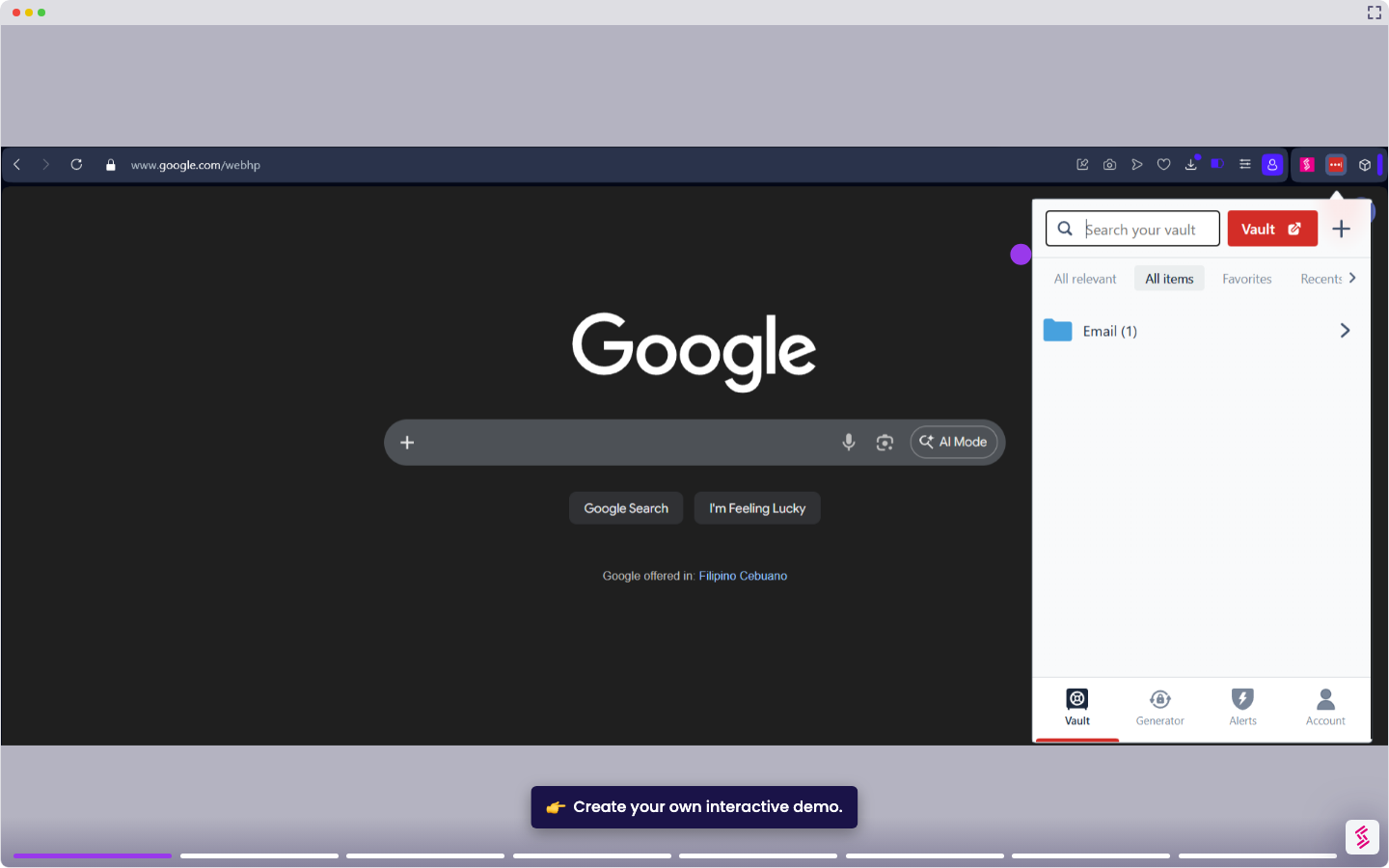
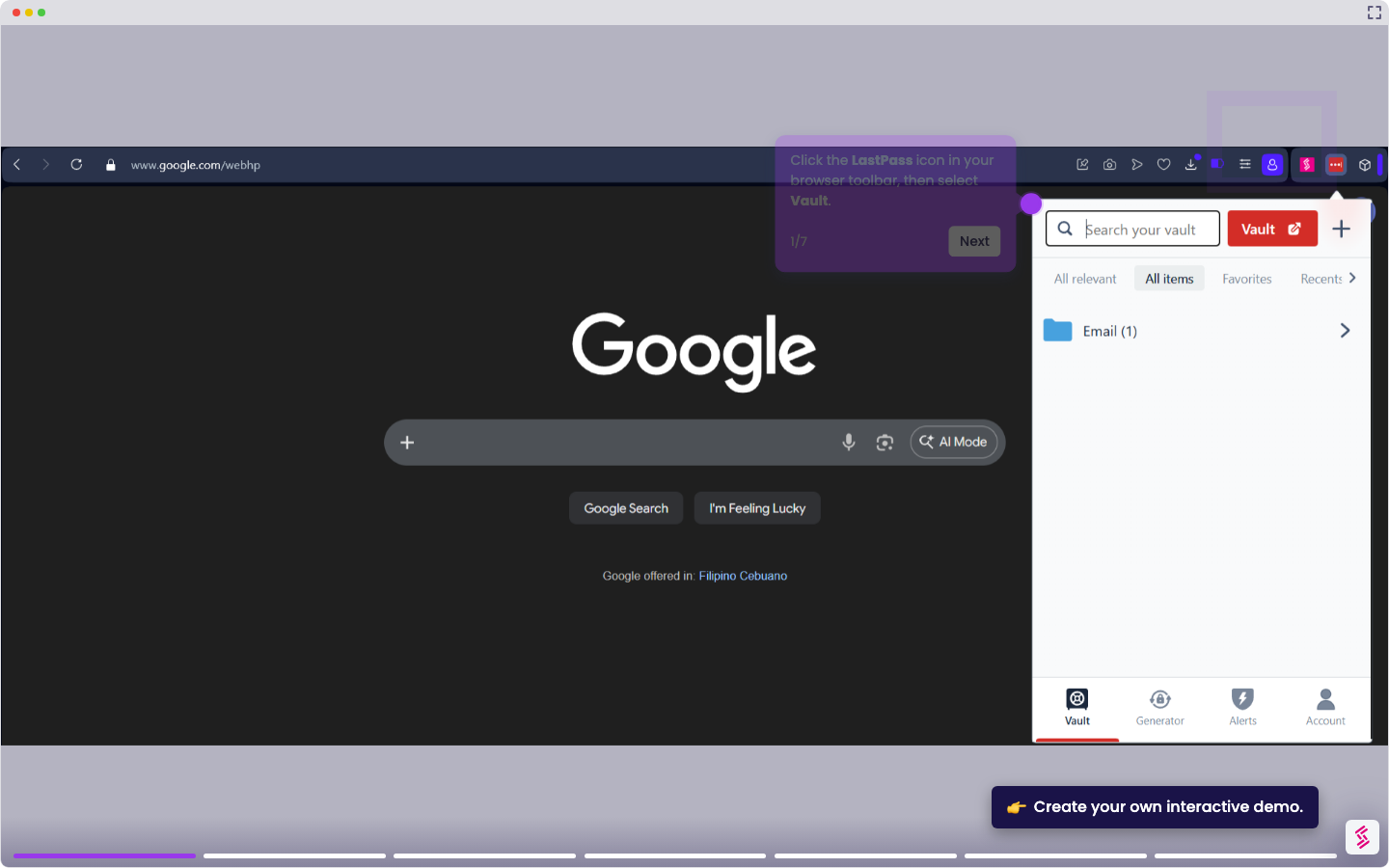
- Click the LastPass icon in your browser toolbar, then select Vault. Alternatively, go to lastpass.com/login and sign in with your email address and master password.
- In the left navigation menu, click Account Settings.
- In the Links section, click the My Account hyperlink.
- In the Existing User section, click Delete or reset account.
- Click Delete, when prompted, select Yes to confirm you know your master password.
- Enter your LastPass email address and master password. Optionally select a reason for deletion, then click Delete. Confirm twice when asked. LastPass logs you out and confirms the account has been permanently deleted.