Microsoft Forms offers Style options for themes, colors, and backgrounds, perfect for branding surveys or quizzes with logos and layouts. Follow these steps to set it up:
- On your Microsoft 365 main dashboard, click the App launcher (grid icon) in the upper-left corner.
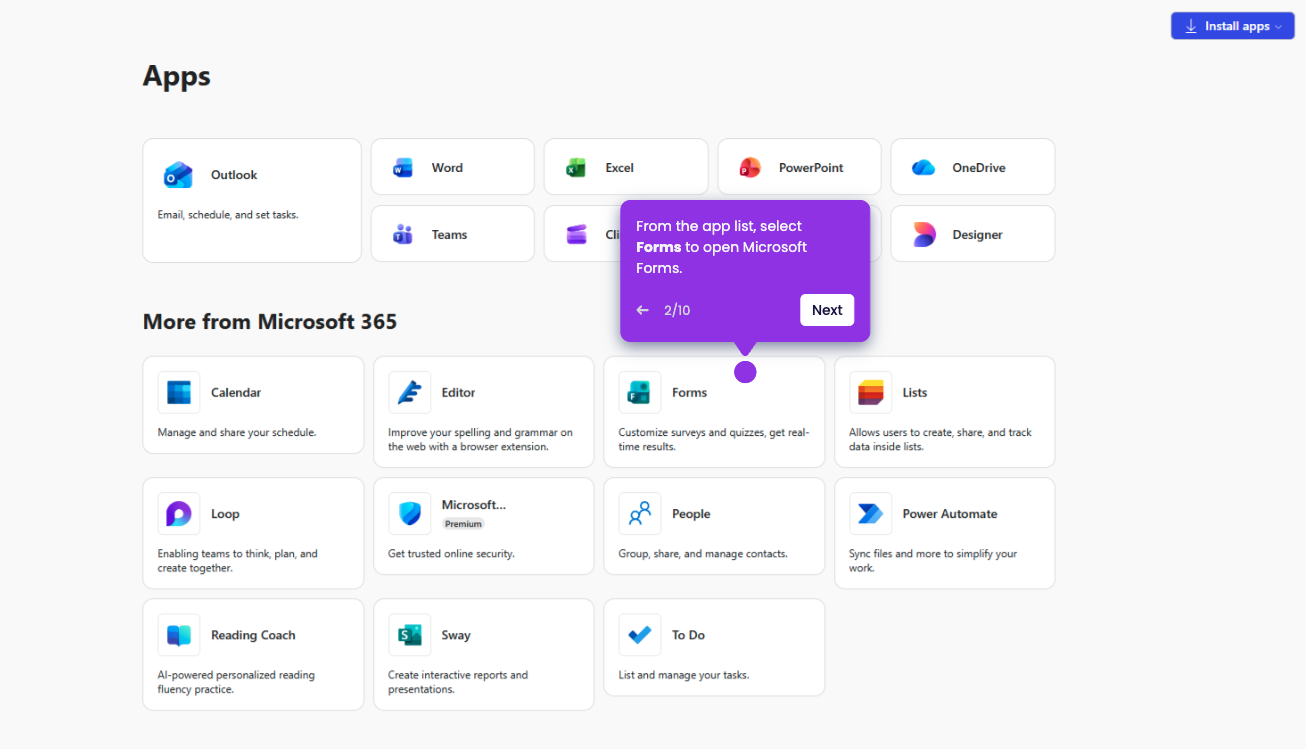
- From the app list, select Forms to open Microsoft Forms.
- Click New Form button to create a new one, or open an existing form.
- Fill in the required details, then add your questions, choose the question type, and mark them as required if needed.
- Click Style to customize the look.
- Choose a Theme from the color options, or select from the Suggested tab.
- Click the Insert Image icon (the small picture frame) on the right side of the title box.
- Click Upload to add your custom background or branding.
- Highlight the text in a question or title to adjust Font color and text formatting.
- Click Preview and toggle between Computer and Mobile to confirm costumization.
- Your customization now appears exactly as intended.