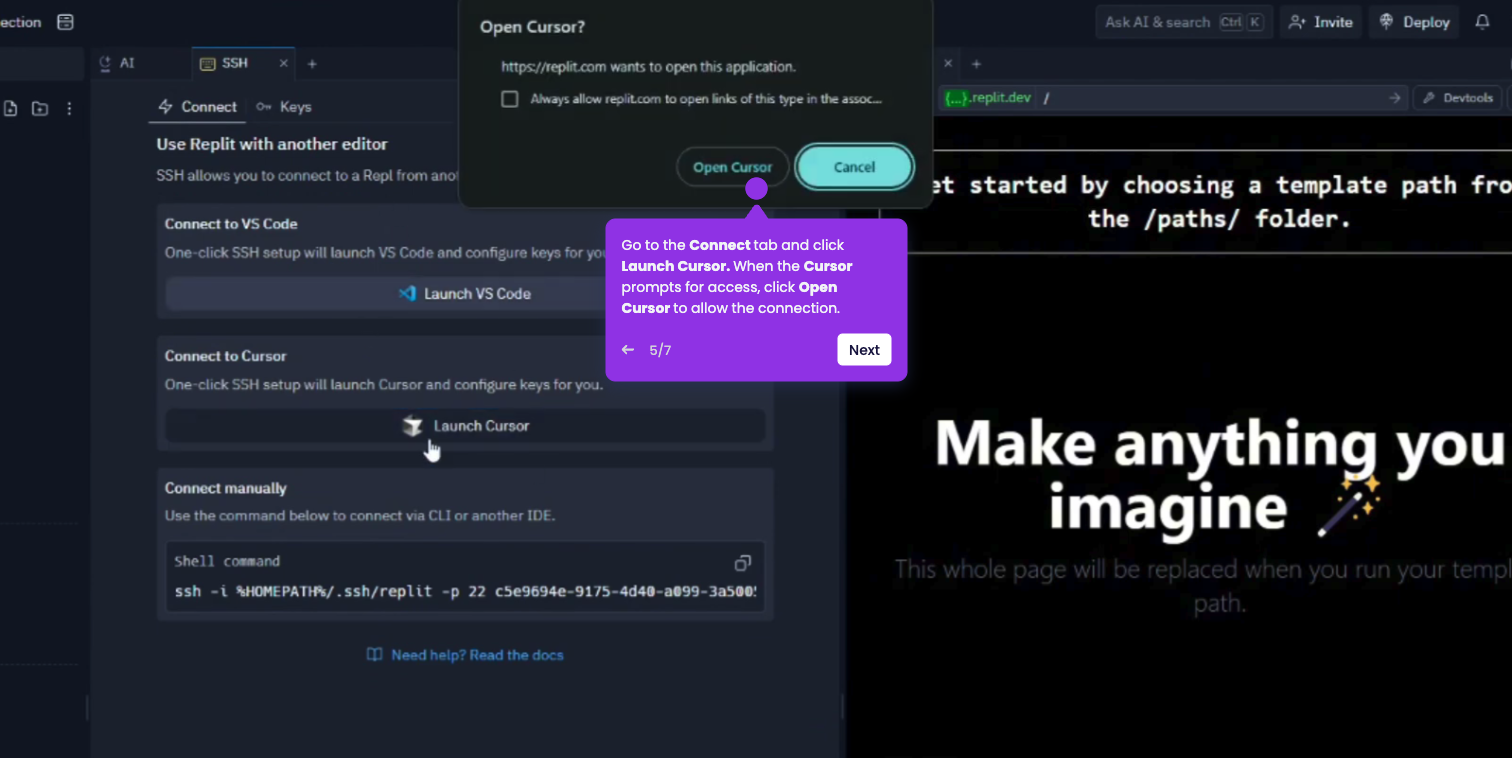
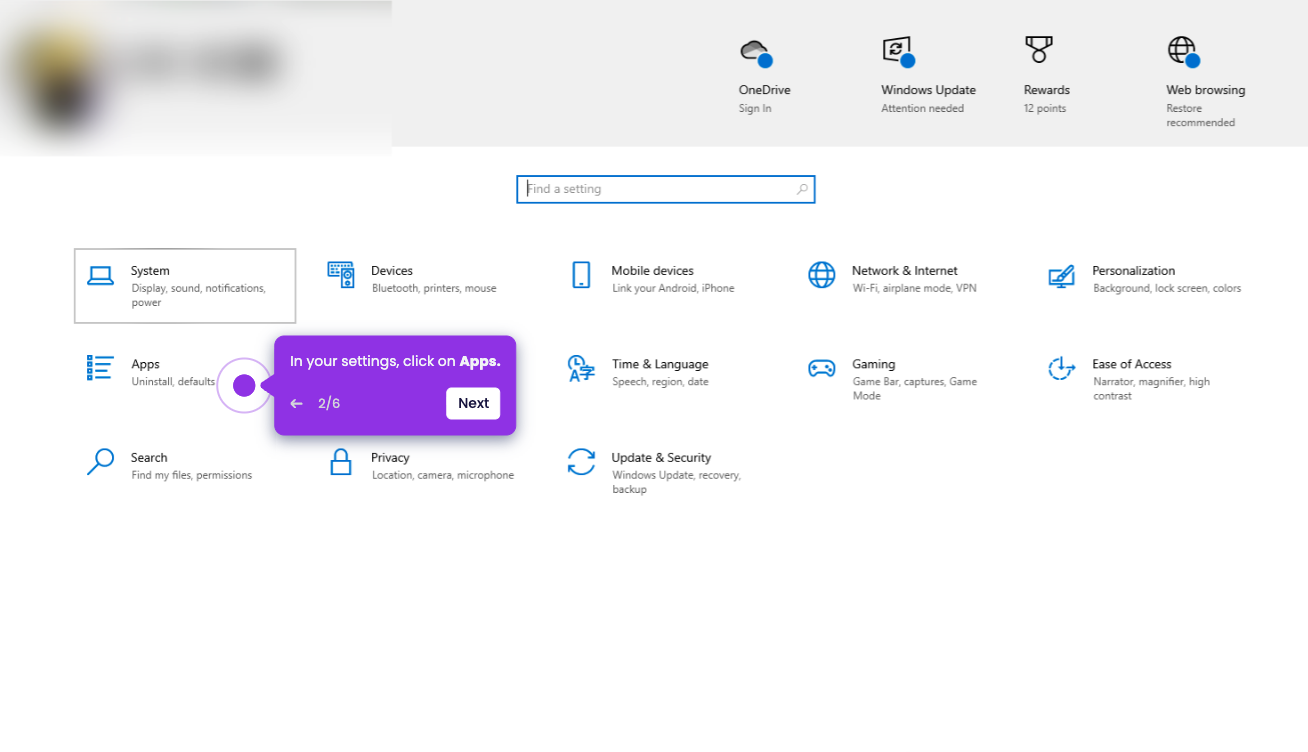
There are three ways to create rules: using the automated chat command, using the Command Palette, or manually creating the files. Rules are stored as .mdc files to give the AI specific project instructions.
- Open your Cursor desktop app and click File from the toolbar.
- Click on Open File and choose a project folder.
- Press Cmd + L (Mac) or Ctrl + L (Windows/Linux) to open the Chat pane, and type "/create-rule" followed by your instruction.
- Press Enter, and the AI will generate the .mdc file with the correct metadata automatically.
- Click on Review the file, and it will automatically be saved.
- You’re all set!