This tutorial shows how to set up a new React project in Replit using the Agent and get it running in the built-in preview.
Notes
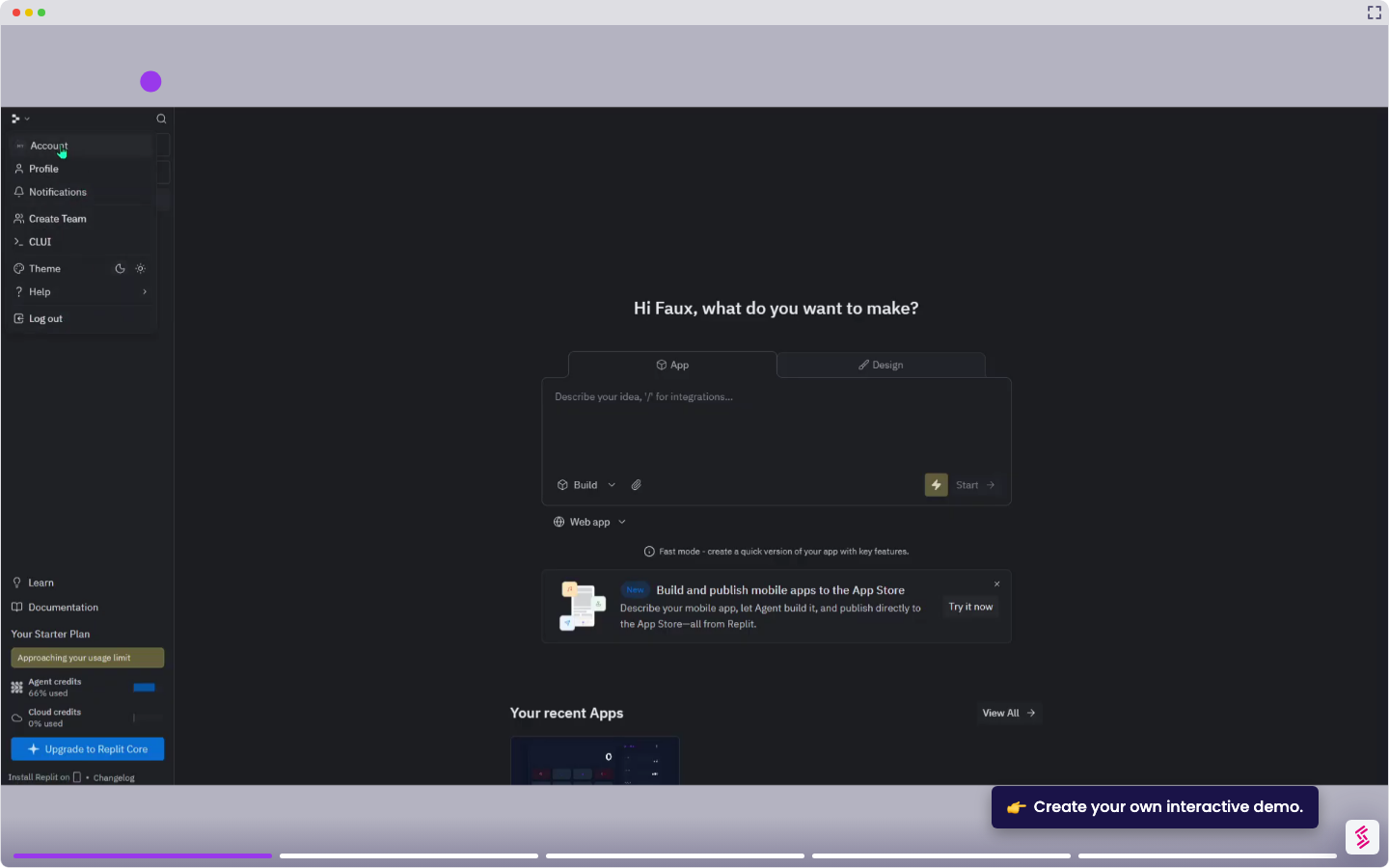
- You need a Replit account to get started. Sign up at replit.com if you don't have one yet.
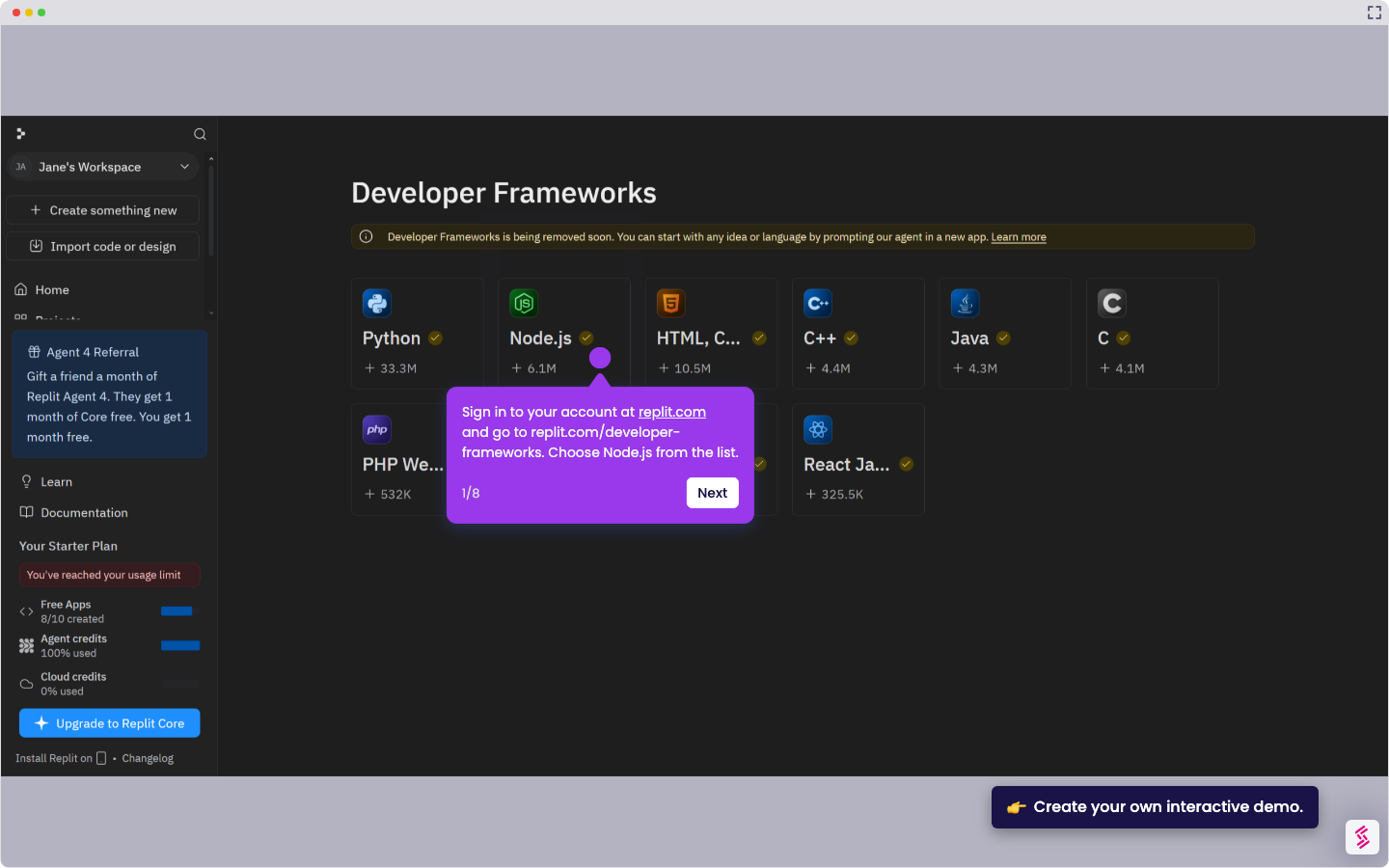
- Replit is phasing out Developer Frameworks. If replit.com/developer-frameworks is unavailable, go to your dashboard, click + Create Something New, and describe your project in the prompt - for example, "Create a Python project with Flask installed." The Agent will set up the environment automatically.
- Sign in to your account at replit.com and go to replit.com/developer-frameworks. Choose React Javascript from the list.
- Click Remix. When the Privacy option prompts, choose the default (Public) and click Use Framework.
- Wait for Replit to set up the environment, then click the Open Files icon in the top-right corner and click File tree.
- Review the generated project structure - Replit creates a src folder containing App.jsx and main.jsx by default. The App.jsx is where your main component logic lives.
- Click App.jsx to open it in the editor and start building your UI - for example, a dashboard component that displays a Q3 performance summary for a SaaS team.
- Click the Run button at the top of the workspace. Replit compiles the app and launches it in the Preview panel on the right.
- To add a package, ask the Agent - for example, "Add React Router to this project" - and it will install it and update your dependencies automatically.