This interactive demo was created free with Storylane in 2 minutes. Create your own demo
Start free
All Tutorials /Power BI

How to Create a Bookmark in Power BI

Updated on:
May 12, 2026
By:
Madhav Bhandari
Use this interactive demo to learn how to save and capture report views as bookmarks in Power BI.

Quick summary

A Power BI bookmark captures the exact state of your report — including filters, visuals, and page layout — so you can save and revisit specific views instantly. Use the Bookmarks pane in Power BI Desktop to create, manage, and navigate between saved report states without manual reconfiguration.


Steps

  1. Open your Power BI Desktop report and set up the view you want to capture.
  2. Go to the View tab in the top navigation ribbon.
  3. Select Bookmarks to enable the Bookmarks panel.
  4. Open the Bookmarks pane and click Add to create a new bookmark.
  5. The bookmark captures the exact state of the report at that moment — your setup is complete.
📌 Why this matters

Power BI bookmarks let report authors and analysts save specific report states — including active filters, slicer selections, and visual configurations — as named snapshots. This makes it easy to build interactive navigation, guided storytelling, and toggle views directly within a report without duplicating pages. For data teams and business users, bookmarks reduce manual work and help deliver cleaner, more dynamic Power BI dashboards. Mastering bookmarks is essential for anyone building production-grade Power BI reports that need to support multiple perspectives or user scenarios.
Your product deserves an interactive demo
Start free
Similar Articles
Power BI

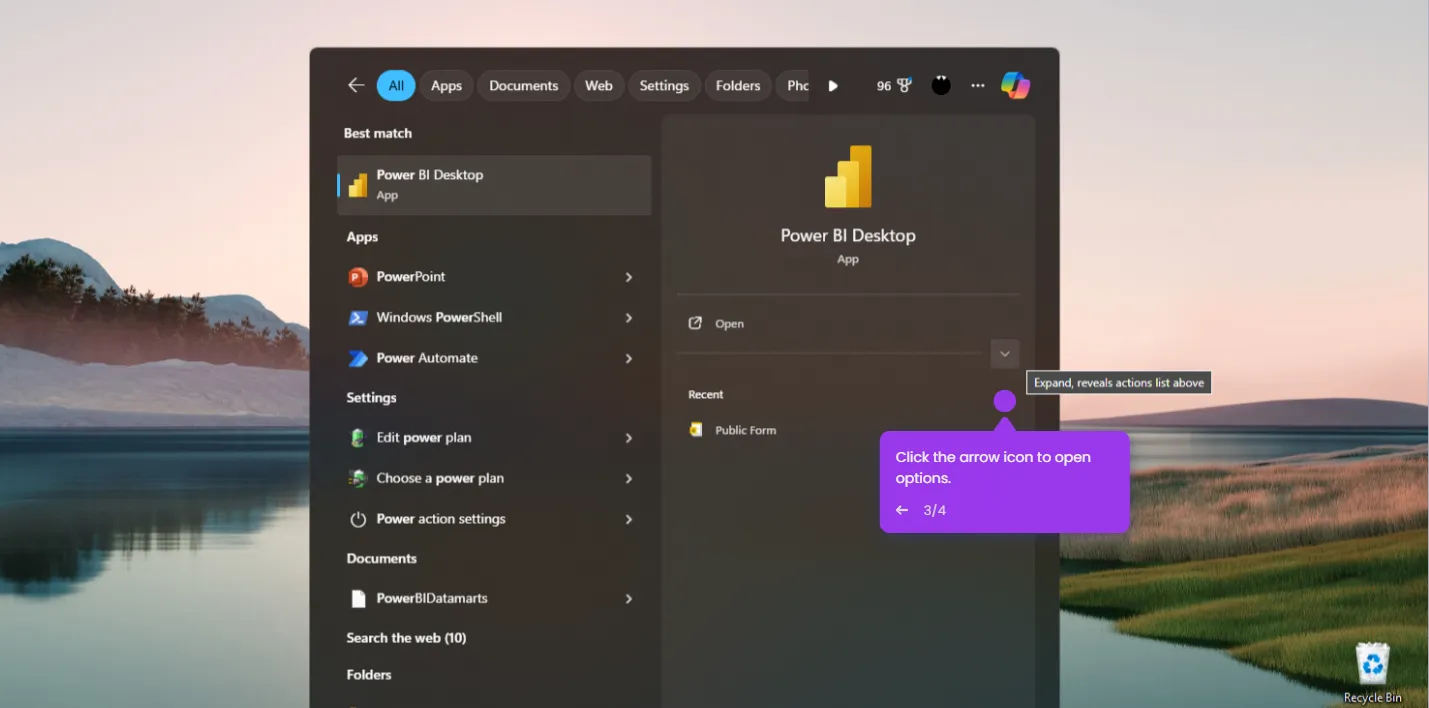
How to Uninstall Power BI

Madhav Bhandari
Director of Marketing @ Storylane
Power BI

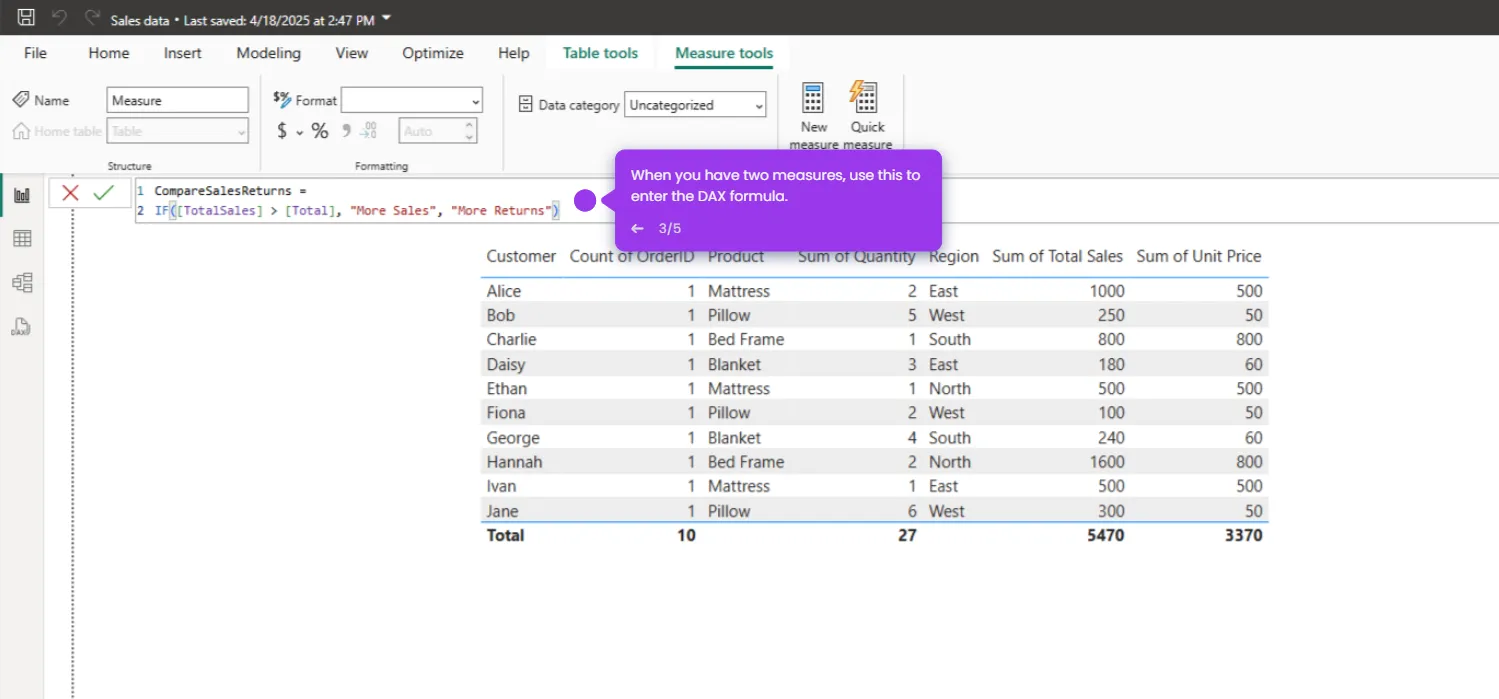
How to Compare Two Measures in Power BI

Madhav Bhandari
Director of Marketing @ Storylane
Power BI

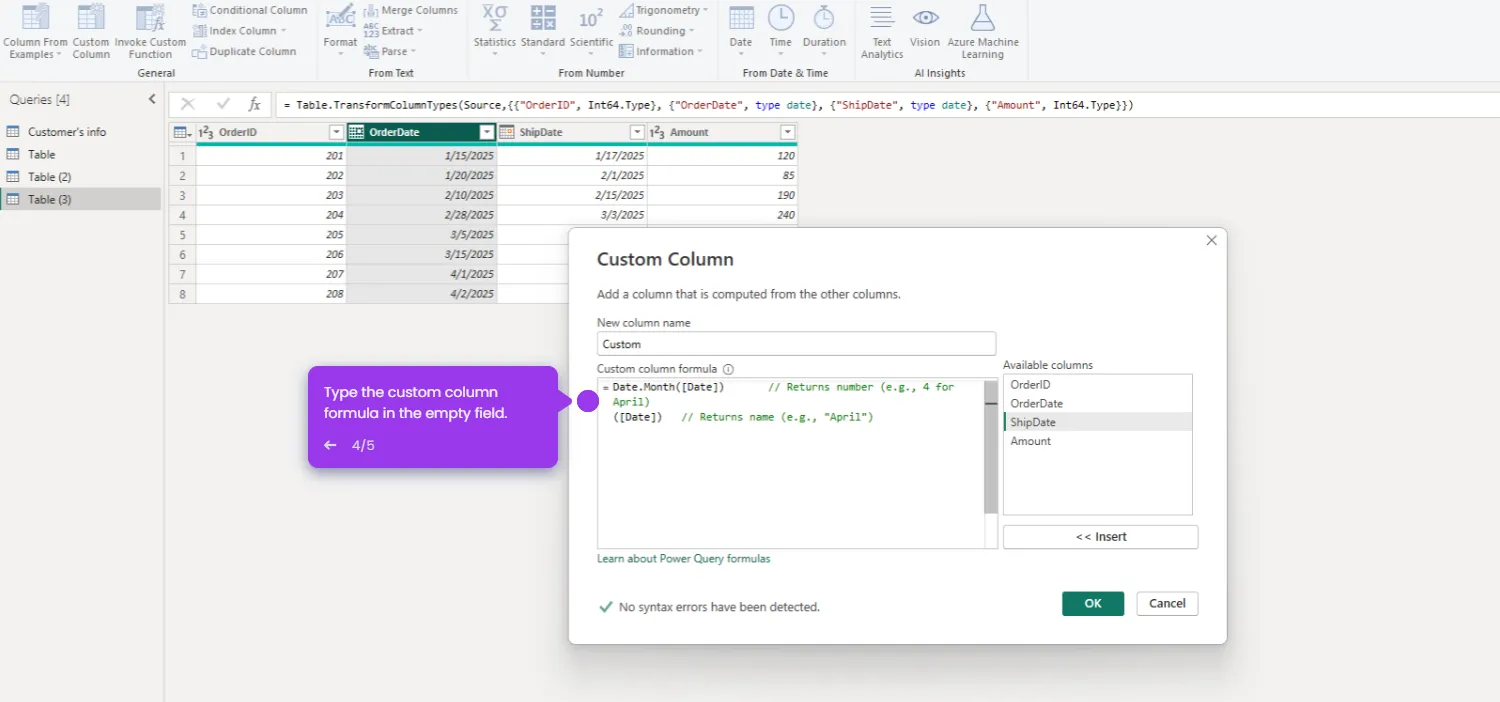
How to Compare Months in Power BI

Madhav Bhandari
Director of Marketing @ Storylane
No items found.
Platform
Interactive Demos
Sandbox Demos
Buyer Hub
RepX
Integrations
Solutions
Product Marketers
Growth & Demand Gen
Sales Reps & AEs
Presales & SEs
Customer Success
Product Managers
Customers
Demo Showcase
Customer Stories
Finer Demos Club
Features
Demo Signals
Personalization
Deal Intelligence
Resources
Blog
The Plot
Tutorials
Events & webinars
Help Docs
What’s New
Demo Dundies
Company
Careers
Pricing
Partners
Contact
Trust Center
Backed by
Chrome Extension Icon
Chrome extension
Download
Desktop app
Download
Built in San Francisco Bay Area - ©2026 Storylane
Privacy PolicyTerms & Conditions
X Corp (formerly Twitter)LinkedIn
This website uses cookies to ensure you get the best experience on our website. Learn More
Got it
This website uses cookies to ensure you get the best experience on our website. Learn More
Got it