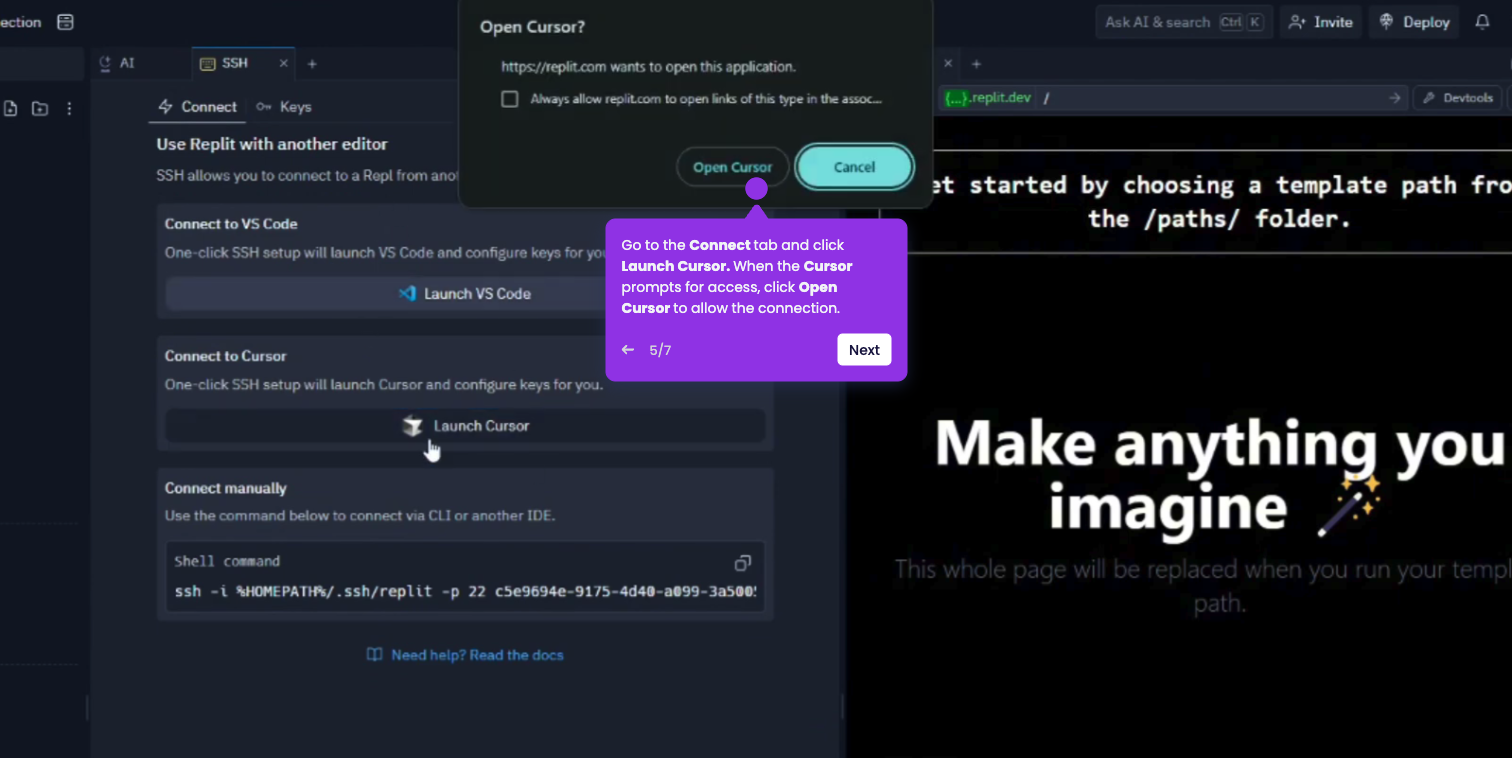
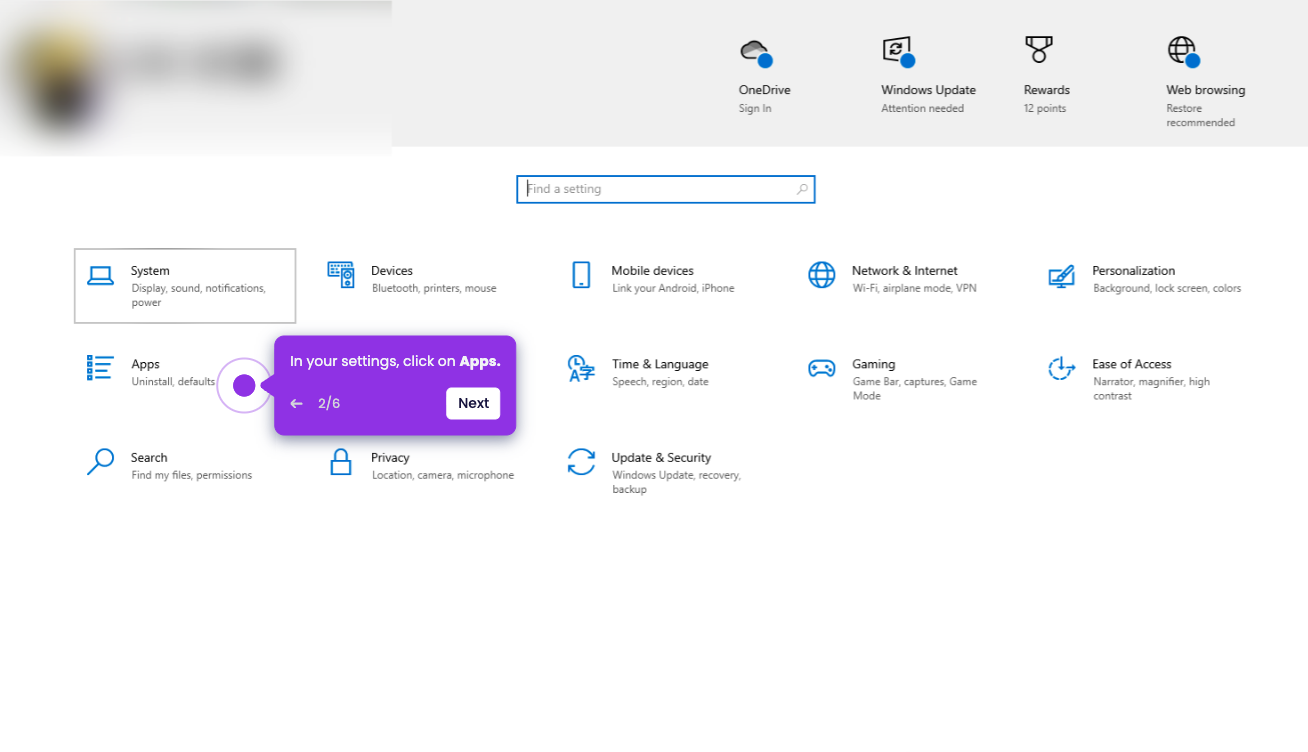
Using OpenRouter with Cursor allows you to access hundreds of models (like DeepSeek, Mistral, or Llama) through a single API key by overriding the default OpenAI settings.
- Navigate to openrouter.ai and sign up or sign in to your account.
- Click on the Get API Key button at the center of the page.
- Generate your unique API key by clicking on Create API key button.
- Initiate your API key creation to start building immediately
- Name your API key for easy identification across projects
- Copy the key immediately and save it in a secure place, as it will be hidden once you close the window.
- Go to your Cursor app and open the Settings by clicking the Gear icon in the top right or pressing Ctrl + Shift + J.
- Click on the Model Selector button located at the bottom left of the chat box, and select Add Models.
- Scroll down until you find the OpenAI API Key section and toggle the switch to On.
- Paste your unique OpenRouter API Key into the provided input field.
- Toggle the switch for Override OpenAI Base URL to On and enter: https://openrouter.ai/api/v1
- Scroll back to the top of the Models page and click the + Add Custom Model button.
- Enter the exact Model ID from OpenRouter (such as deepseek/deepseek-chat) and press Enter.
- To use the model for your current task, open the Chat (Ctrl + L) or Composer (Ctrl + I).
- Select the newly added model from the model dropdown at the bottom.