The official way to connect Figma to Cursor is via the Figma MCP Server. This allows the AI to "read" your design frames, variables, and auto-layout settings directly to generate accurate code.
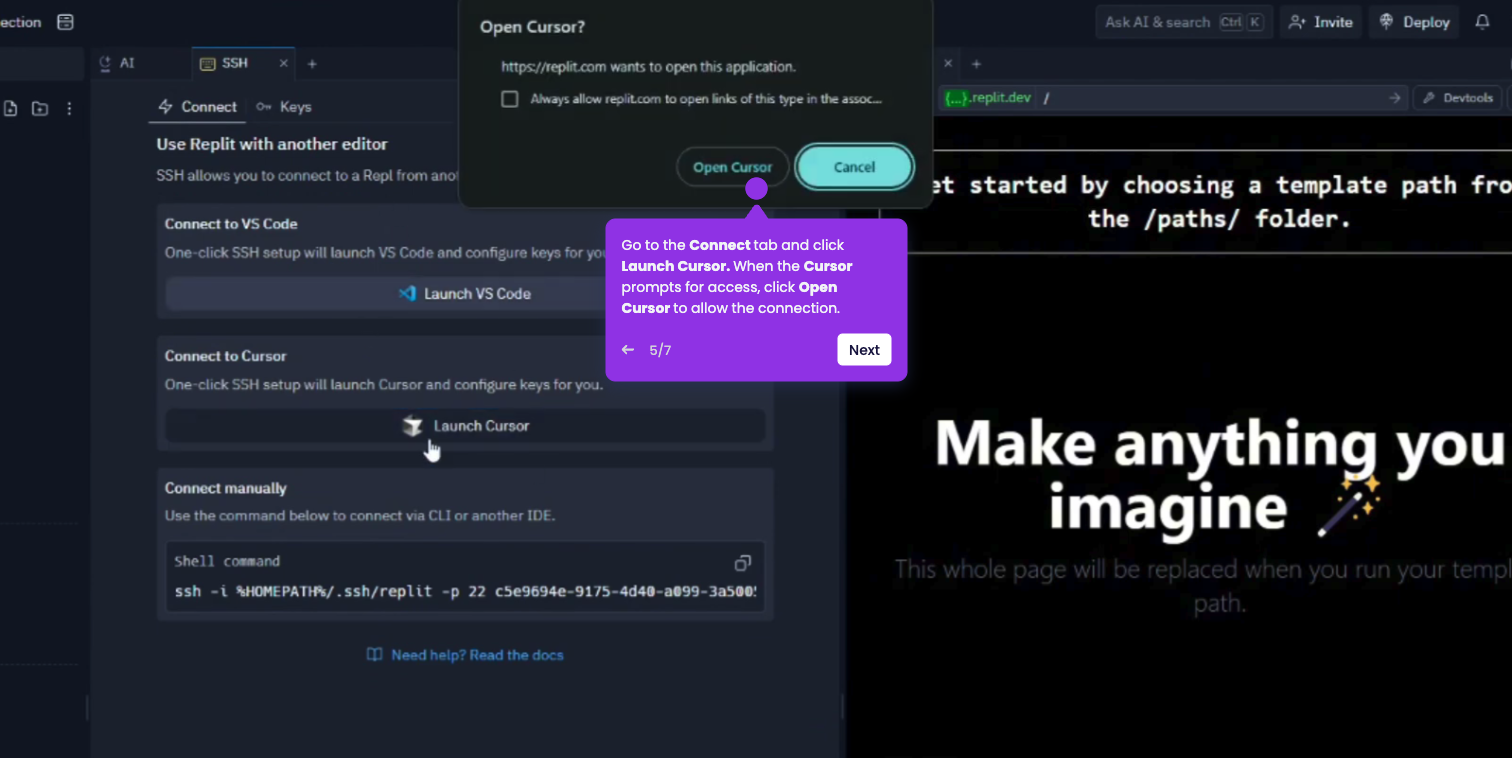
- Open the Cursor application on your computer.
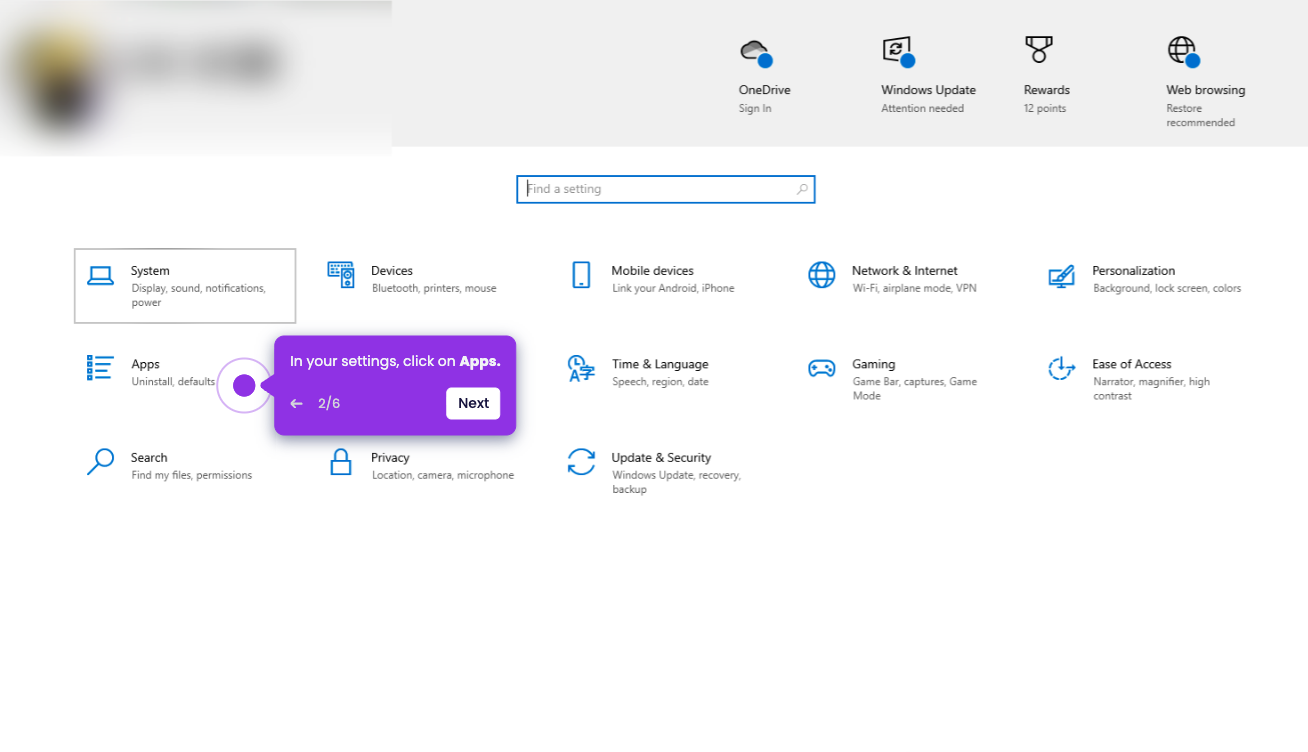
- Click File from the toolbar, and select Preferences.
- Select Cursor Settings from the submenu.
- Click on the Tools & MCP (or just MCP) tab in the sidebar.
- Click the + Add Custom MCP (or New MCP Server) button.
- In the file that opened, type in the following exact code.
- Go back to Tools & MCP, and click the Connect button that appears next to "figma."
- A browser will open; Log in to your Figma account to authorize the connection.
- Once authorized, return to Cursor and ensure the status light for Figma is Green.