This tutorial shows you how to update your LastPass master password from your vault settings.
Note: You will be logged out of LastPass immediately after saving your new master password. Make sure your new password is at least 12 characters and includes uppercase letters, lowercase letters, numbers, and symbols. Avoid personal information, repeated characters, or sequential patterns like "1234."
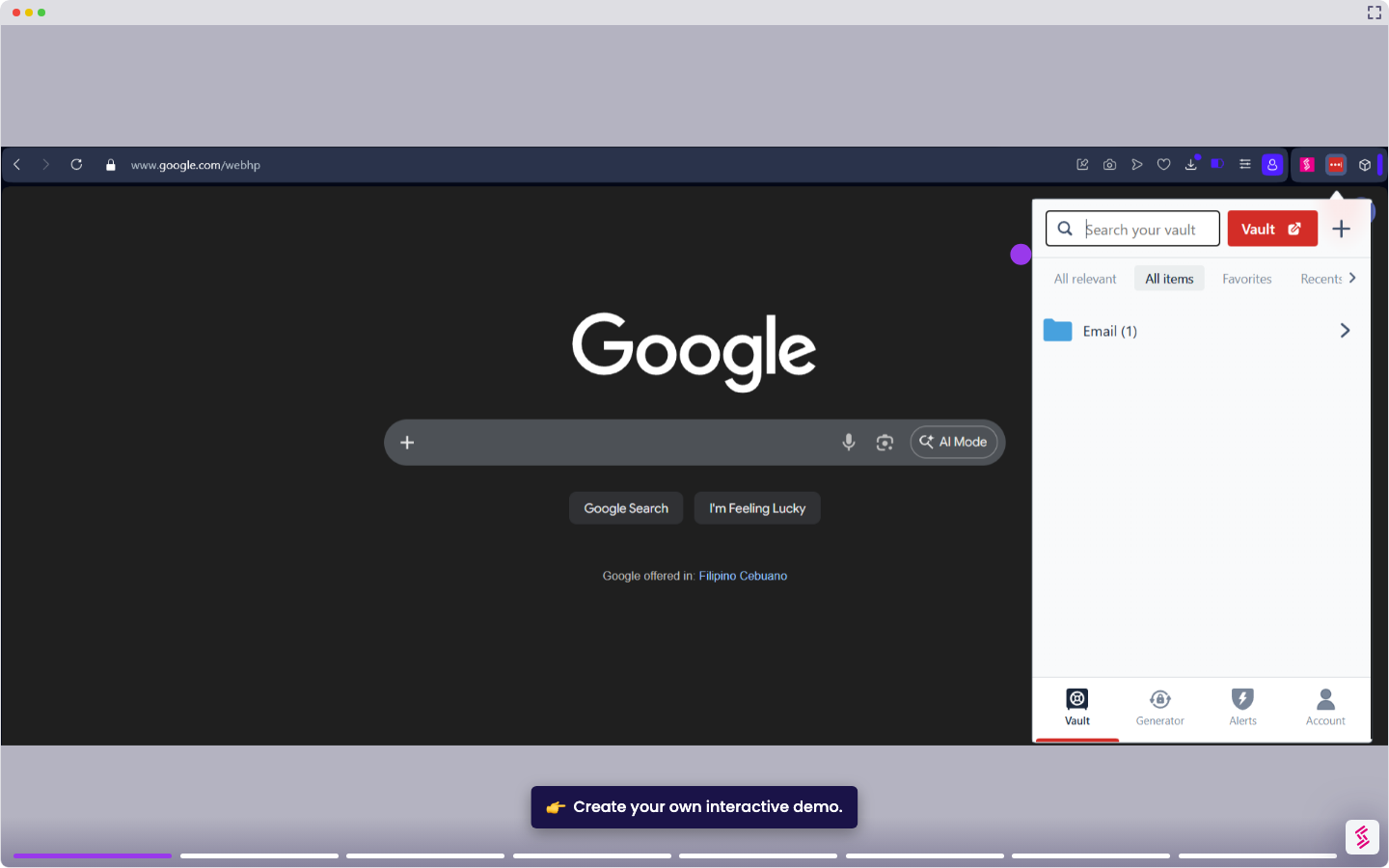
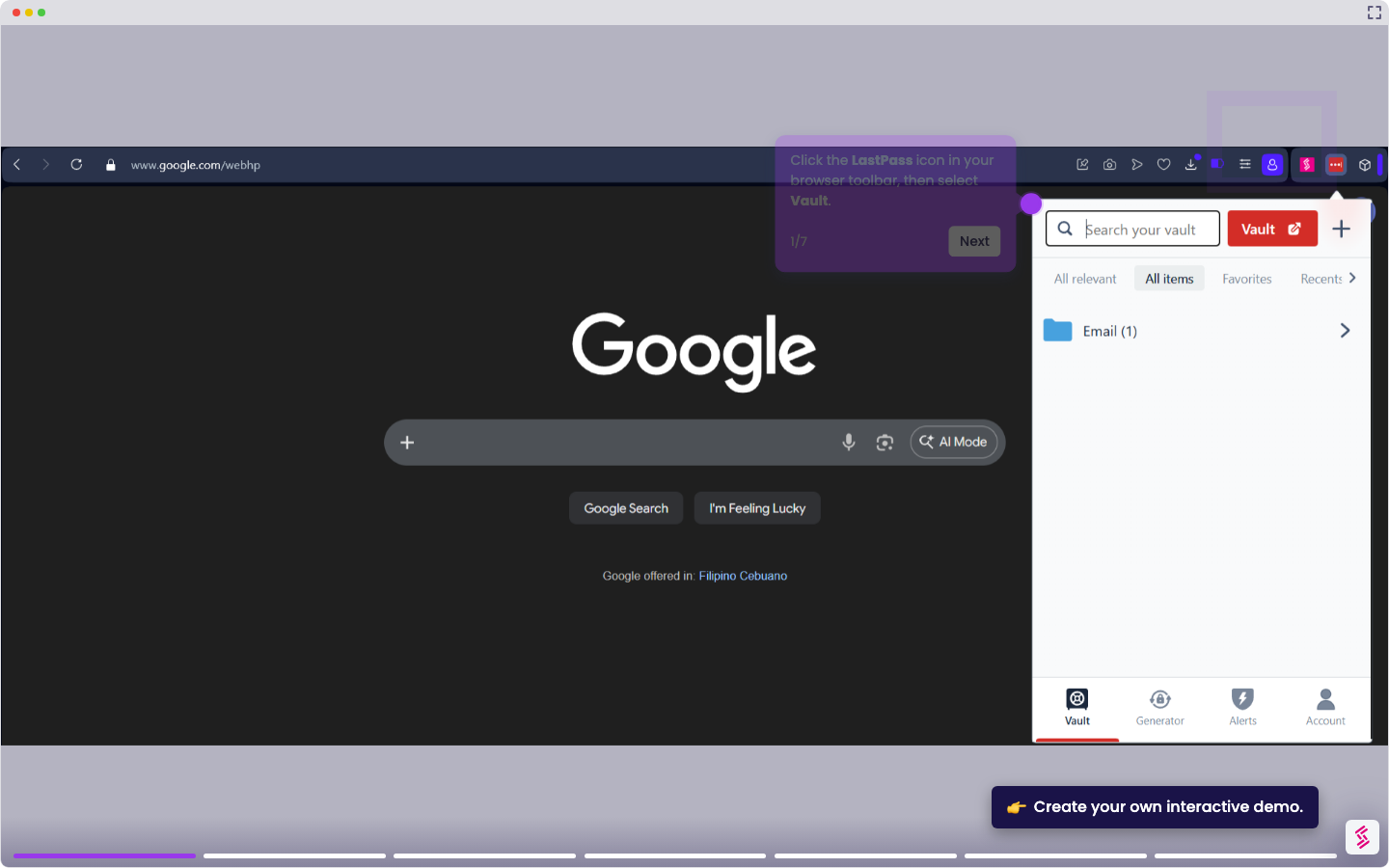
- Click the LastPass icon in your browser toolbar, then select Vault.
- Click Account settings in the left navigation menu.
- On the General tab, click Change Master Password under Login Credentials.
- Enter your Old Master Password, then create and enter your new Master Password.
- Enter a Reminder hint to help you recover access if you forget your master password, click Continue, and then LastPass will log you out automatically.
- Log back in using your new Master Password