Quick summary
This demo walks you through building a job board app in Softr without writing any code, from creating a new app to publishing a fully functional job listing page. You will connect an external data source, configure page content, and preview your site before going live.
Steps
- Navigate to the left sidebar of the app editor and click 'Apps.'
- Click the 'Create New App' button to start the project.
- Choose 'Start from scratch' from the given options.
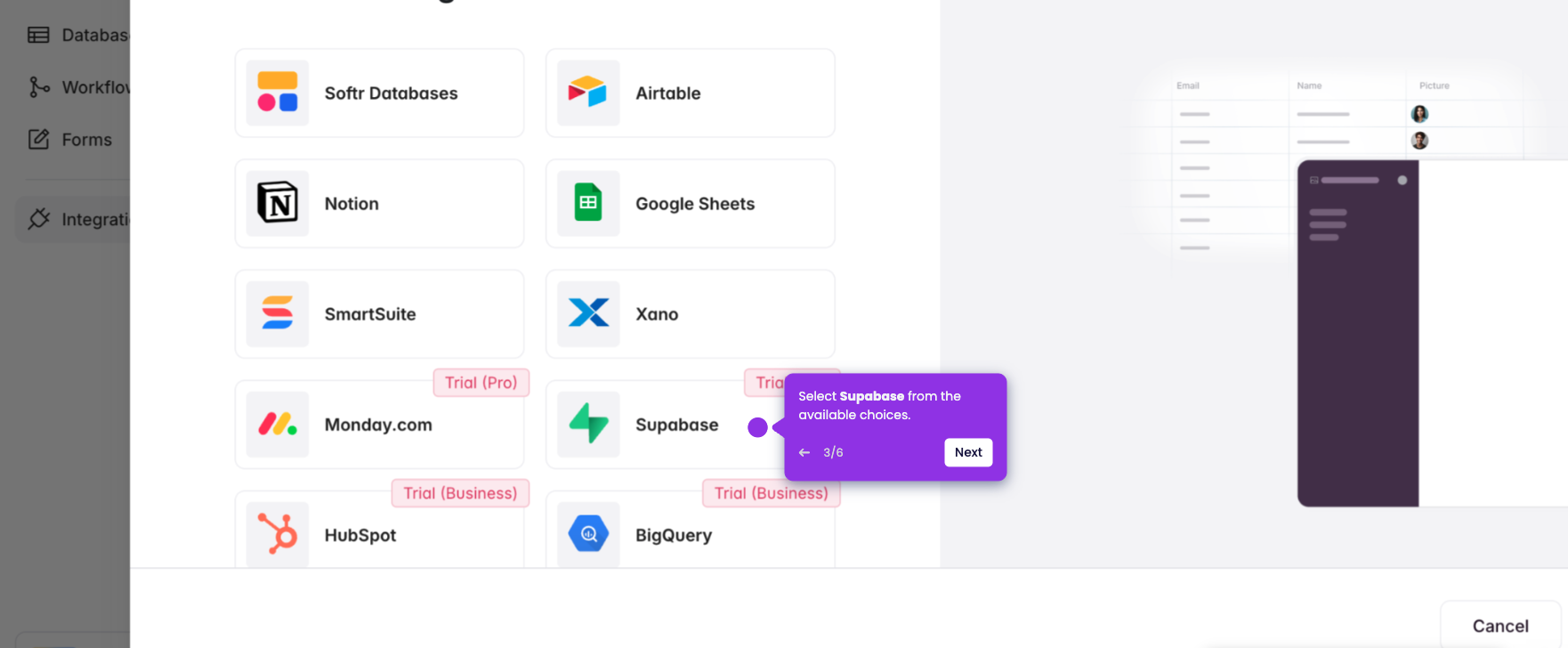
- Connect to an external source to integrate your job data, or click 'Connect later' to create your interface first.
- From the left-side panel, click 'Pages.'
- Add a new page by clicking the '+' button.
- Rename the page and click 'Save.'
- Select an external data source to import the job data required for this page.
- Review job details uploaded to confirm the data is correct.
- Further customize the job page under 'Content', 'Actions', 'Style', and 'Visibility' — for example, adding a search bar, enabling an item details page, and adding a job-related URL link.
- Click 'Preview' to temporarily view the page details.
- After finalizing, return to the workspace and click 'Publish' to make your job board live.