This interactive demo was created free with Storylane in 2 minutes. Create your own demo
Start free
All Tutorials /LastPass

How to Back Up LastPass Vault

Updated on:
June 5, 2026
By:
Madhav Bhandari
Use this interactive demo to learn how to back up your LastPass vault.

‍

This tutorial shows you how to export your LastPass vault as an encrypted backup file that you can restore directly into LastPass.

Notes

  • If you have a LastPass Teams or Business account, your admin may have disabled the export option. Check with your admin if the option is unavailable.
  • Store your encryption key somewhere safe. It cannot be recovered if forgotten, and you will need it to restore your backup into LastPass.
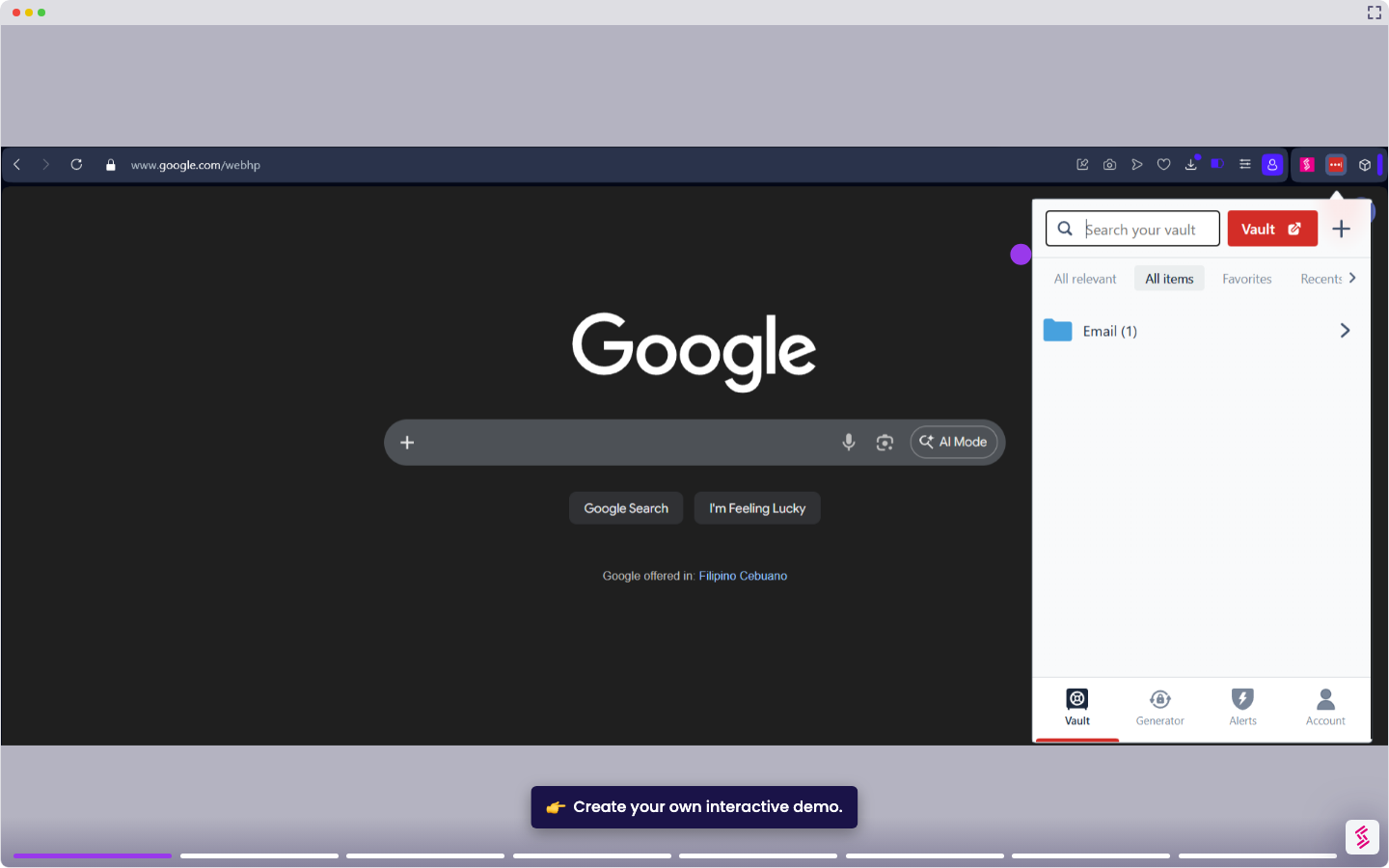
  1. Click the LastPass icon in your browser toolbar and select the Account tab.
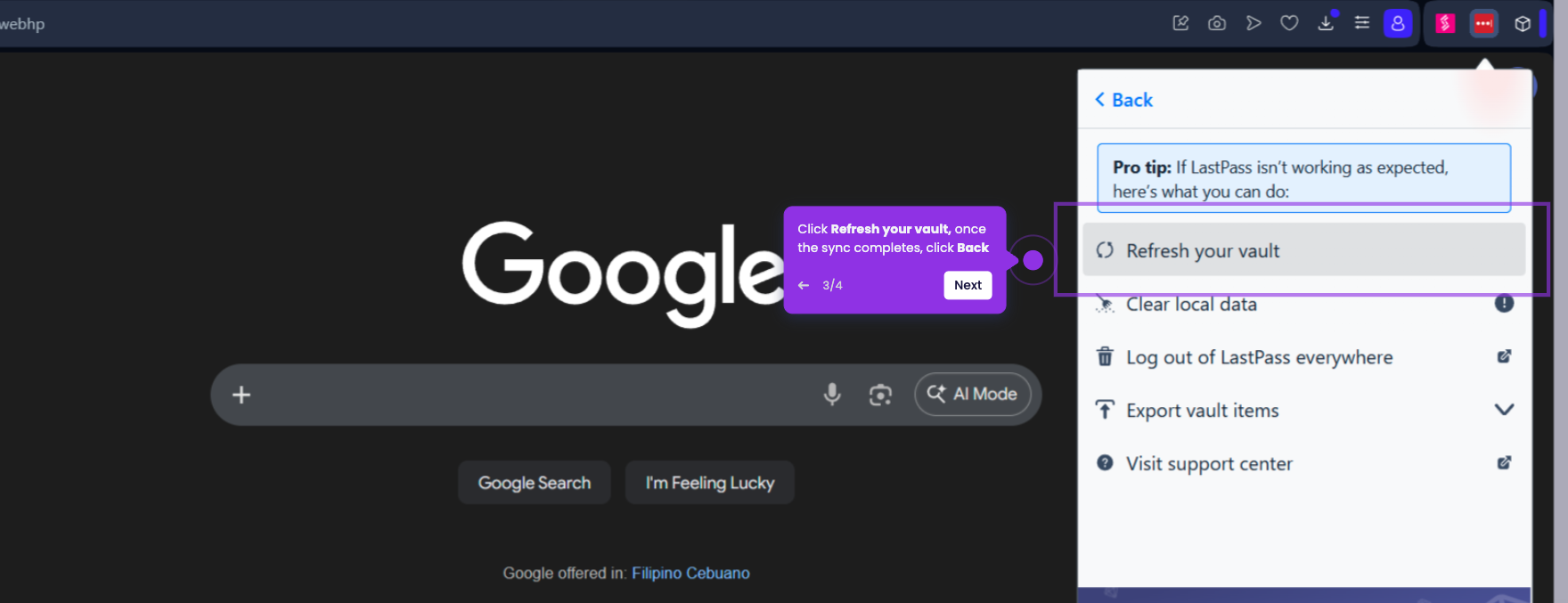
  2. Go to Fix a problem yourself, then go to Export vault items, and click Export encrypted data for backup
  3. Create an encryption key and confirm it. The key must be at least 12 characters and include at least one number, one uppercase letter, and one lowercase letter. Click Continue to proceed.
  4. When prompted, enter your master password to authorize the export, then click Continue. You have successfully exported an encrypted version of your LastPass vault data in CSV format.

📌 Why this matters

Creating an encrypted backup gives you control over your password data beyond LastPass's cloud storage. You can store copies locally, use them for account recovery when normal reset methods fail, or migrate to other password managers without losing years of saved credentials. Unlike standard exports that create readable CSV files, encrypted backups preserve your security while remaining compatible with LastPass restoration tools. This becomes essential when facing account lockouts, service disruptions, or if you need to prove data ownership during security audits.

Your product deserves an interactive demo
Start free
Similar Articles
LastPass

How to Add a Site to LastPass

Madhav Bhandari
Director of Marketing @ Storylane
LastPass

How to Disable LastPass

Madhav Bhandari
Director of Marketing @ Storylane
LastPass

How to Refresh LastPass Vault

Madhav Bhandari
Director of Marketing @ Storylane
No items found.
Platform
Interactive Demos
Sandbox Demos
Hubs
RepX
Integrations
Solutions
Product Marketers
Growth & Demand Gen
Sales Reps & AEs
Presales & SEs
Customer Success
Product Managers
Customers
Demo Showcase
Customer Stories
Finer Demos Club
Features
Demo Signals
Personalization
Deal Intelligence
Resources
Blog
The Plot
Tutorials
Help Docs
What’s New
Demo Dundies
Company
Careers
Pricing
Partners
Contact
Trust Center
Backed by
Chrome Extension Icon
Chrome extension
Download
Desktop app
Download
Built in San Francisco Bay Area - ©2026 Storylane
Privacy PolicyTerms & Conditions
X Corp (formerly Twitter)LinkedIn
This website uses cookies to ensure you get the best experience on our website. Learn More
Got it
This website uses cookies to ensure you get the best experience on our website. Learn More
Got it