This is a step-by-step guide on how to automate team workflows in Softr:
- In the Apps Editor, select ‘Workflows’ from the left sidebar to manage or create team workflows automations.
- Choose a trigger to define the starting point of your workflow.
- After selecting the trigger type, choose a specific trigger event.
- Configure the settings for the selected trigger to define how it should function.
- In this tutorial, a database is used; therefore, a database and table are required to input data that will trigger the event.
- Click 'Continue' to proceed.
- Click ‘Test’ to verify the configuration and ensure data flows correctly within your application.
- Wait for a success confirmation before proceeding to the next step.
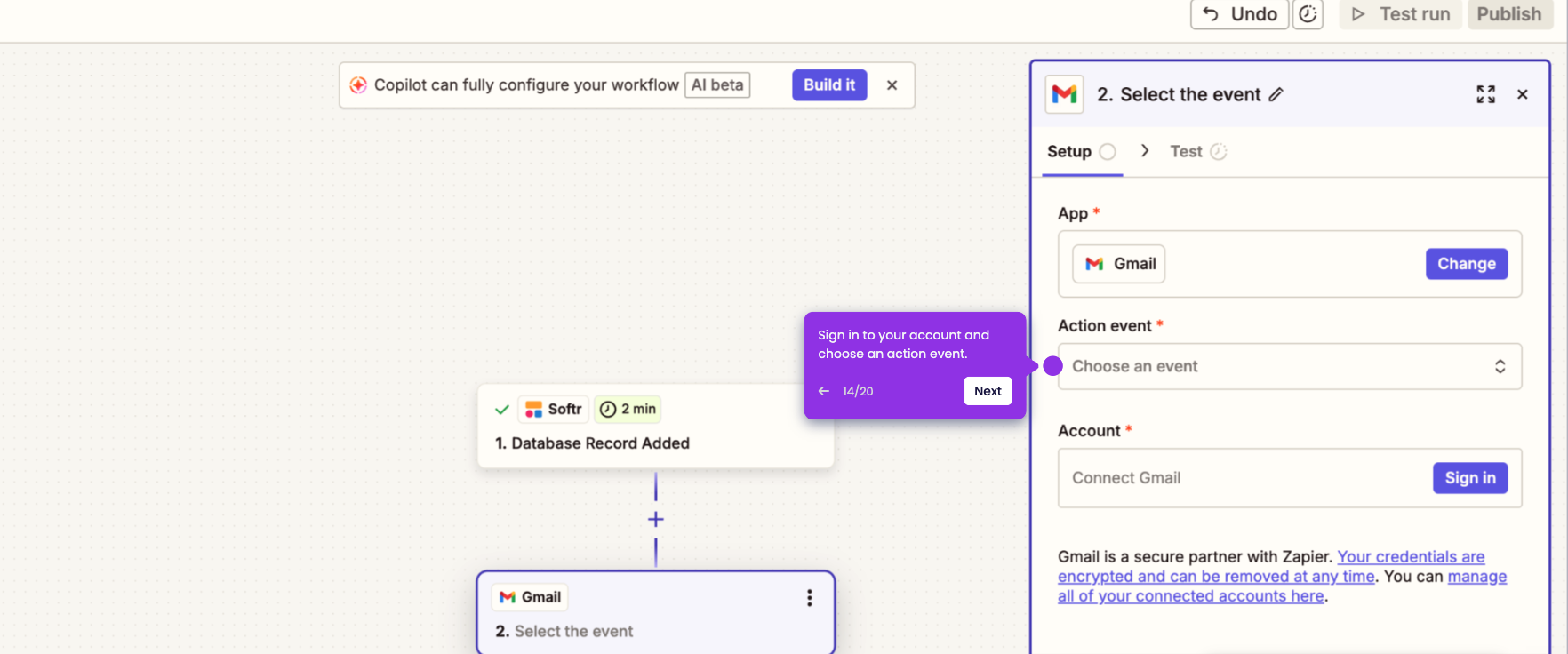
- Now, select an Action event to define what should happen when the trigger occurs.
- Once selected, fill in the required details and click ‘Continue’ to proceed.
- Click ‘Test’ to ensure your automation functions perfectly before publishing.
- Wait for a success confirmation before moving on to the next step.
- To create another automation with the same workflow, click the ‘+’ icon.
- To create another automation with the same workflow, click the ‘+’ icon.