It is very easy to append a row in Google Sheets in n8n. Here’s a quick guide on how to do it in simple steps:
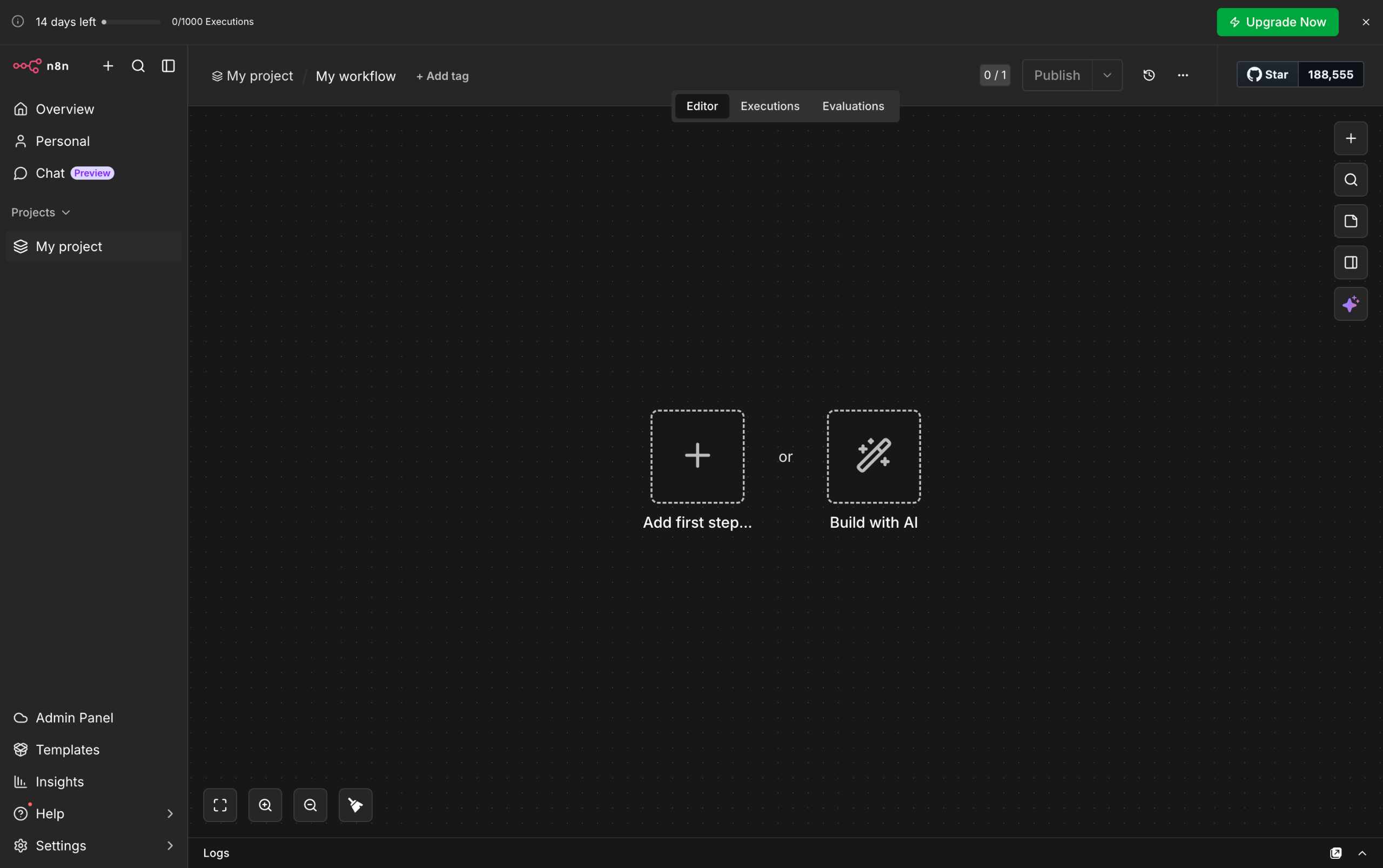
- Inside your n8n workflow, click the 'Add' button to create a new step.
- After that, click 'Action in an App'.
- Find and select 'Google Sheets' from the list of options.
- Under the Sheet Within Document Actions section, tap 'Append Row in Sheet'.
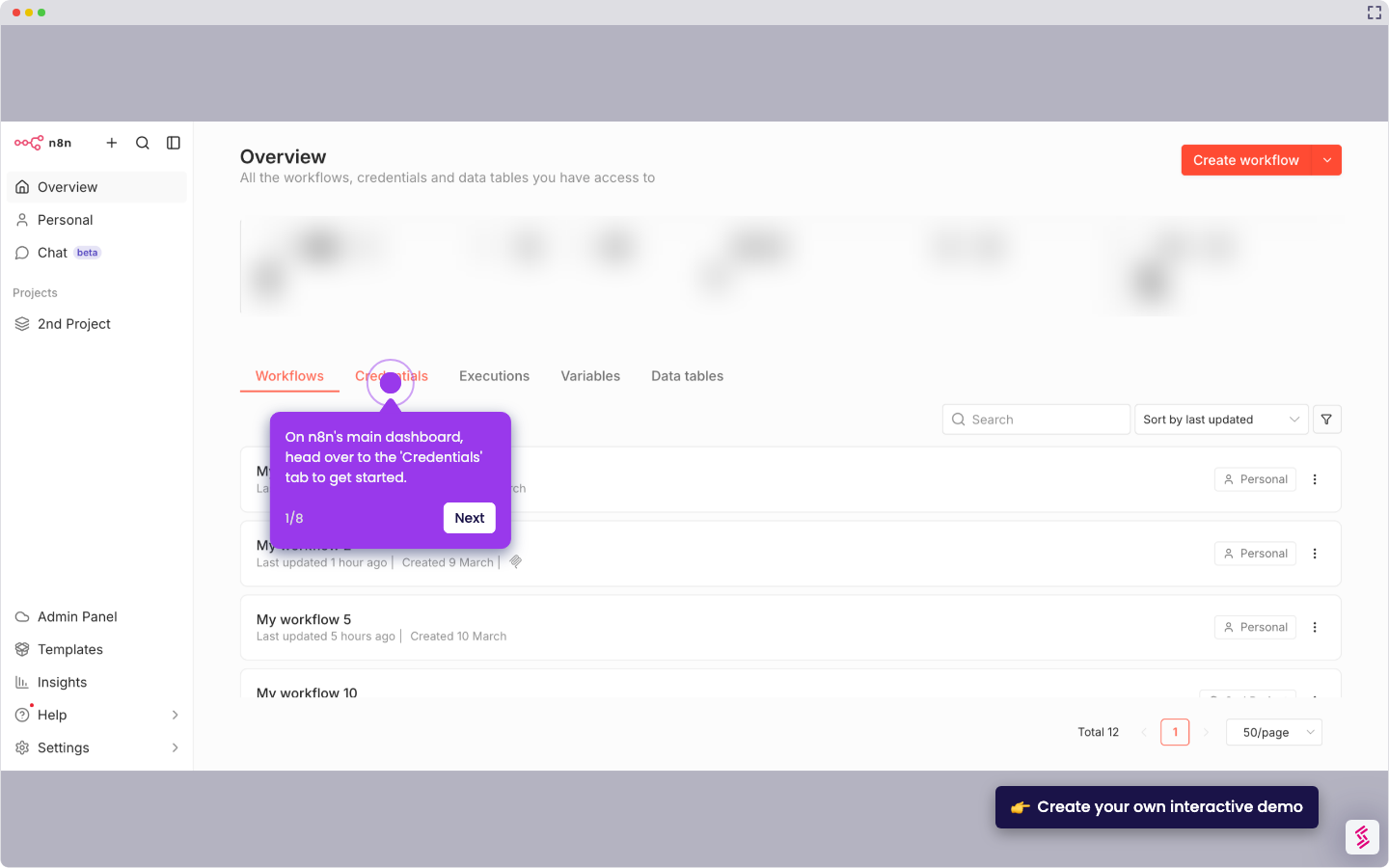
- Now, it's time to configure the selected node. To get started, click the 'Credentials' menu and select the Google account that contains the spreadsheet you want to edit.
- As for the Resource and Operation, make sure that 'Sheet Within Document' and 'Append Row' are selected respectively.
- Tap the 'Document' menu afterwards and choose the spreadsheet you want to edit.
- Subsequently, click the next menu and select the sheet you want to edit.
- Specify how you wish to map the columns. Click on its corresponding menu and choose one from the given choices.
- Provide the values you want to add to your spreadsheet.
- Once done, click 'Execute Step' to proceed.
- Finally, the selected Google Sheets row will be appended according to your input.