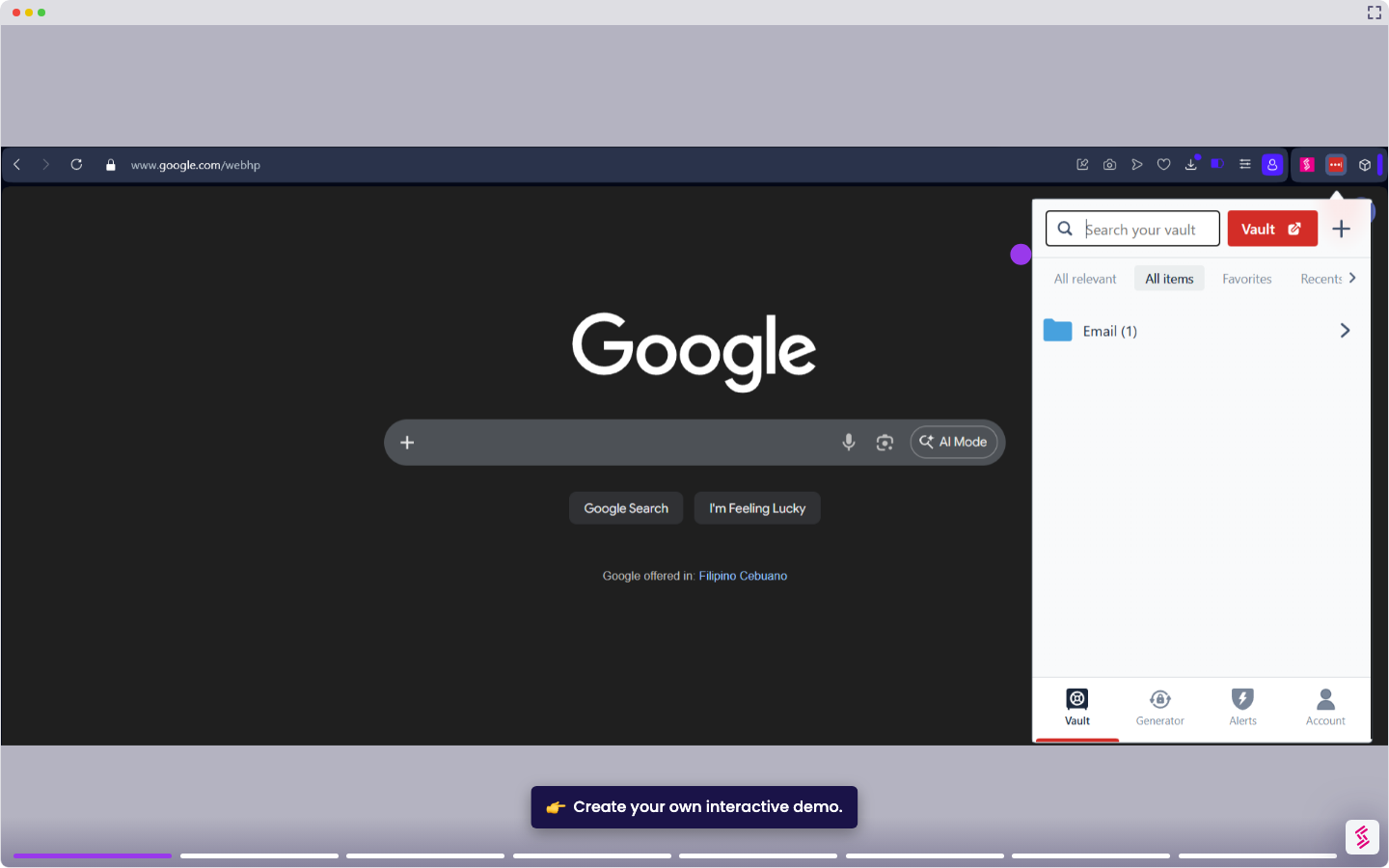
This tutorial covers how to manually add a password to your LastPass vault.
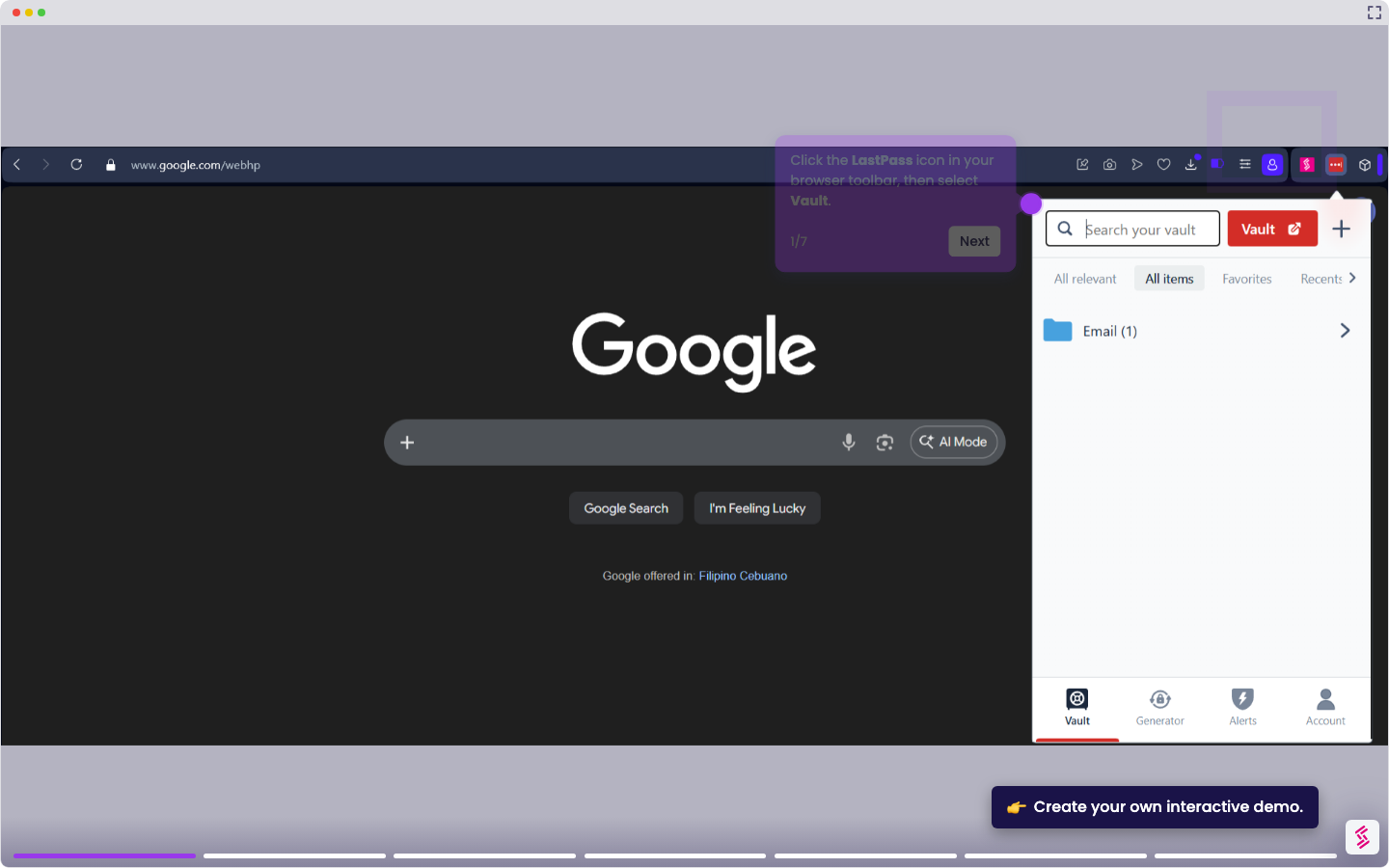
- Click the LastPass icon in your browser toolbar, then click Vault.
- Click Add Item in the bottom-right corner of the vault.
- Select Password from the item type list.
- Enter a name for the item in the Name field. For example, "Client Portal - Acme Corp". This is the label you will see in your vault, so make it recognizable.
- Enter the website address in the Site URL field. LastPass uses this to match the saved credentials to the correct site when autofill is triggered.
- Enter your username or email address in the Username field.
- Enter your password in the Password field. Click the eye icon to verify it before saving. Click Save to store the credential in your vault. Repeat the process to add more passwords manually.