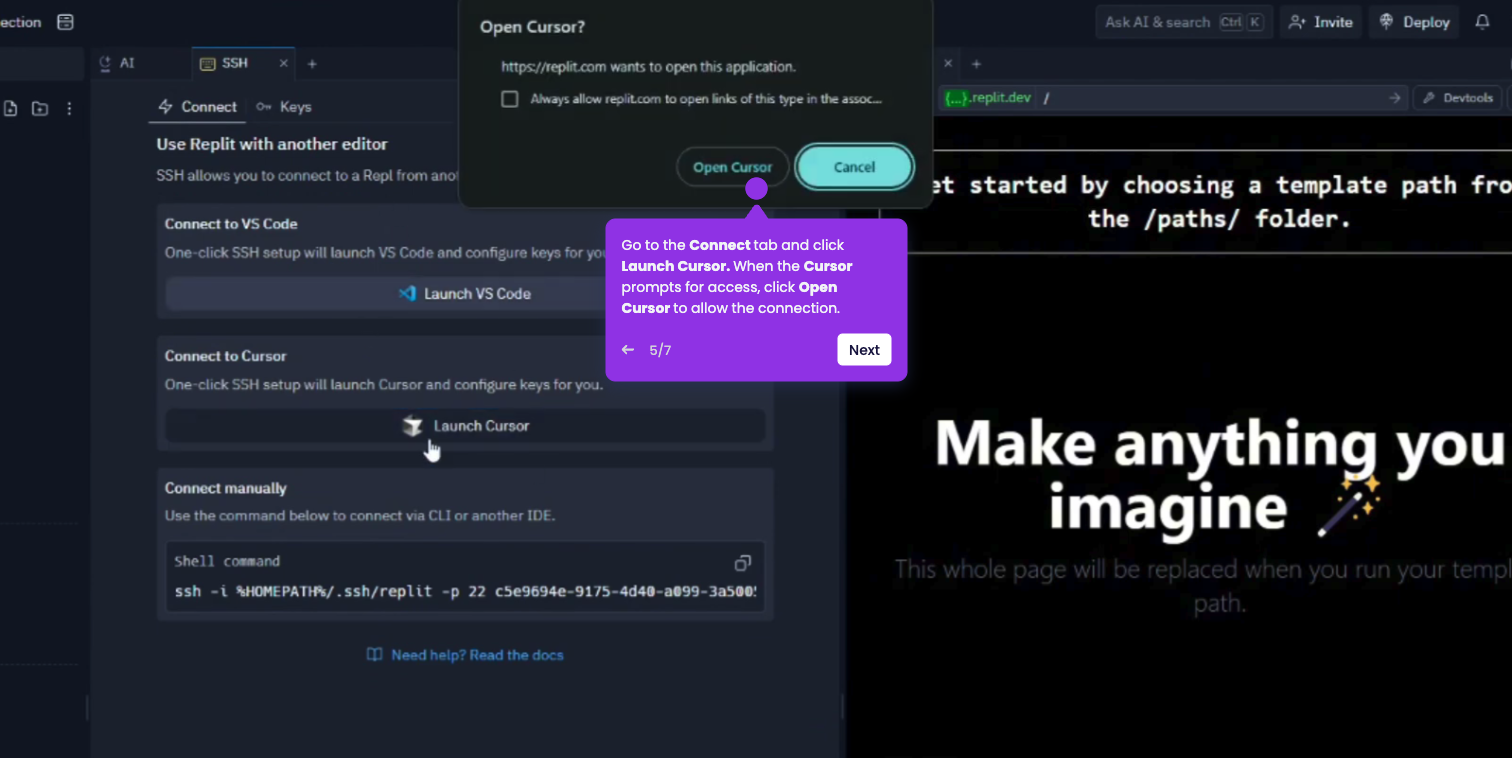
Model Context Protocol (MCP) servers allow Cursor to connect to external tools like Google Search, Slack, or your local databases. You can add them globally for all projects or locally for just one specific folder.
- Open the Cursor application on your computer.
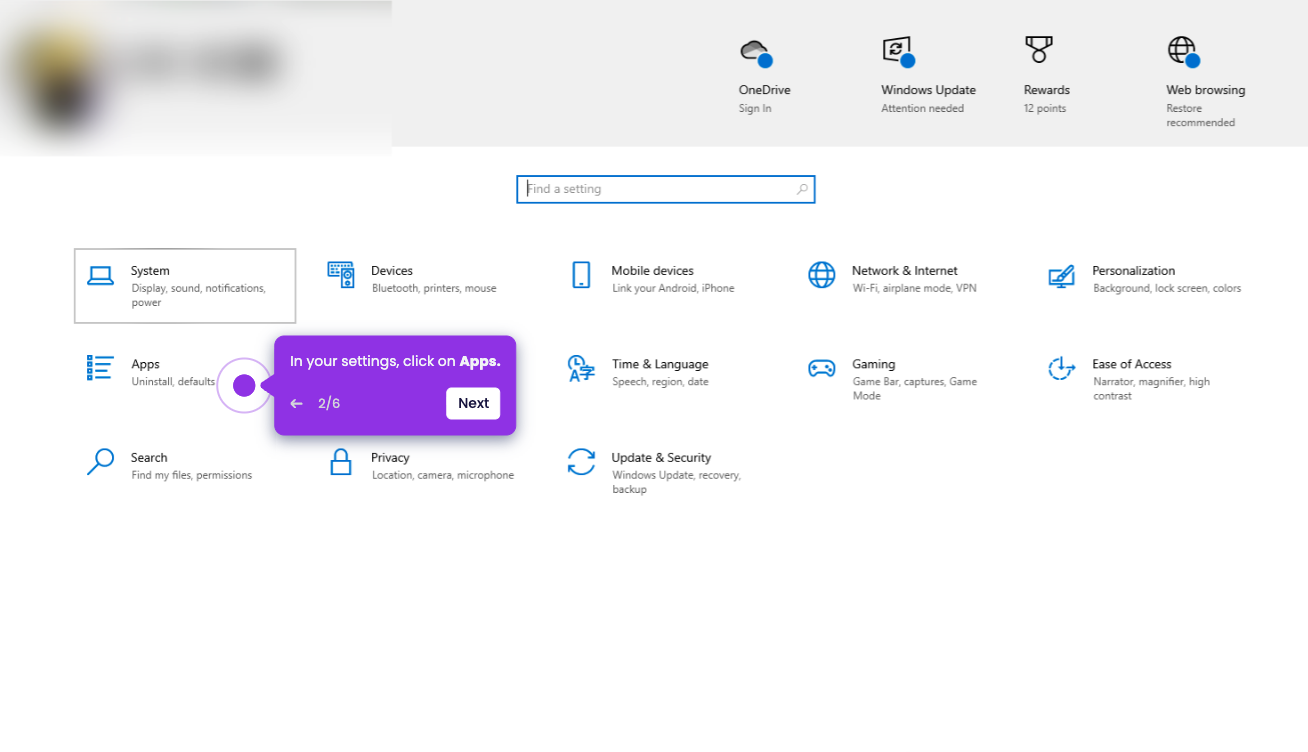
- Click File from the toolbar, and select Preferences.
- Select Cursor Settings from the submenu.
- Click on the Tools & MCP (or just MCP) tab in the sidebar.
- Click the + Add Custom MCP (or New MCP Server) button.
- Select stdio (local tools) or SSE/HTTP (remote), name your server (e.g., "github-tools"), then enter the command (npx) or URL.
- Check the status indicator in the settings—a green dot means the server is connected and ready.