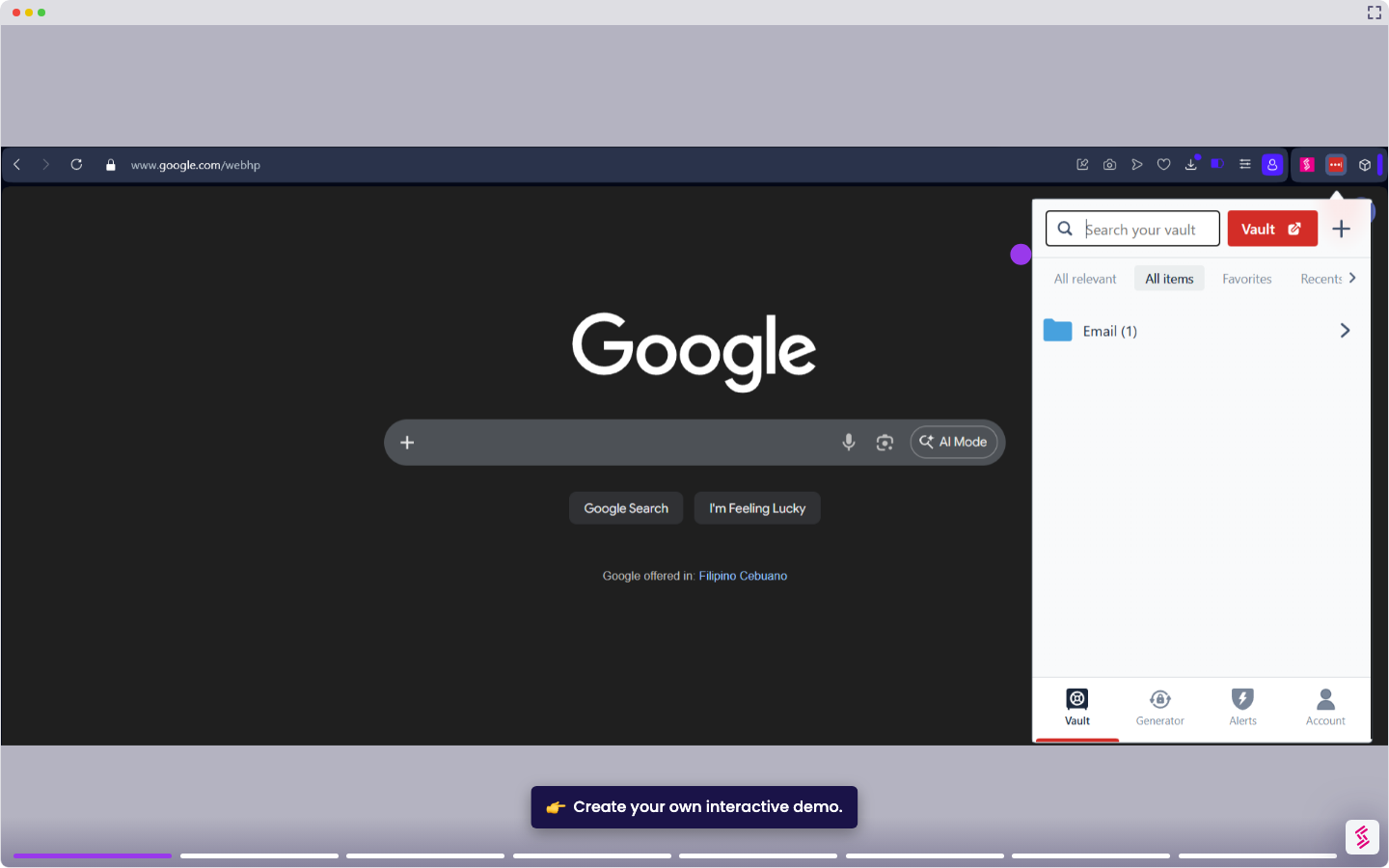
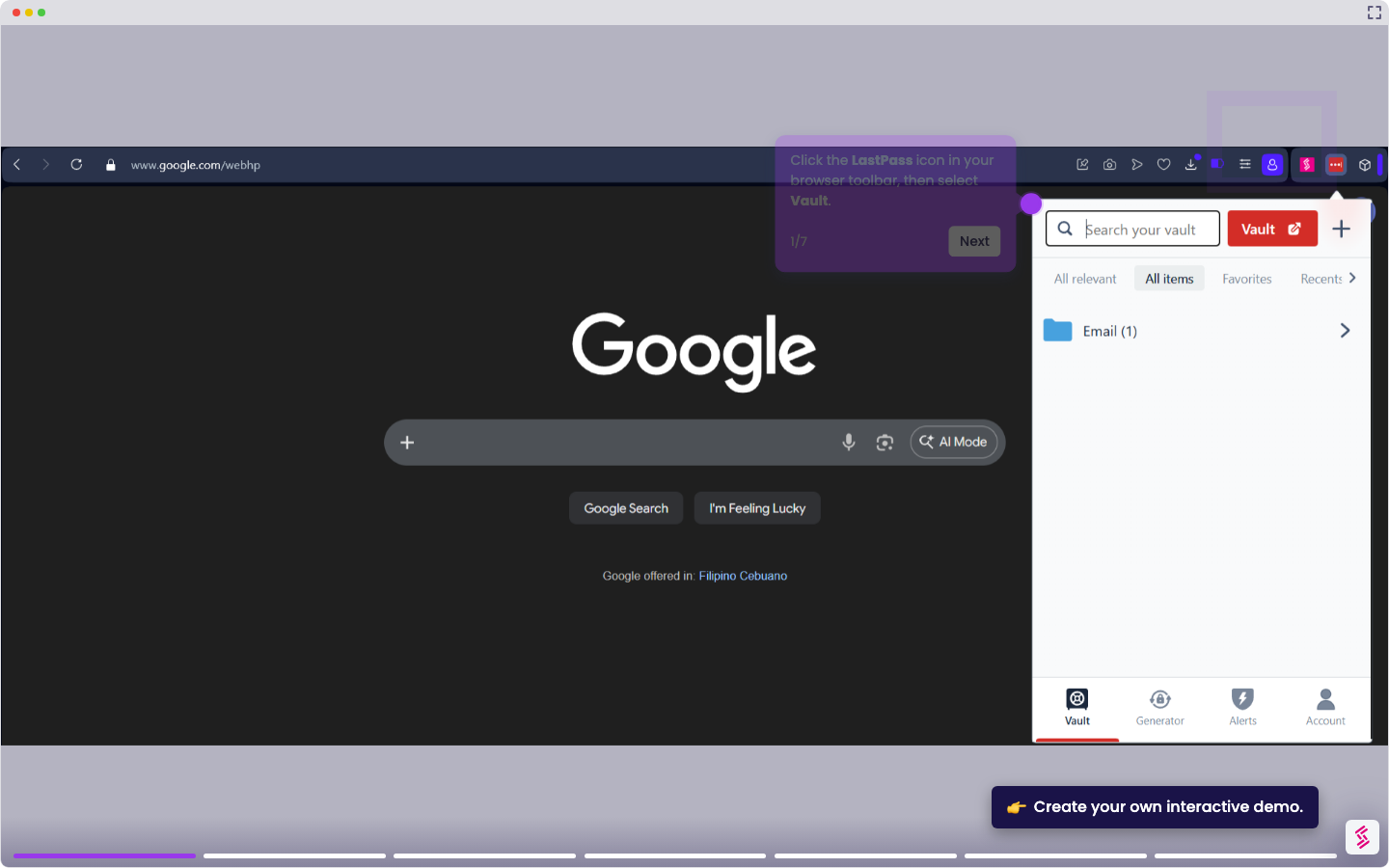
This tutorial shows how to install the LastPass extension in Chrome, pin it to the toolbar, and start saving and autofilling credentials.
Note: You need a LastPass account to use the extension. A free account is sufficient for single-device use; a Premium or Teams plan is required for multi-device sync and sharing.
- Go to the Chrome Web Store (chrome.google.com/webstore) and type "LastPass" in the search bar.
- Click the LastPass: Free Password Manager listing in the results.
- Click Add to Chrome, then click Add extension in the confirmation dialog. Chrome installs the extension and adds the LastPass icon to your browser.
- Click the Extensions icon (the puzzle piece) in the Chrome toolbar, then click the pin icon next to LastPass to keep it visible in your toolbar.
- Click the LastPass icon in the toolbar and sign in to your account, or click Create an account to register a new one.