To have the Dynamics 365 button appear on the Outlook ribbon, you must download Dynamics 365 through add-ins. Here’s how:
- Open your Outlook account and go to the add-ins icon.
- Click 'Add apps+'.
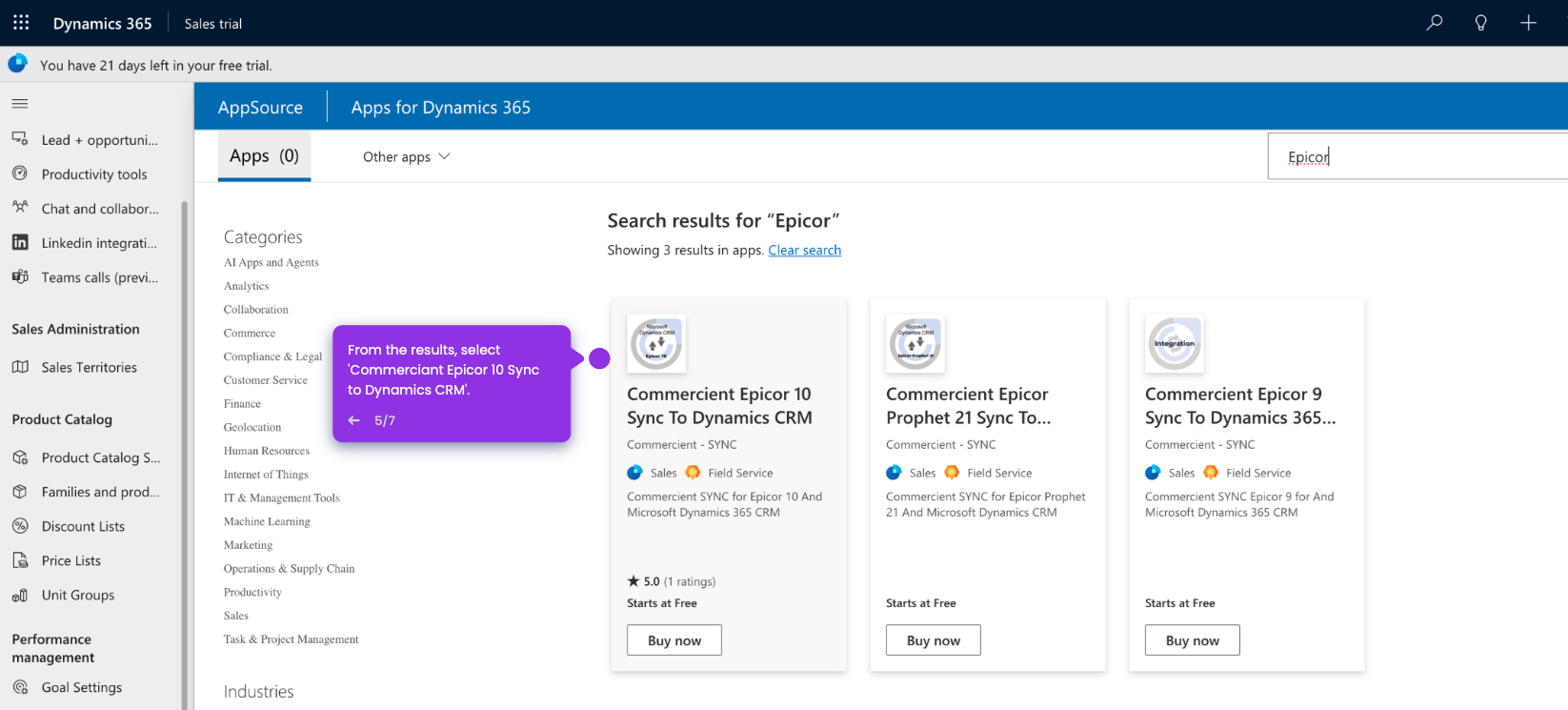
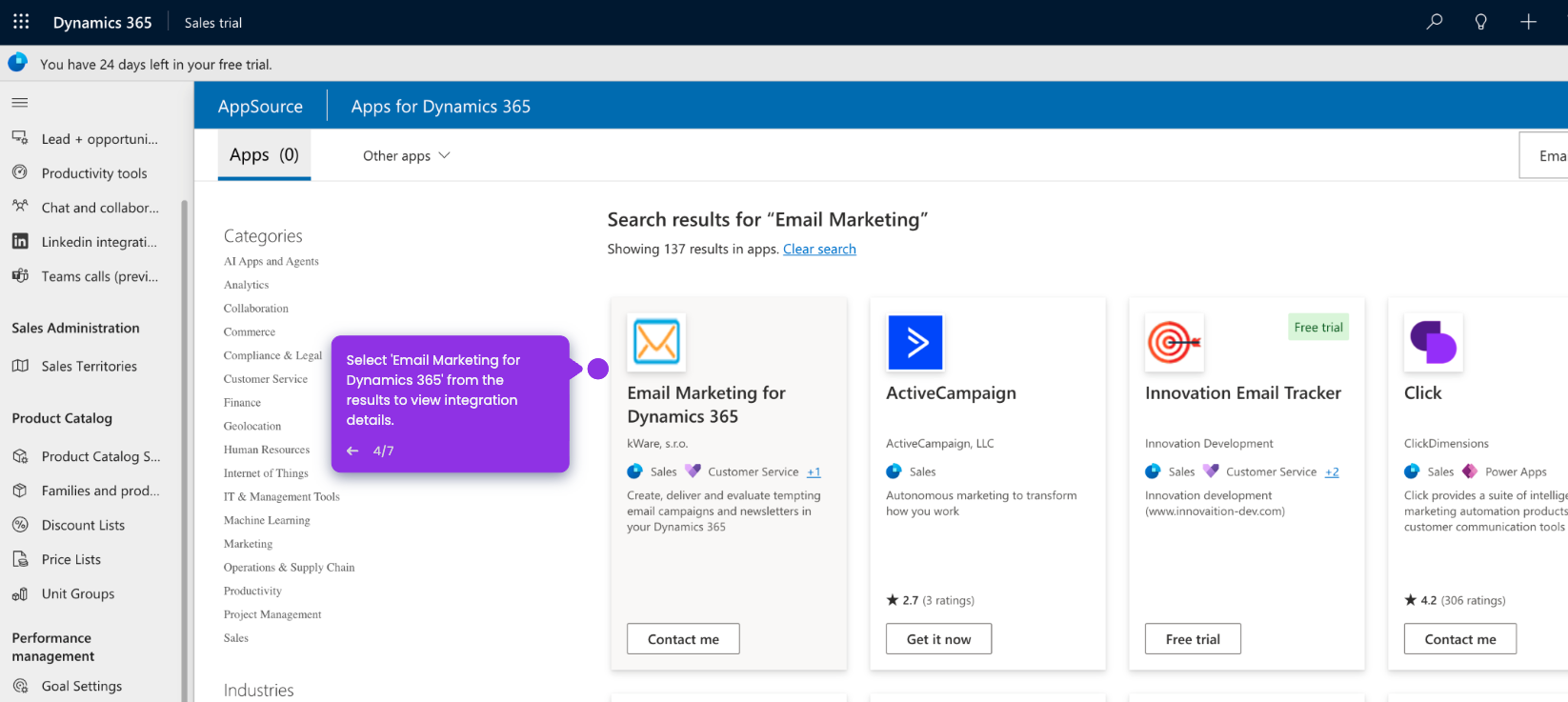
- Search 'Dynamics' and select 'Dynamics 365 Connector'.
- Click 'Add' to confirm.
- Open your Outlook email and create an email.
- Once added, Outlook will display the button automatically.
- Open any email and look at the right side of the ribbon, or open the message pane. The Dynamics 365 add-in appears inside Outlook once installed.