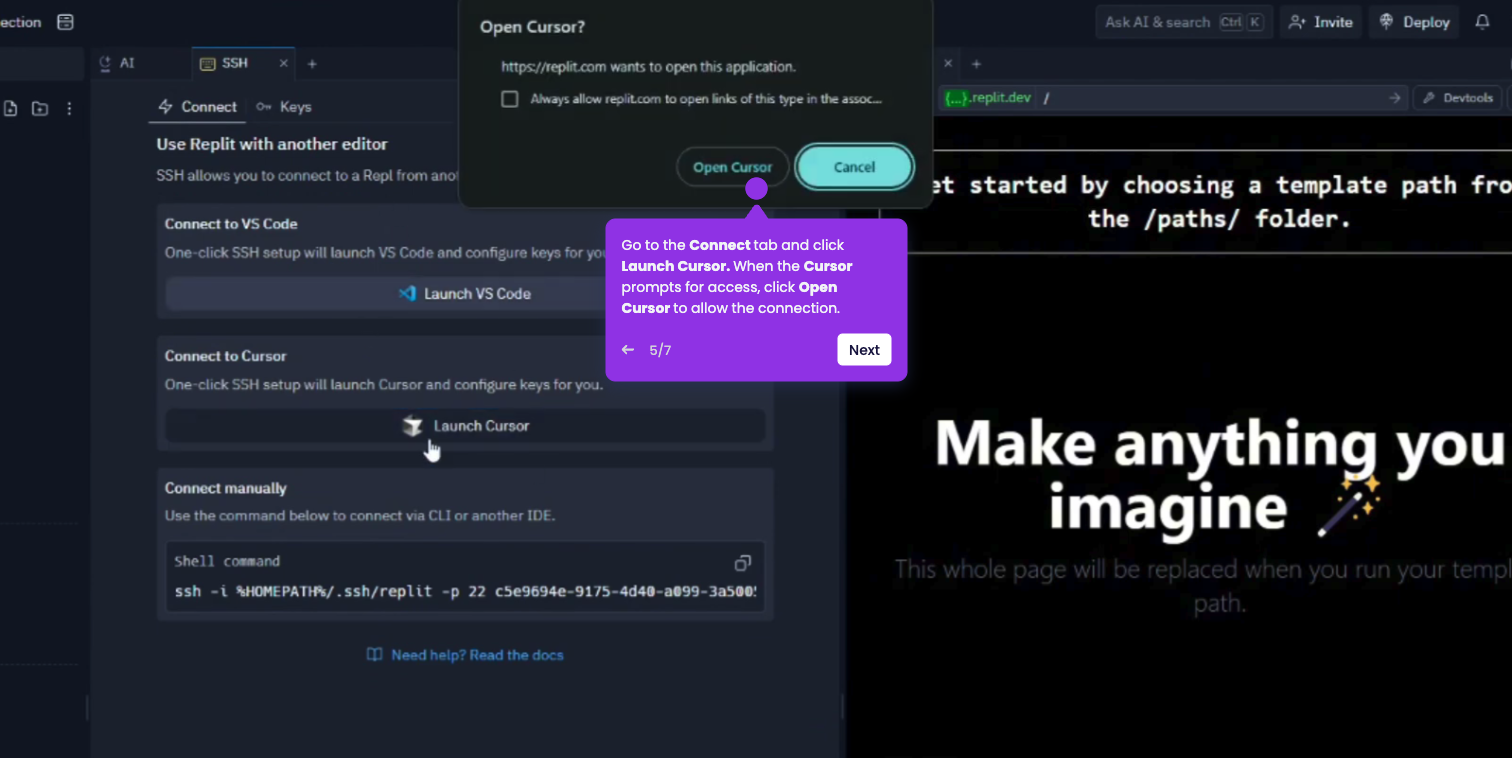
Adding context helps Cursor AI understand which files, code, or information it should focus on when answering questions or modifying code.
- Open your Cursor editor and sign in to your account.
- Click "File" from the top menu of the editor, and select Open Folder.
- Select "Open Folder" and choose your project folder (codebase).
- Click "Select Folder" to load the project into Cursor.
- Highlight the code or file you want Cursor to understand.
- Open the AI Chat panel from the left sidebar, then type @ in the chat box to reference files or folders as context.
- Add your question or instruction after the selected context.
- Cursor will now use the selected files as context when generating its response.