A drop-down list keeps your SaaS forms clean by hiding long lists of options—like software versions or geographic regions—until the user clicks. Follow these steps to set it up:
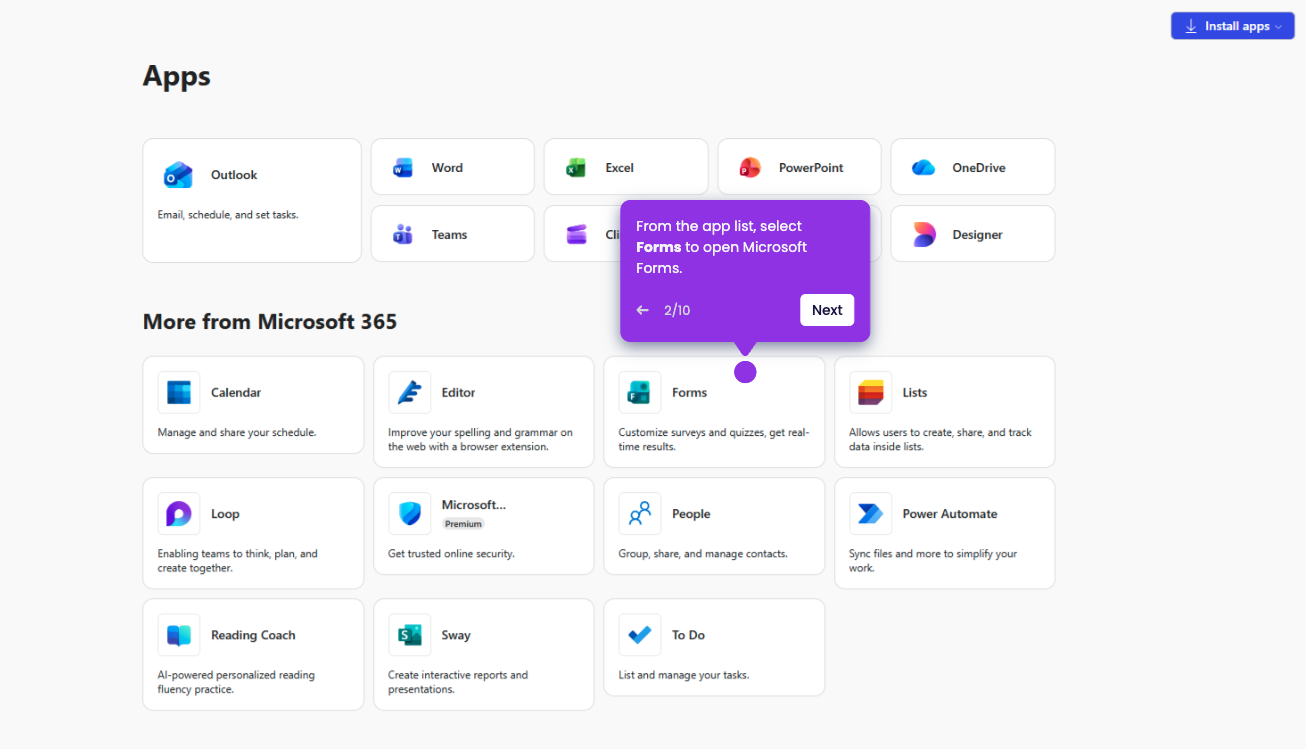
- On your Microsoft 365 main dashboard, click Apps to see all apps.
- Click on Forms to open Microsoft Forms.
- Open the specific form you wish to edit or create.
- Click Add new question to insert another field into your form.
- Select Choice from the question type menu.
- Enter your question and list all the available options in the provided fields.
- Click the three dots (...) in the lower-right corner of the question block, and select drop-down from the list.
- Click Preview to test the dropdown menu.
- Click the dropdown again to confirm your selection works smoothly.
- Click Collect responses to generate a link or QR code for your users.