It’s best to add a custom response if you want to use Grok effectively for coding. Here’s a quick tutorial on how to do it:
- On Grok's main dashboard, head over to the left-side panel and click your 'Profile' icon.
- Tap 'Settings' afterwards.
- Subsequently, click 'Customize' to proceed.
- Select 'Custom' from the available options.
- Subsequently, prepare a detailed instruction asking Grok to be an advanced coding assistant. Specify how you want Grok to generate, edit, and review code inputs.
- Once done, click 'Save' to apply the changes.
- Now, try to run a prompt related to coding. Type it into the chat box and click the 'Submit' button next to it.
- Finally, Grok will respond accurately and concisely to your prompt.
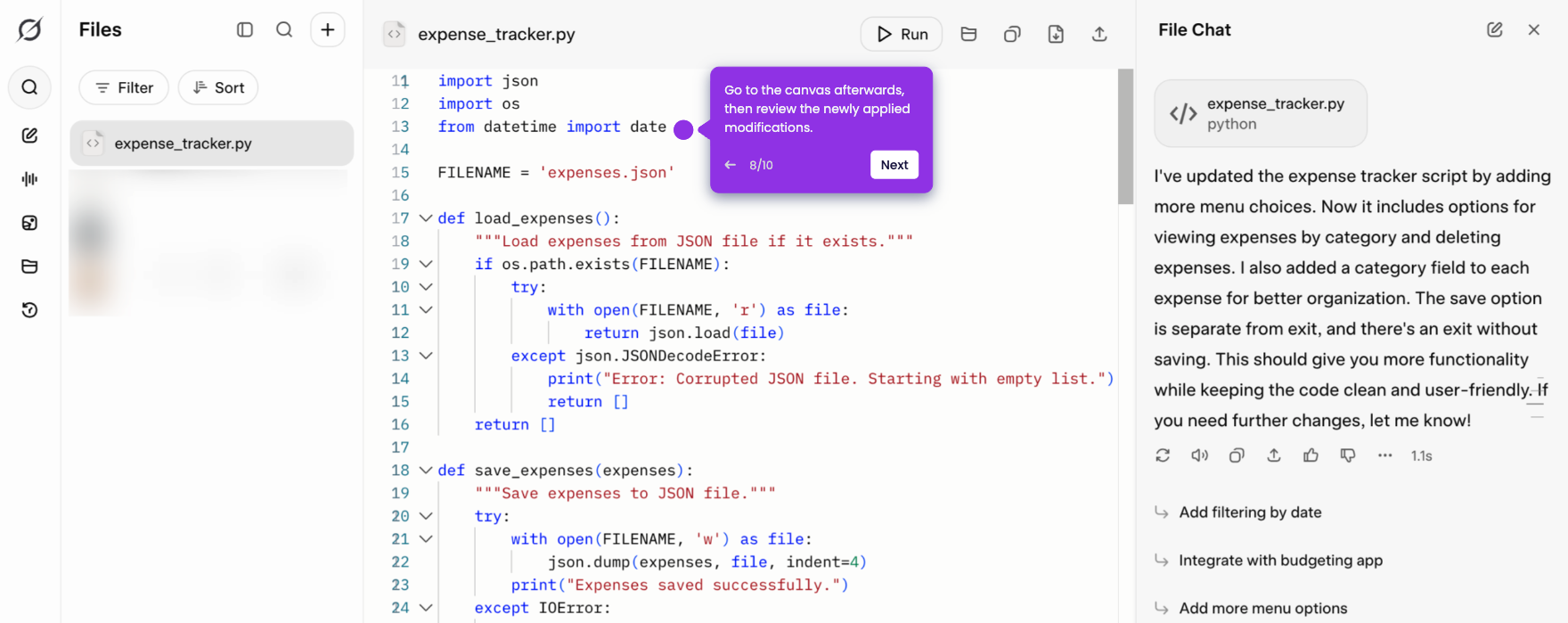
- You may use Grok's coding recommendations in your actual project. To do that, click 'Run' or 'Copy' in the top-right corner.