This tutorial shows how to undo edits in the editor and how to roll back your entire project to a previous checkpoint.
Note: Replit Agent automatically creates checkpoints as it works, allowing you to roll back your entire project with a single click. Also, when you use the rollback feature, you restore the Replit App to a previous state. This removes all changes made after that point, including code edits. Database changes are also reverted if you choose to restore your database.
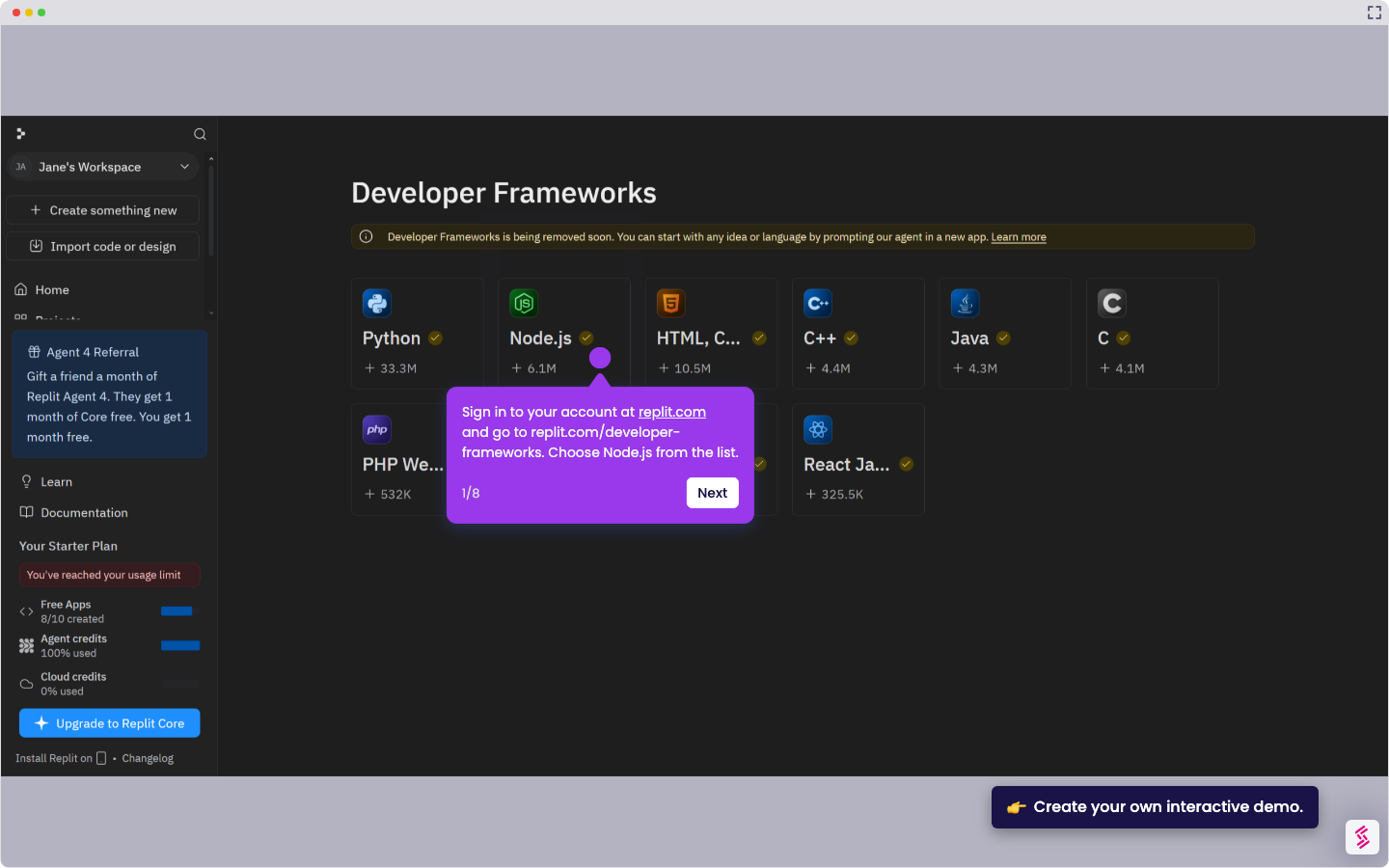
- Sign in to your account at replit.com and open an existing project or create a new one.
- Wait for Replit to set up the environment, then click the Open Files icon in the top-right corner, click File tree, and select the files you want to edit.
- To undo a recent edit in the code editor, press Ctrl + Z (or Cmd + Z on Mac).
- To undo a larger change made by the Agent, open the Agent tab and click the history icon.
- Find the checkpoint from before the change and select Rollback here.
Note: If you rolled back too far, select a later checkpoint from the same history view and click Rollback here again to move forward.
6. Confirm by clicking Rollback to this checkpoint to finalize the restore.