Quick summary
LinkedIn's notification settings let you turn off job updates — including job alerts, saved jobs, and job recommendations — across in-app, push, and email channels. Navigating to Settings & Privacy and adjusting the Searching for a job section gives you full control over which job-related notifications you receive.
Steps
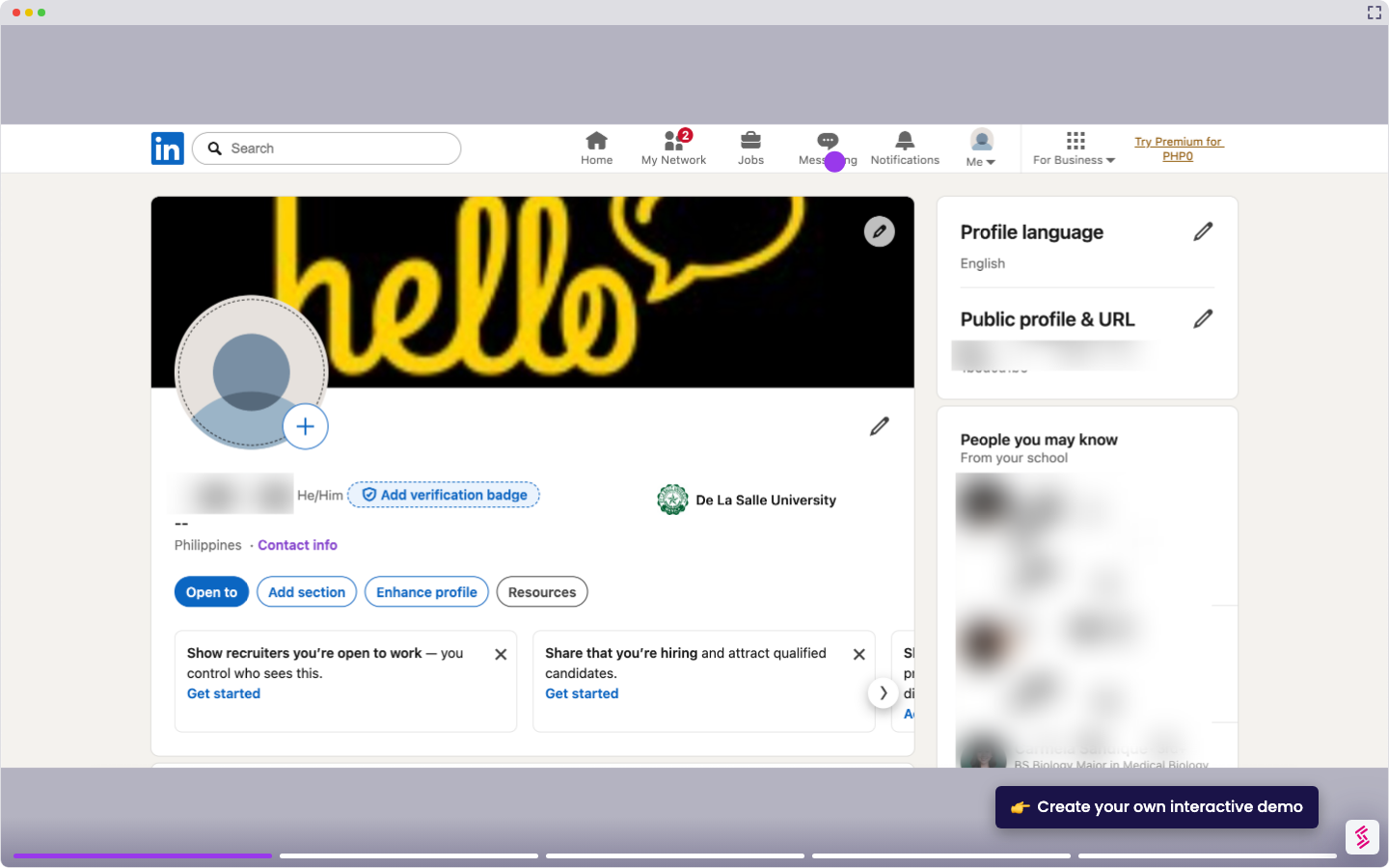
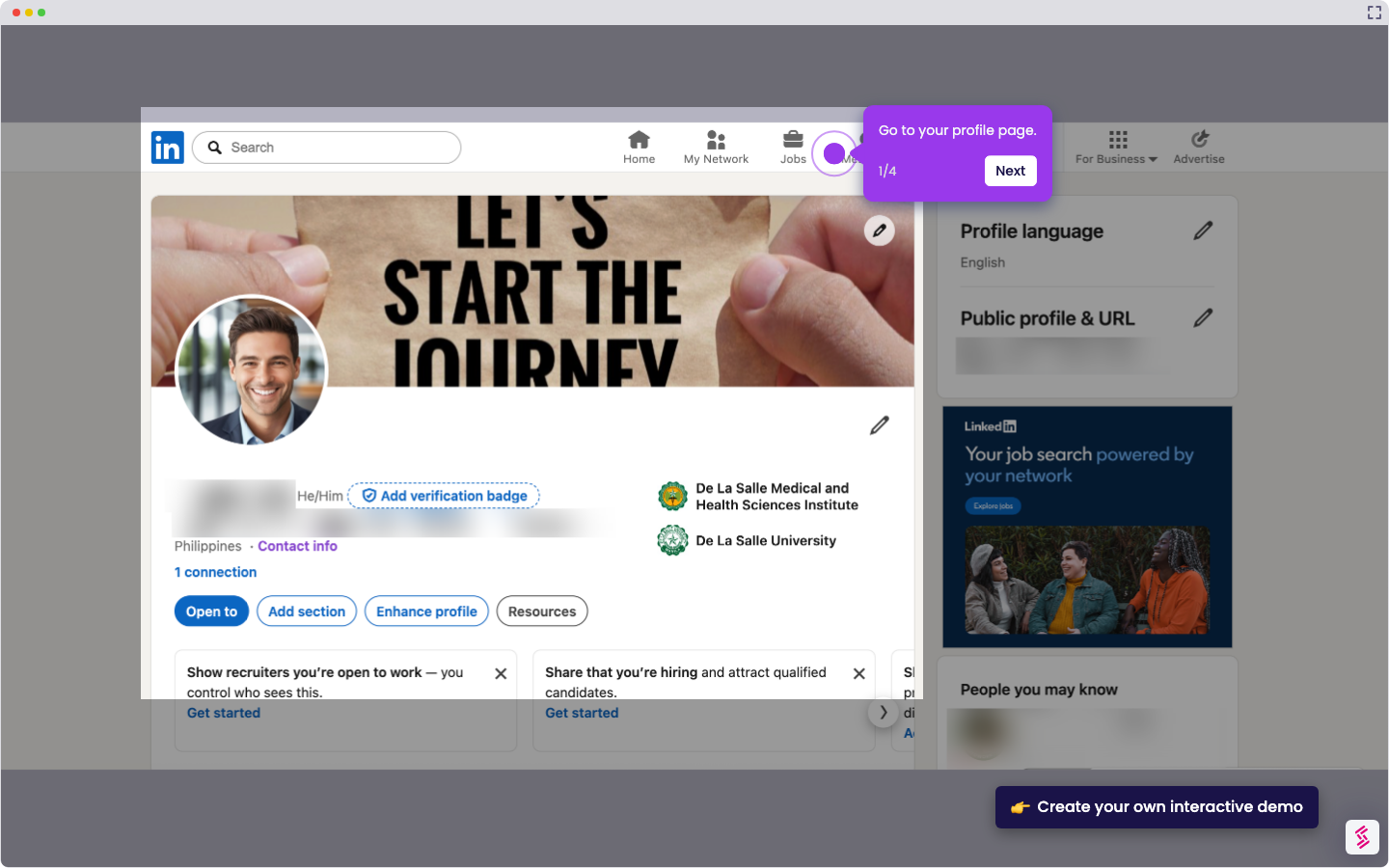
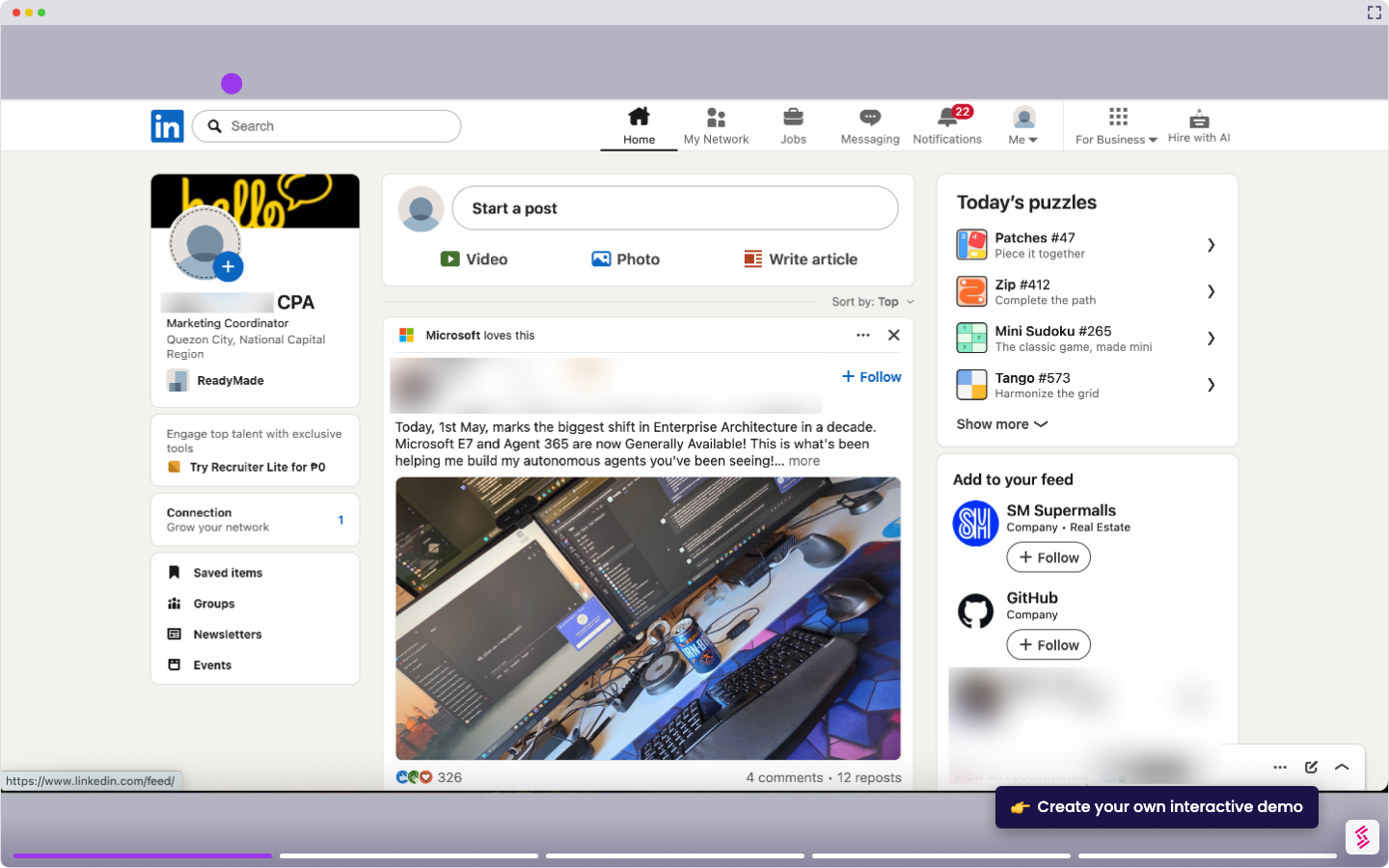
- Click your profile on the top menu of your LinkedIn dashboard.
- Select 'Settings & Privacy' from the dropdown menu.
- Under the Notification settings, choose 'Searching for a job'.
- Select 'Job alerts', 'Saved jobs', or 'Job recommendations' to manage each category.
- For each option, disable in-app, push, and email notifications individually.
- Alternatively, turn off 'Allow job search notifications' at the top of the job alerts settings to disable all at once.