This tutorial shows how to run SQL queries in Qlik Sense using the Data Load Editor to pull data directly from a database.
Notes:
- You need access to a database connection (ODBC, OLE DB, or built-in connectors like SQL Server).
- SQL queries in Qlik Sense are written inside the Data Load Editor using SELECT statements.
- Make sure your database credentials and connection are configured before running queries.
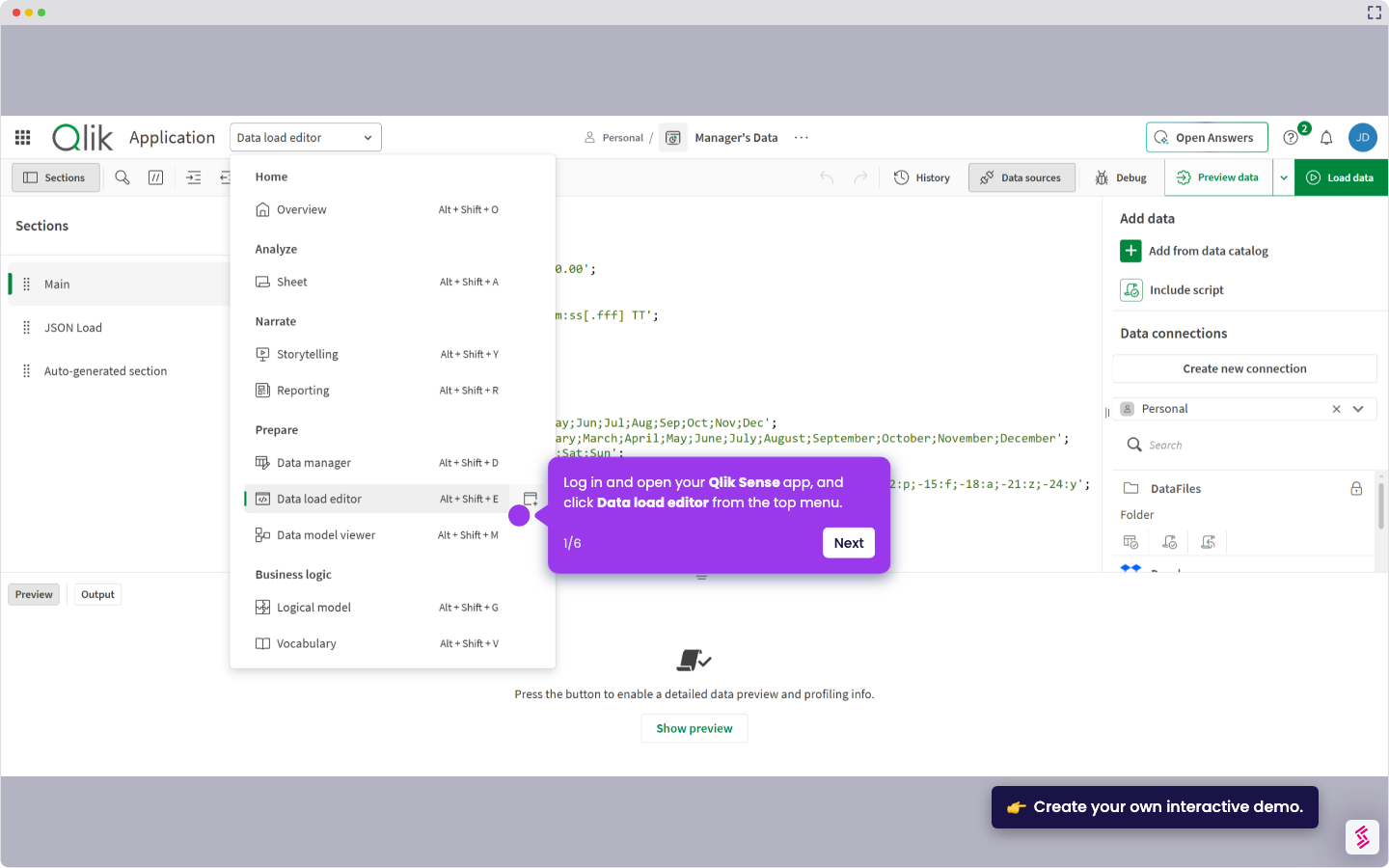
- Open Qlik Sense App and click your app from the hub to launch it.
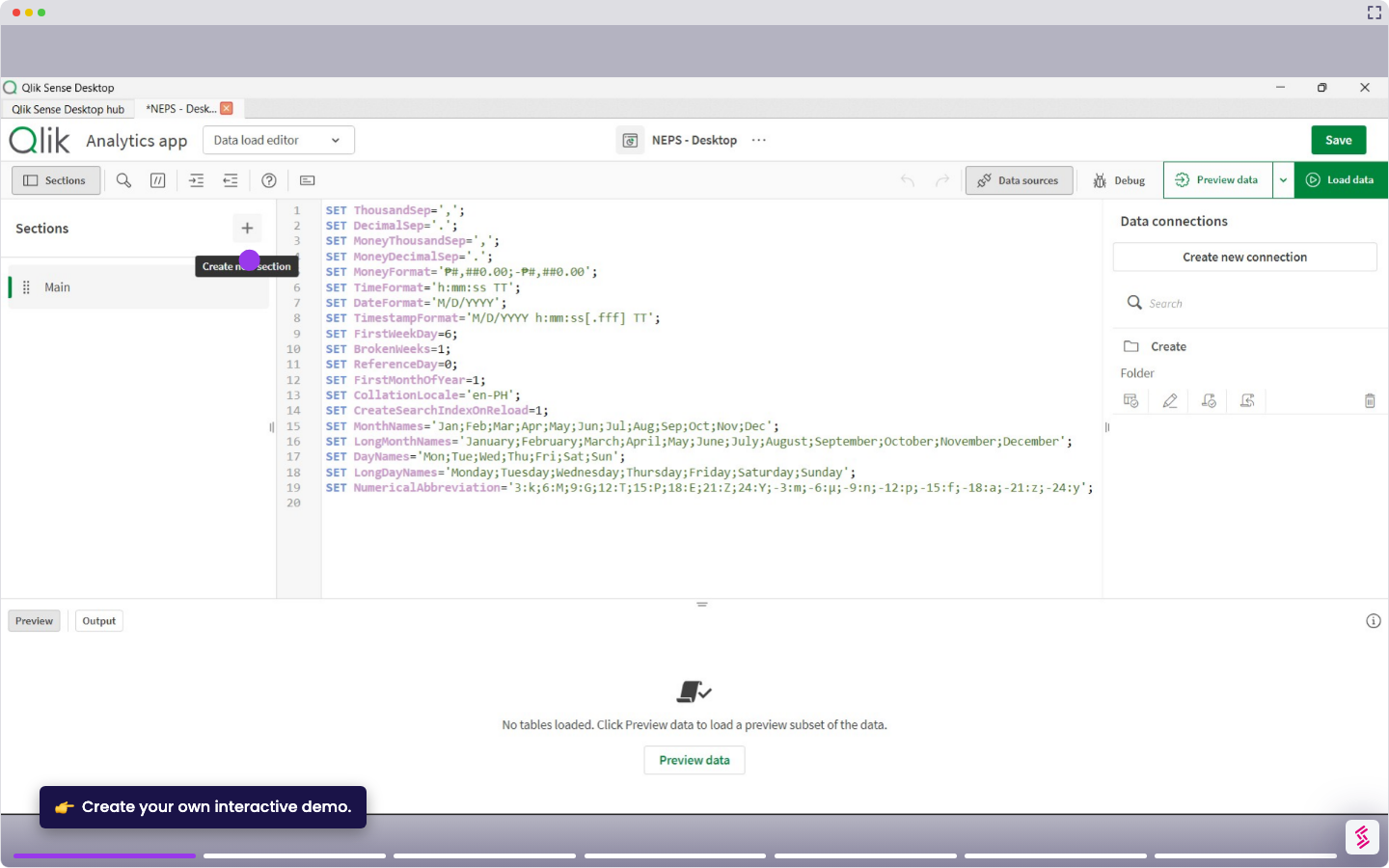
- Go to Prepare from the top menu, then open the Data Load Editor.
- Click Create new connection and select your database type (for example, ODBC or SQL Server), then enter your connection details and save it.
- In the editor, select your connection and insert a SELECT statement to query your data (for example, SELECT * FROM NEPS_table).
- Click Load data to run the SQL query and import the results into your app.
- After the load completes, open the Data Model Viewer to confirm the queried data appears as a table.