This tutorial shows how to load data from an existing QVD file into your Qlik Sense app, which is faster and more efficient than loading from Excel or text files.
Notes:
- You need an existing QVD file stored in a folder accessible to Qlik Sense.
- QVD files are Qlik’s optimized format and load faster than Excel or CSV files.
- This tutorial uses the Data Load Editor for a simple and direct loading workflow.
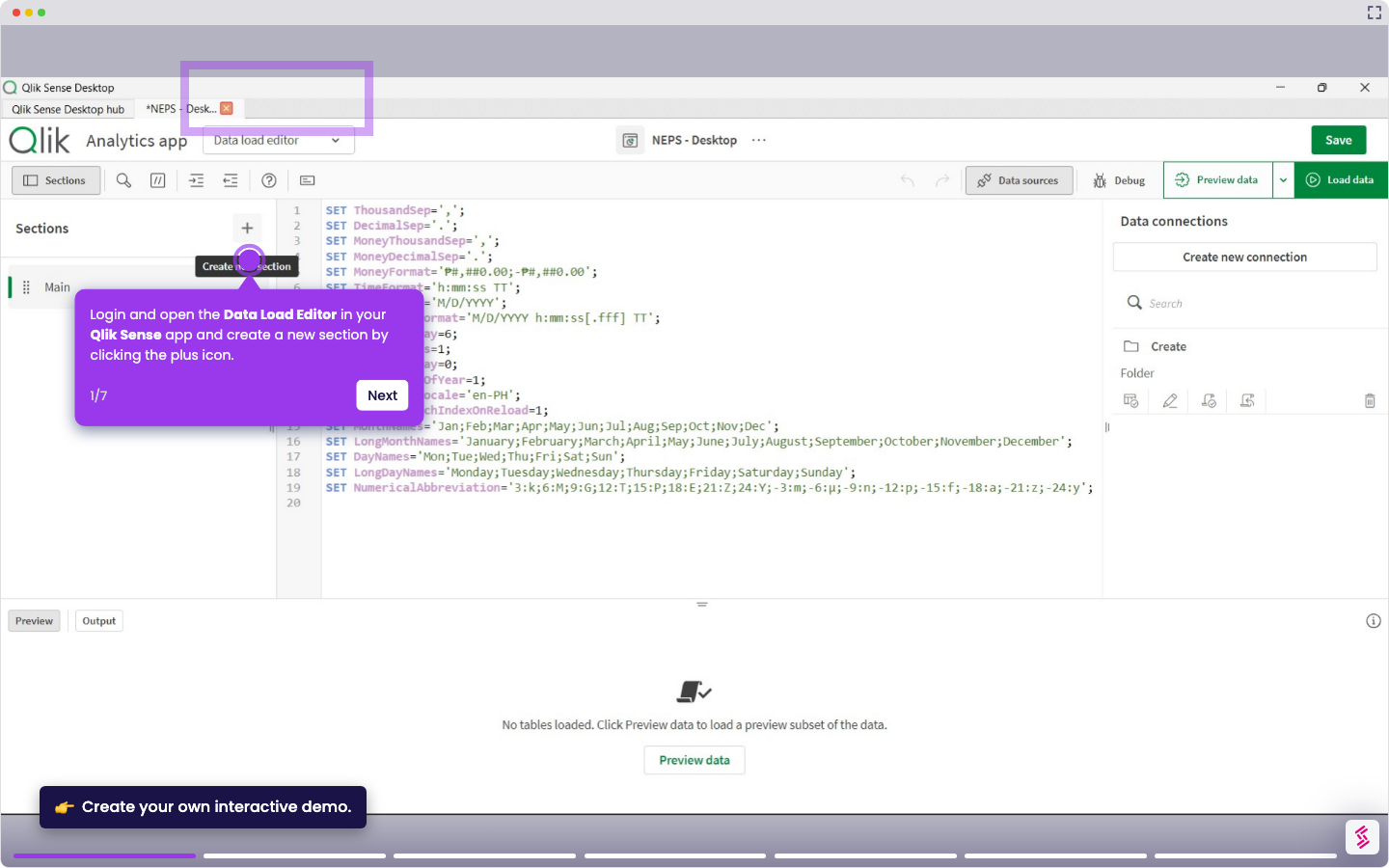
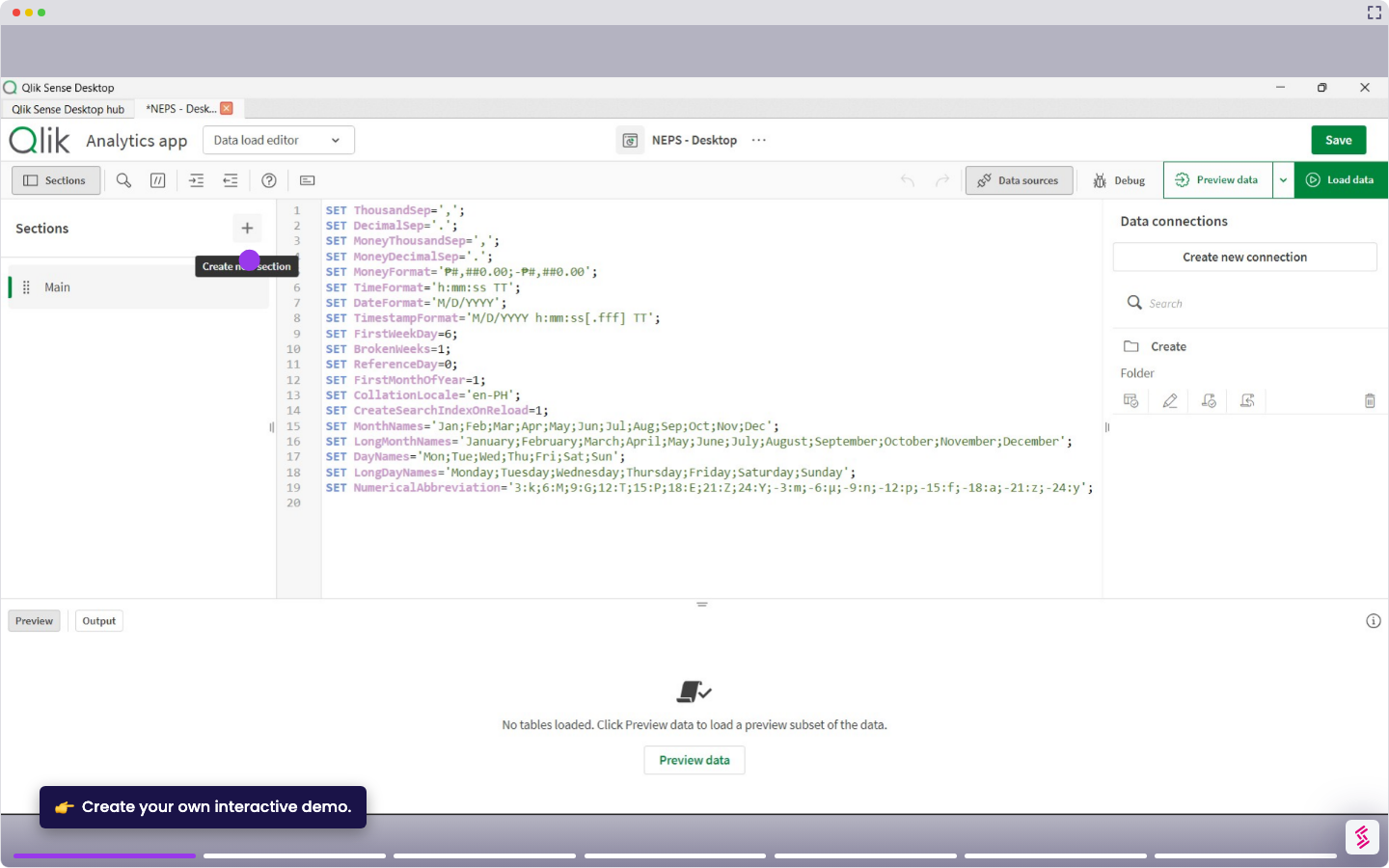
- Login and open the Data Load Editor in your Qlik Sense app and create a new section by clicking the plus icon.
- Create a new connection by clicking Create new connection and select the folder where your QVD file is stored.
- Click on your QVD file and click Insert script to add the load statement to the editor.
- The load statement will automatically be generated, for example, LOAD * FROM filepath\filename.qvd;
- Click Load Data to execute the script and load the QVD file into your app's data model.
- View the Data Model Viewer to verify the QVD data is loaded correctly and ready for visualization.