This tutorial shows how to load data from external sources like Excel, CSV files, and databases into your Qlik Sense app using the Data Manager and Data Load Editor.
Notes:
- You need an existing Qlik Sense app open to load data. Create a new app first by clicking Create app in the hub if you don't have one.
- Qlik Sense supports multiple data sources: Excel (.xlsx), CSV (.csv), HTML, XML files, and databases (SQL Server, Google BigQuery, Salesforce, ODBC, OLEDB).
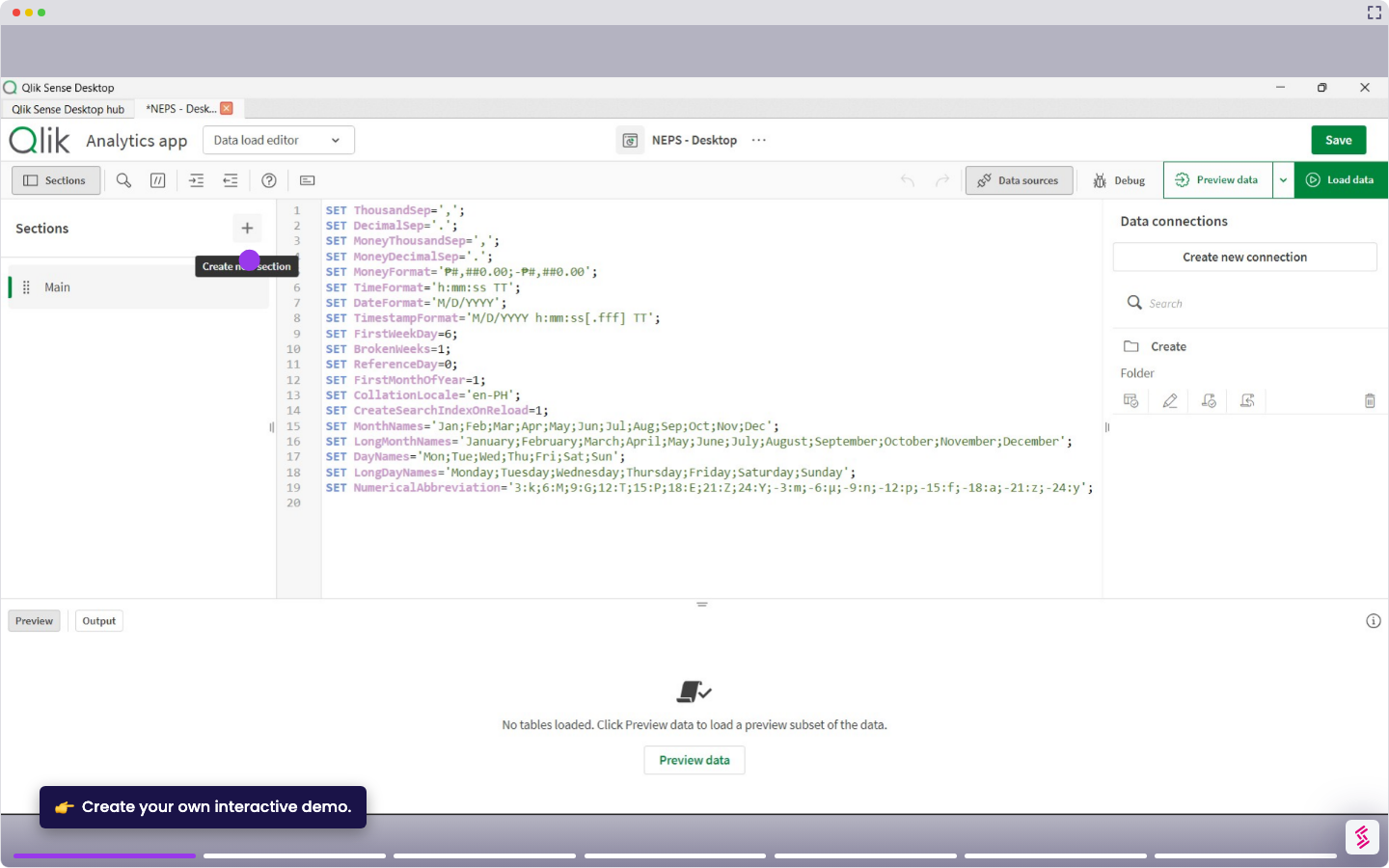
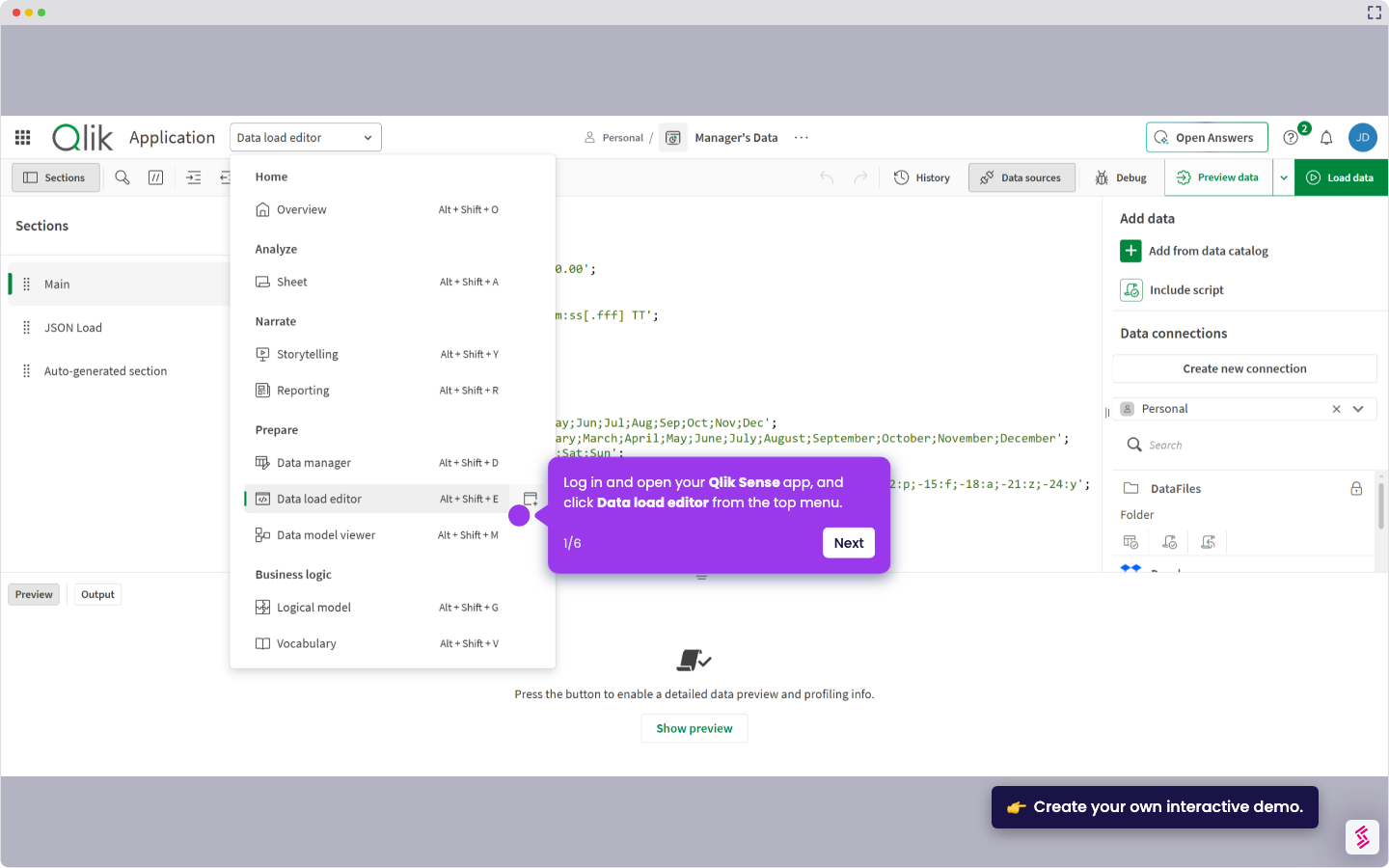
- For simple data loading, use the Data Manager (no-code, drag-and-drop). For advanced transformations, use the Data Load Editor (scripting with LOAD and SELECT statements).
- Login and open your Qlik Sense app and click the app you want to load the data to.
- Click Add data from the top menu, then select Files to browse your computer.
- Drag and drop your file (for example, an Excel or CSV file), then click Open to import it into Qlik Sense.
- In the Data Manager, review the preview of your table and confirm the fields are detected correctly.
- Click Load Data to import the dataset into your app.
- After the load completes, click Go to app and open the Data Model Viewer to confirm your data is available.