This tutorial shows how to export a Replit project and open it in Visual Studio Code so you can edit and run your code locally.
Notes:
- You need a Replit account, an existing project, and Visual Studio Code installed on your computer. Download VSCode at code.visualstudio.com if you don't have it yet.
- For Python projects, install the Python extension in VSCode. For Node.js projects, run npm install in the VSCode terminal after opening the project folder to install dependencies.
- To keep your code in sync between Replit and VSCode, connect your project to GitHub. See How to Connect Replit to GitHub and How to Push Code from Replit to GitHub for more.
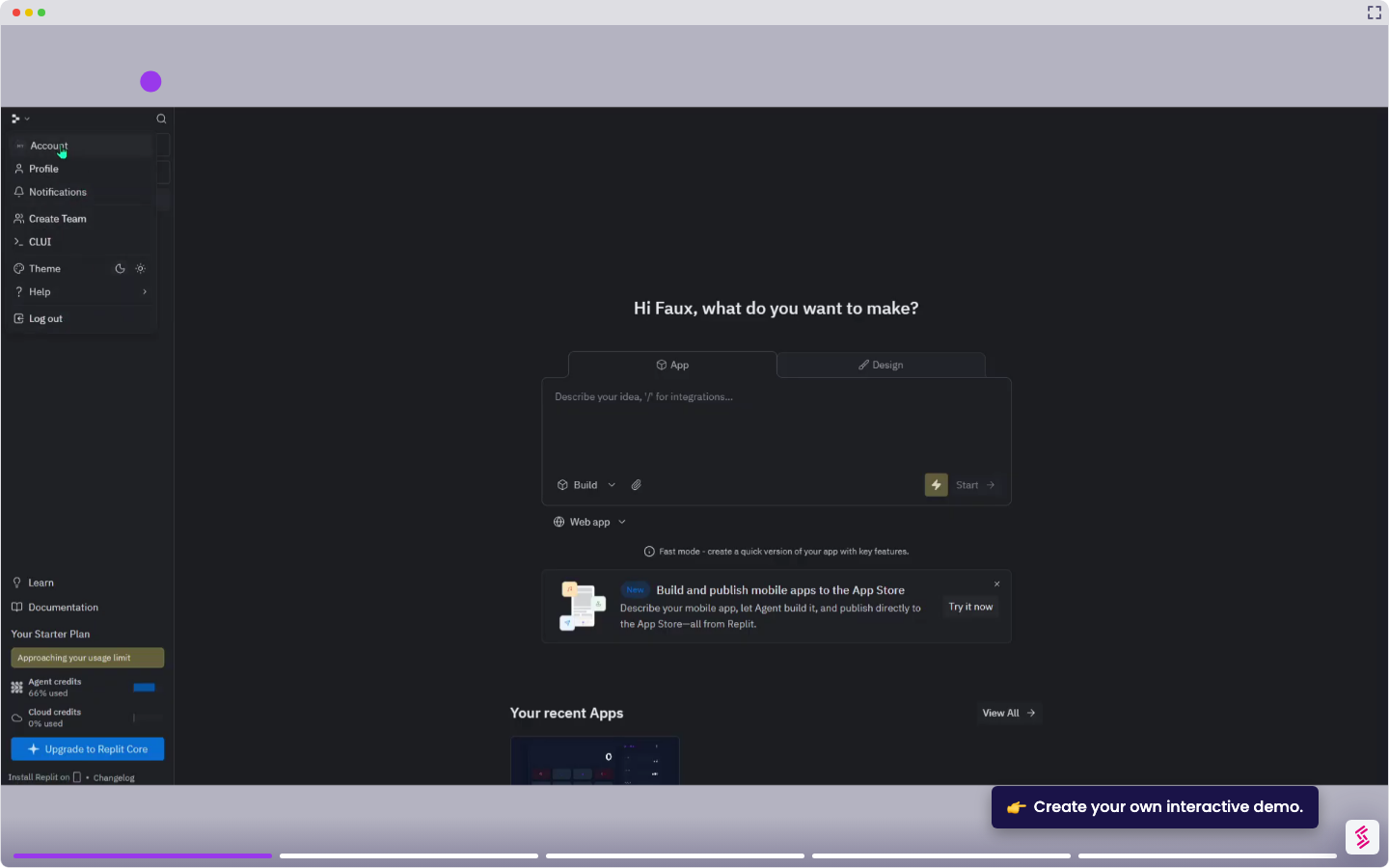
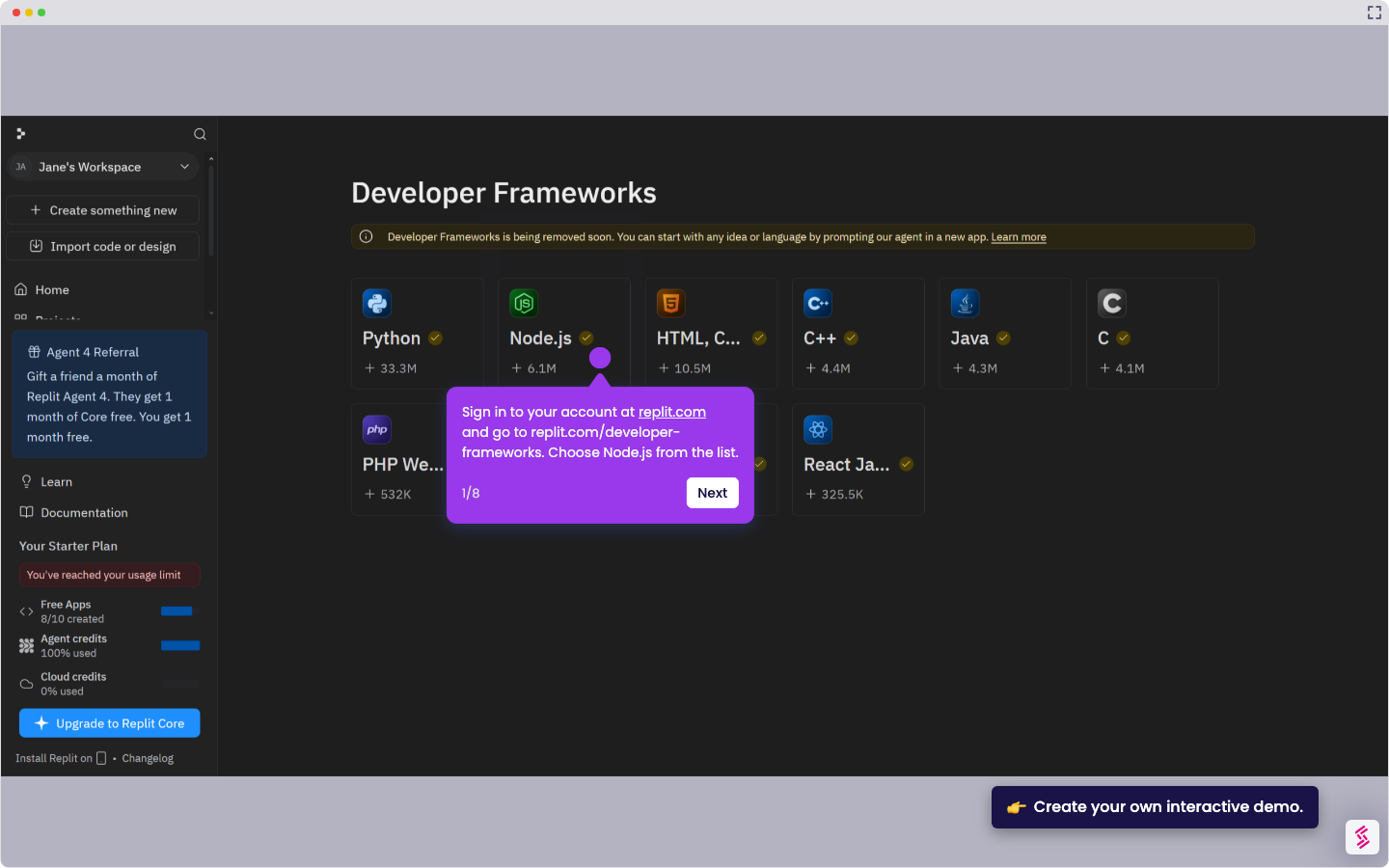
- Sign in at replit.com and go to your dashboard. Locate the project you want to open in VSCode.
- In your workspace, click the three dots beside the project name and select Download as ZIP. Once the ZIP file downloads, extract it to a folder on your computer.
- Open Visual Studio Code. Click File, then Open Folder, and select the folder where you extracted your project.
- Open the main project file in the editor - for example, main.py for Python projects or app.js for Node.js projects.
- Press Ctrl+F5 or click Run at the top of the window to execute your code. Your project runs locally in VSCode exactly as it does in Replit.