This tutorial shows how to connect Stripe to a Replit project so you can add secure payment processing to your app without leaving your workspace. Notes:
- You need a Replit account and a Stripe account to follow this tutorial. Sign up at stripe.com if you don't have one yet.
- Get your API keys from the Stripe Dashboard under Developers → API Keys. Store your secret key in the Replit Secrets pane as STRIPE_SECRET_KEY. Never paste it directly into your code.
- Use Stripe test mode and test card numbers while building. Switch to live keys only when your app is ready for real transactions.
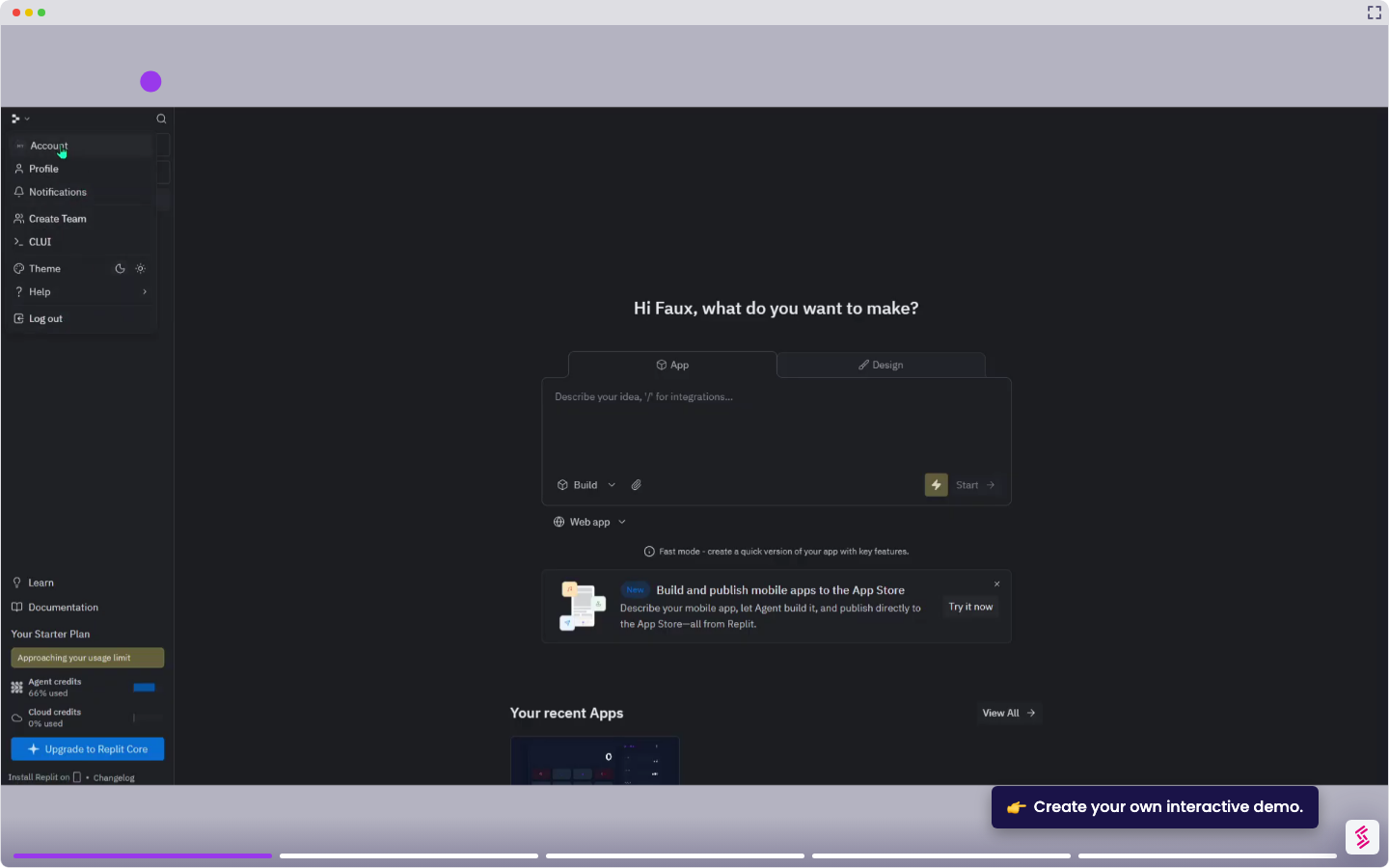
- Sign in at replit.com and open the project you want to add Stripe to, or click + Create Something New to start a fresh one.
- In the Agent prompt field, describe the payment feature you want to build and mention Stripe directly - for example: Build a checkout page for NEPS Corp that accepts one-time payments for consulting services using Stripe. Click the Arrow button to run.
- The Agent generates your project files and sets up the Stripe connection using your stored STRIPE_SECRET_KEY. Wait for the build to complete.
- Test it in the Preview or Webview tab using a Stripe test card - for example, enter 4242 4242 4242 4242 as the card number and confirm the payment flow completes successfully.
- Once testing is complete, replace your Stripe test keys with live keys in the Secrets pane. Your app is now ready to accept real payments.