This tutorial shows how to embed a Replit web app directly into your Shopify store using custom liquid code, so you can add interactive tools and custom features to your storefront without leaving Shopify.
Notes:
- You need an existing Replit project with a working web app ready to embed. If you don't have one, create a new Replit project first and build a simple web app - for example, a calculator, form, or interactive tool.
- The code you'll copy from Replit should be responsive HTML. Replit's Agent can generate this for you - just ask it to provide responsive HTML code for your app.
- You'll need access to your Shopify store's theme editor. Most Shopify plans include this, but basic plans may have limited access. Check your Shopify plan to confirm.
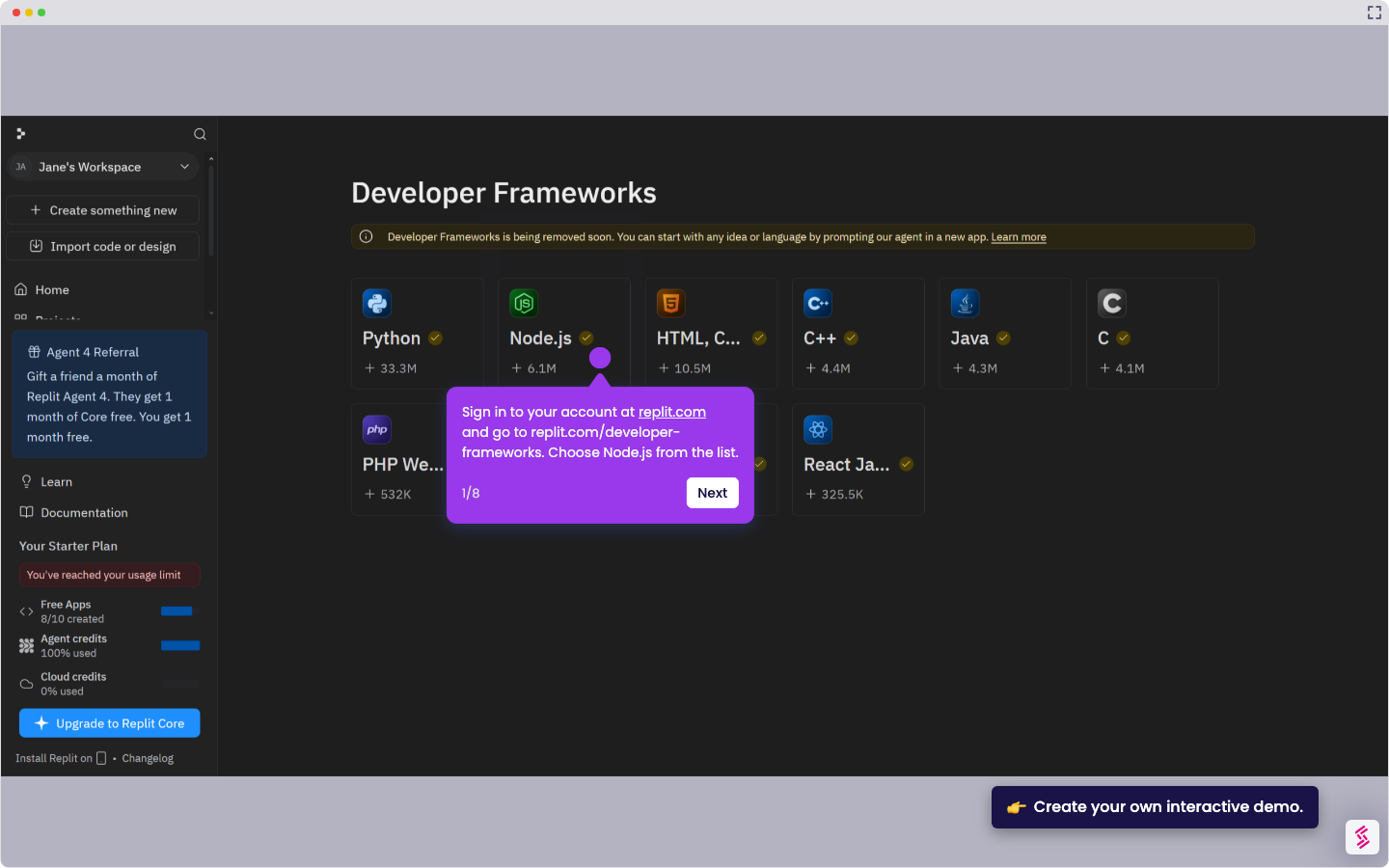
- Sign in at replit.com and open the Replit project you want to embed into Shopify.
- In the Agent prompt field (or in a new session), type: Give me HTML responsive code for this app. The Agent will generate responsive HTML code and display the output in the console.
- Copy the HTML code that appears. Right-click and select Copy, or use Ctrl+C (or Cmd+C on Mac) to copy the entire code block.
- Sign in to your Shopify admin and go to Online Store > Themes. Find the theme you want to edit and click Edit code (or Edit theme, depending on your theme).
- Look for the theme's file structure on the left. Find or create a section file. If creating a new one, click Add a new section under Sections, click Custom Liquid, and confirm.
- In the section file, paste the HTML code you copied from Replit. Save the file by clicking the Save button in the top right.
- Go to the page or product where you want the app to appear. In the page editor, add your new custom section and publish. The Replit app will now display on your storefront.