This tutorial shows how to set up Git version control inside a Replit project using the built-in Git pane, so you can track changes, commit updates, and push to a remote repository without leaving your workspace.
Notes:
- You need a Replit account and an existing project to follow this tutorial.
- Git works with any remote hosting platform - including GitHub, GitLab, and Bitbucket. Connect your preferred platform under Git Settings before pushing.
- For platform-specific setup, see How to Connect Replit to GitHub or How to Integrate Replit with GitLab first.
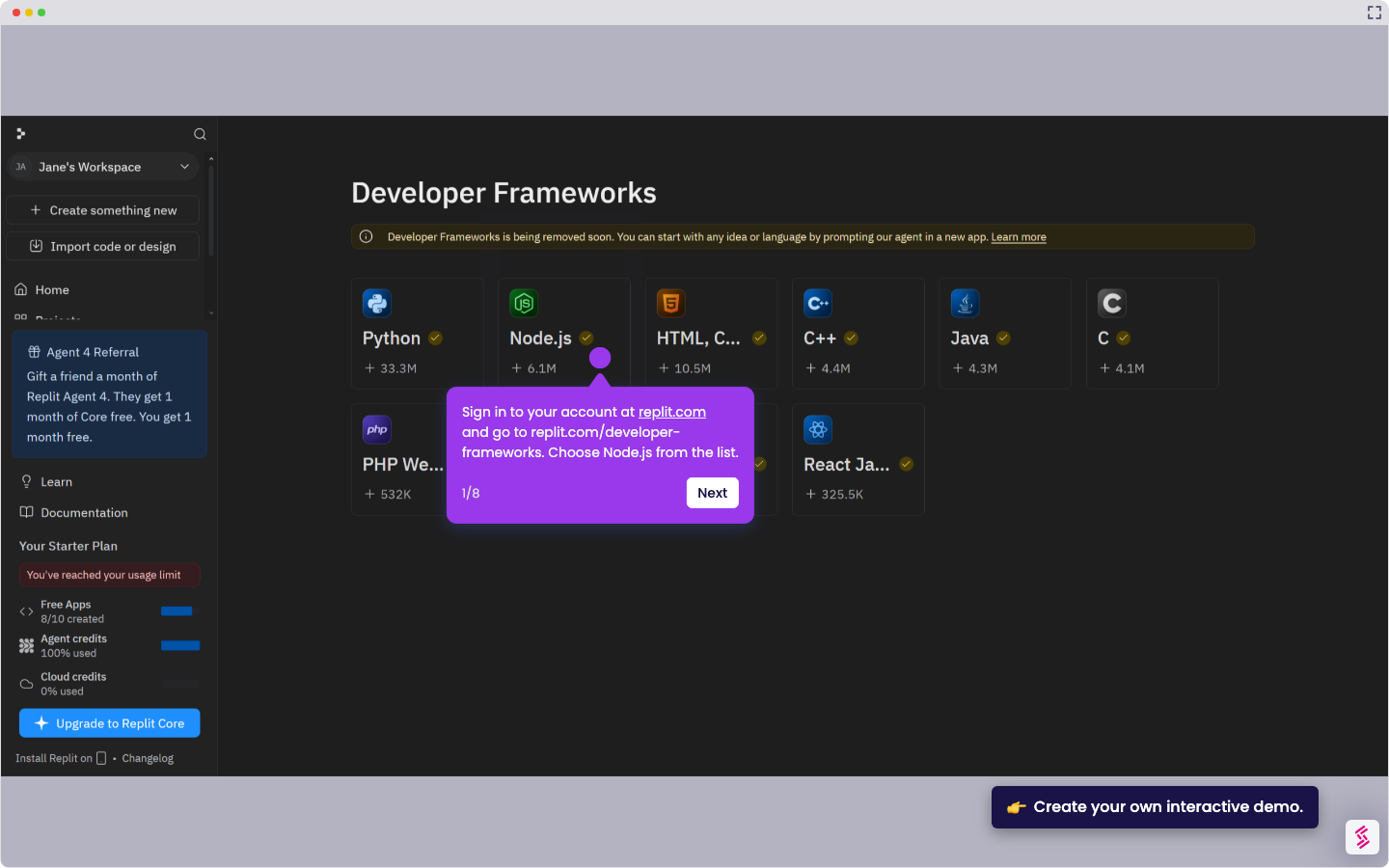
- Sign in at replit.com and open your project from the dashboard.
- In your workspace, click the Git tab in the left sidebar (the source control icon).
- If this is a new project, click Create Remote, or if it is an existing project, click Connect Existing, and follow the on-screen prompt to set up Git tracking for your files.
- Make a change to any file in your project - for example, update a script or add a new file for the NEPS Corp client report.
- Review the list of changed files in the Git pane. Confirm that the changes you want to include are listed.
- Enter a commit message in the text field - for example, "Add the weekly summary command to the file for review." Click Commit to save your changes locally.
- Click Sync Changes to send your commits to your connected remote repository.
- Visit your repository to confirm the latest commit appears with your message.