This tutorial shows how to connect Qlik Sense to Microsoft Teams using the REST connector to load workspace and activity data for analysis.
Notes:
- Qlik Sense does not have a native Microsoft Teams connector. The REST connector using the Microsoft Graph API is the recommended approach.
- You need a Microsoft Azure app registration with the appropriate Graph API permissions and valid OAuth 2.0 credentials.
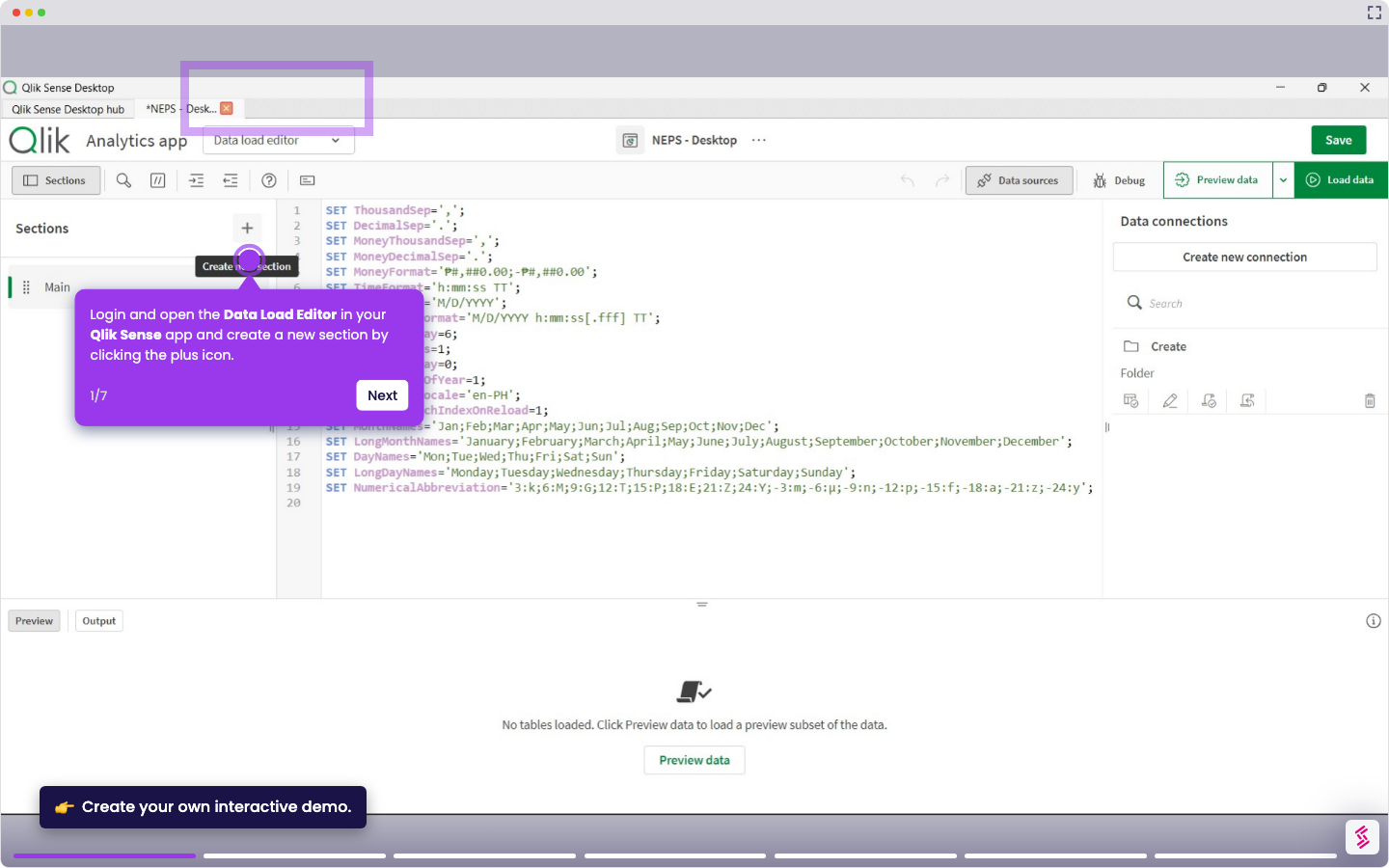
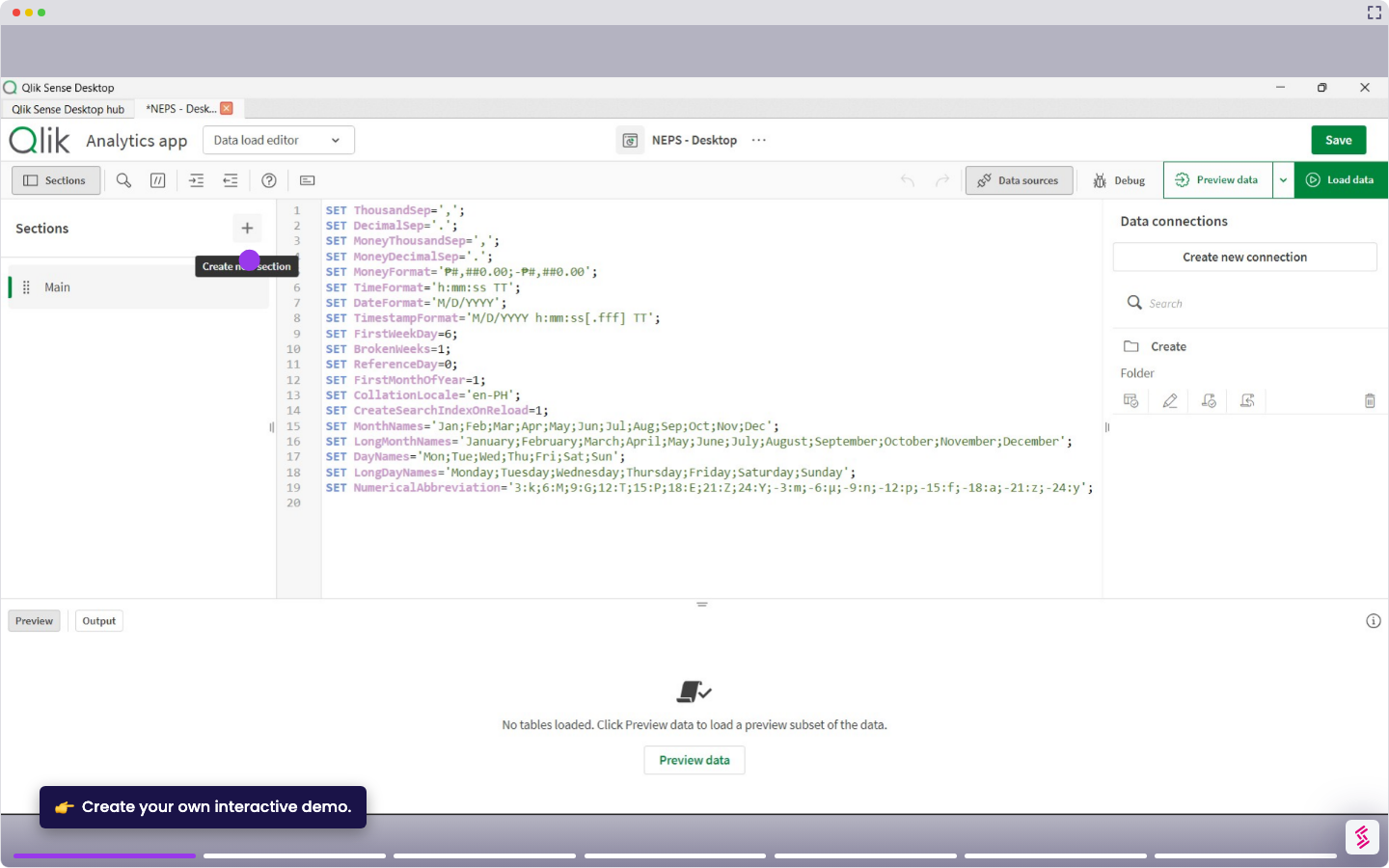
- Log in and open your Qlik Sense app, and click Data load editor from the top menu.
- Click Create new connection in the Data connection panel on the right.
- Select REST from the connector list.
- Enter a Microsoft Graph API endpoint URL for Teams data (for example, channels or messages).
- In the request headers, add an Authorization header with your Microsoft Graph access token, then click Test connection to verify the request.
- Click Create to store the connection. You can now access the saved connection, browse the available tables, and select the ones you want to load into your app.