This tutorial shows how to access files stored in Microsoft OneDrive and load them into Qlik Sense for analysis.
Notes:
- Alternatively, the recommended approach is to sync your OneDrive folder to your local machine, which happens automatically if you have the OneDrive desktop client installed on Windows.
- Files in your synced OneDrive folder are accessible as local files in Qlik Sense.
- Confirm that your OneDrive folder is synced to your local machine by signing in to your browser.
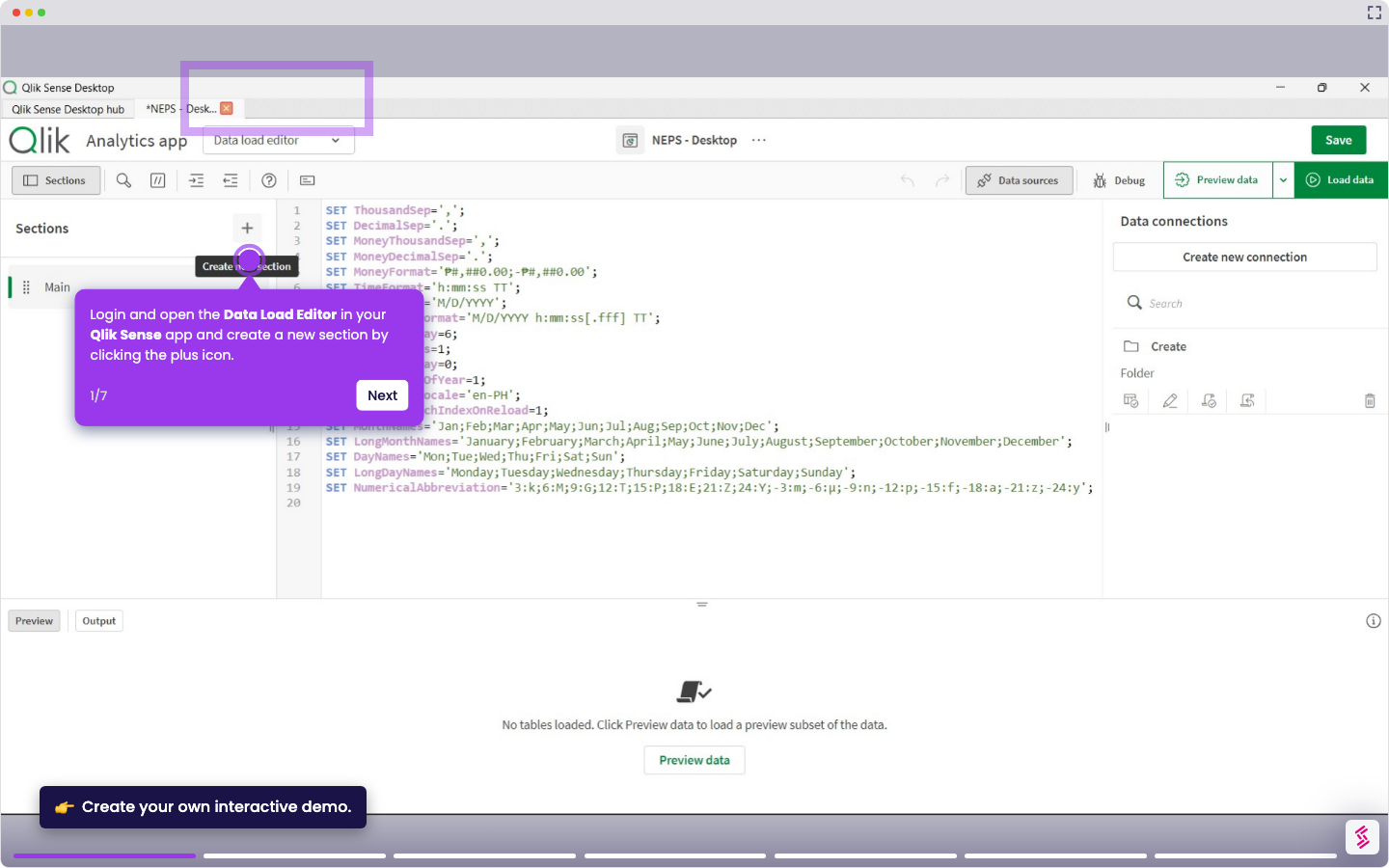
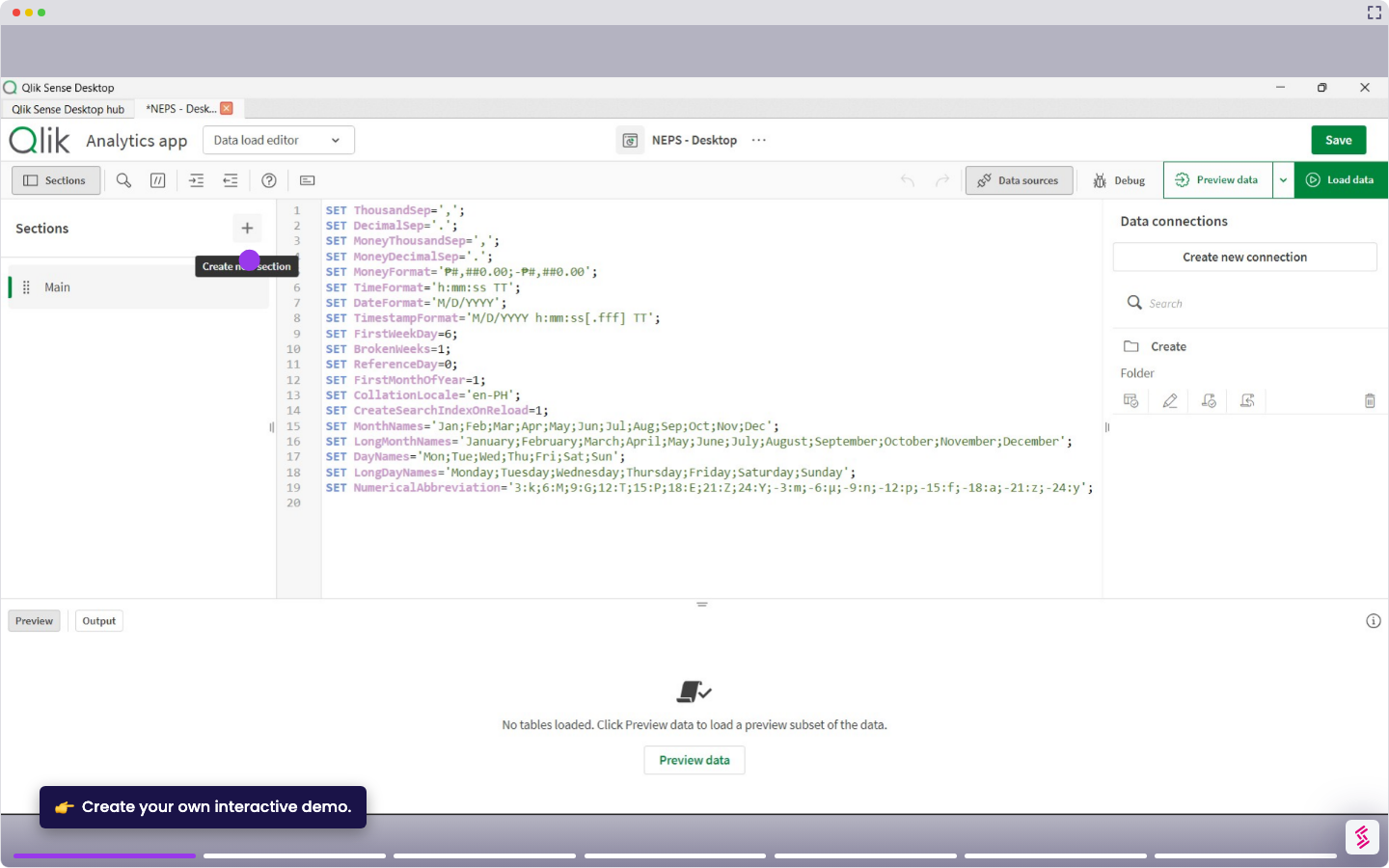
- Log in and open your Qlik Sense app, and click Data load editor from the top menu.
- Click Create new connection in the Data connections panel on the right.
- Select OneDrive from the list of connectors.
- Click Authenticate to open the Microsoft sign-in page. Log in to your account and grant Qlik permission to access your files.
- Copy the authentication code provided by Microsoft and paste it into the Qlik connector dialog, then click Verify.
- Click Create to store the connection. You can now access the saved connection, browse the available tables, and select the ones you want to load into your app.