This tutorial shows how to load a JSON file into Qlik Sense using the Data Load Editor for analysis and visualization.
Notes:
- JSON files must be available on your local machine or a connected file path.
- Qlik Sense reads JSON using a custom load script since JSON is not natively supported through the Add Data file picker.
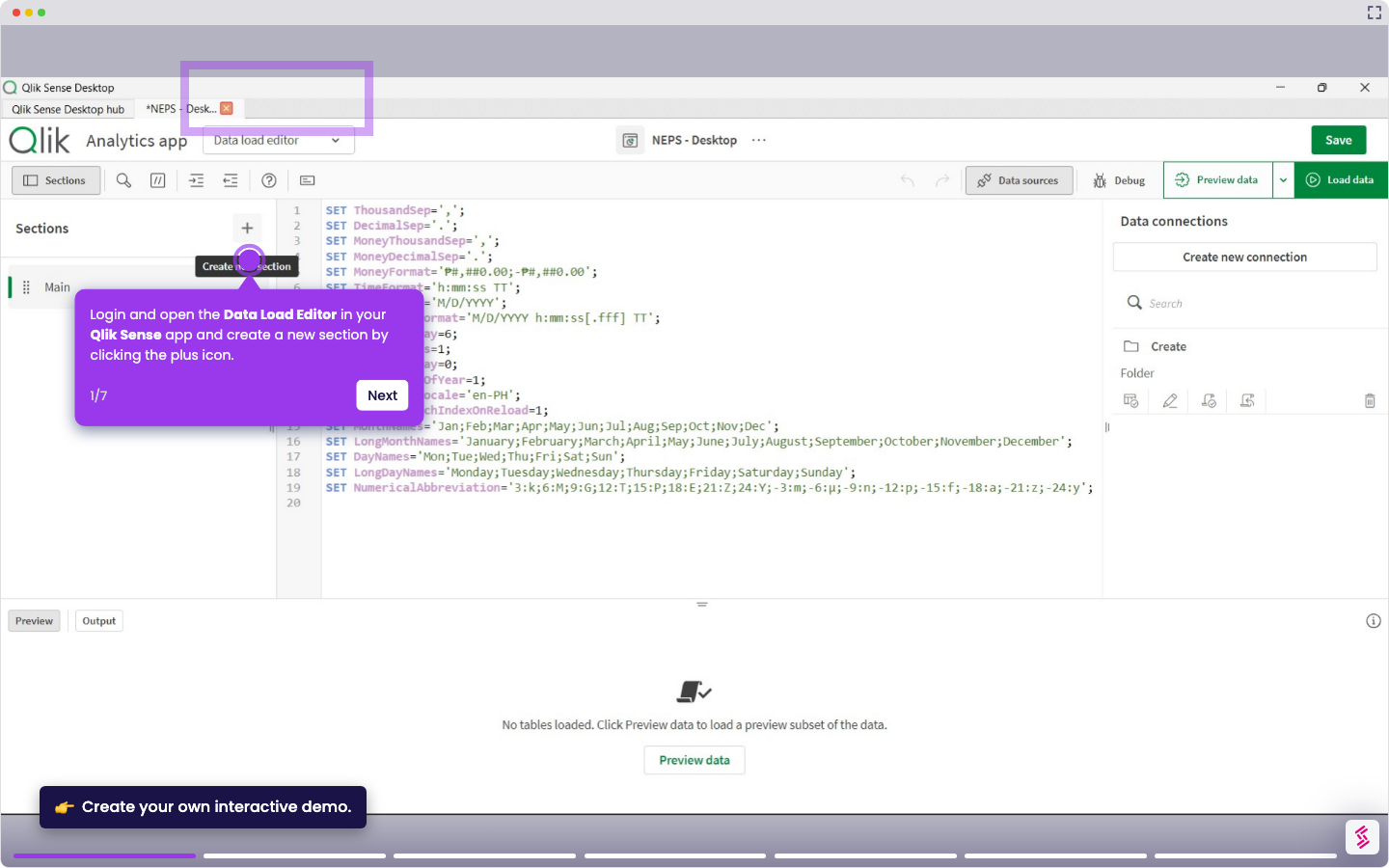
- Log in and open your Qlik Sense app, and click Data load editor from the top menu.
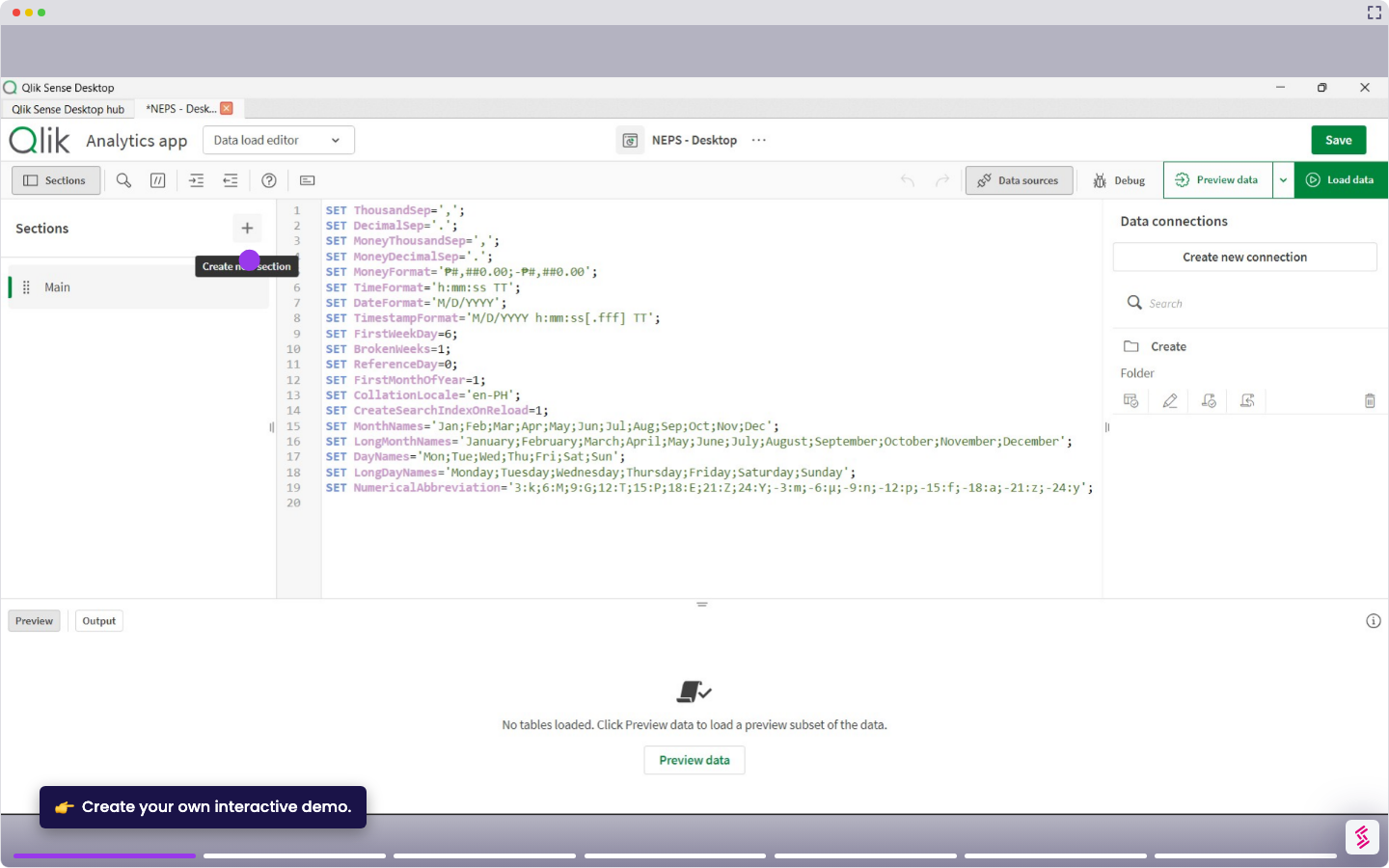
- Create a new section in the script editor to keep your JSON load separate from other data sources.
- In the right panel, click Select data icon under DataFiles, and upload your JSON file. This makes it available in your script as a lib://AttachedFiles/ path.
- Then, click Insert script to confirm the upload.
- Write a load statement that maps the JSON fields to Qlik field names, using the correct structure - for example, loading from a top-level array like clients.
- Check the syntax to verify the script runs without errors. Then, click Load data to execute the script and import the JSON data into your app.
- Open the Data model viewer from the top menu to confirm the JSON fields are loading correctly.