This tutorial shows how to connect a Google Sheets spreadsheet to Qlik Sense as a live or imported data source.
Notes:
- Qlik Sense does not have a native Google Sheets connector. The recommended approach is to export your sheet as a CSV or Excel file and load it using the file connector, or use a third-party connector if your organization has one configured.
- For automated or live sync, tools like Qlik Connectors or middleware such as n8n or Zapier can push data from Google Sheets into a file that Qlik can read.
- Open your Google Sheet and click File in the top menu.
- Select Download and choose Excel (.xlsx) or Comma Separated Values (.csv) to export the sheet.
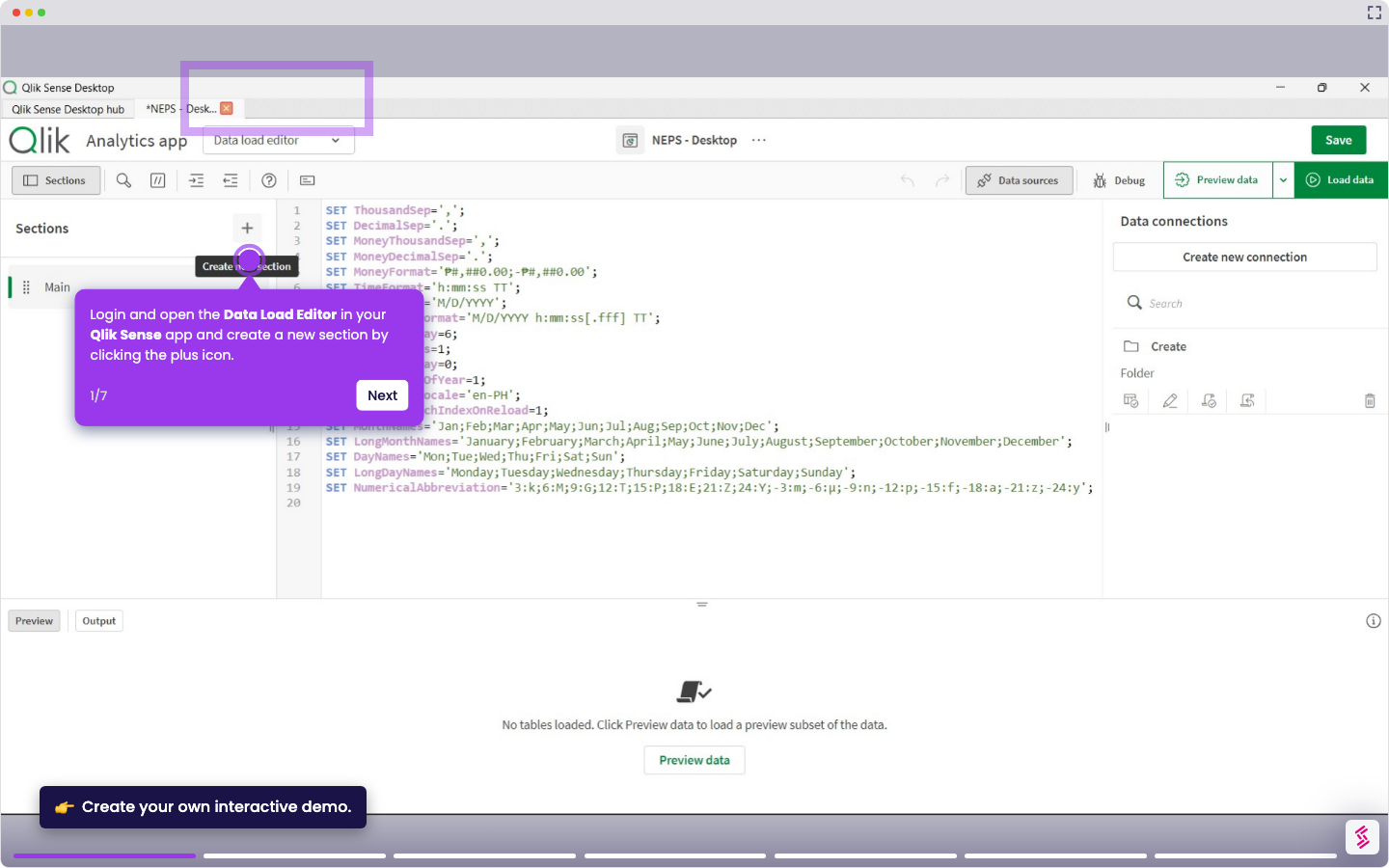
- Login and open your Qlik Sense app, and click Data manager from the top menu.
- Click Add data and select File and other sources from the list of source types.
- Browse to the downloaded file, then drag and drop it into the space.
- Confirm field names and header row in the preview table, then click Next.
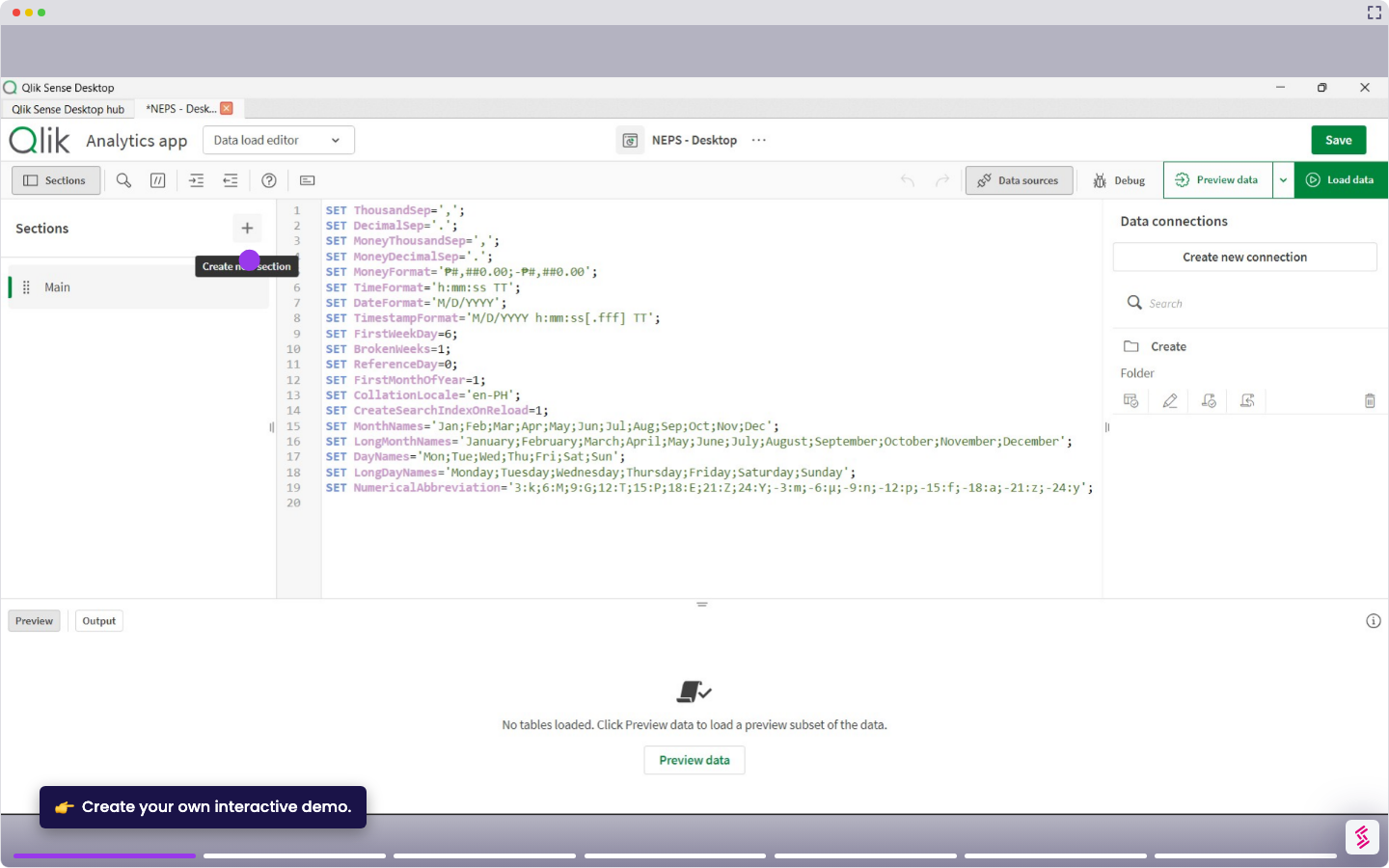
- Click Load data to run the script and make the sheet data available in your app.