This tutorial shows how to connect Qlik Sense to a database using the Data Load Editor to query and load data for analysis.
Notes:
- You need valid database credentials, including server/host, port (if required), database name, username, and password.
- The appropriate connector or ODBC driver must be installed depending on your database type (e.g., SQL Server, PostgreSQL, MySQL).
- This example uses Azure SQL Database, but the same process applies to other databases.
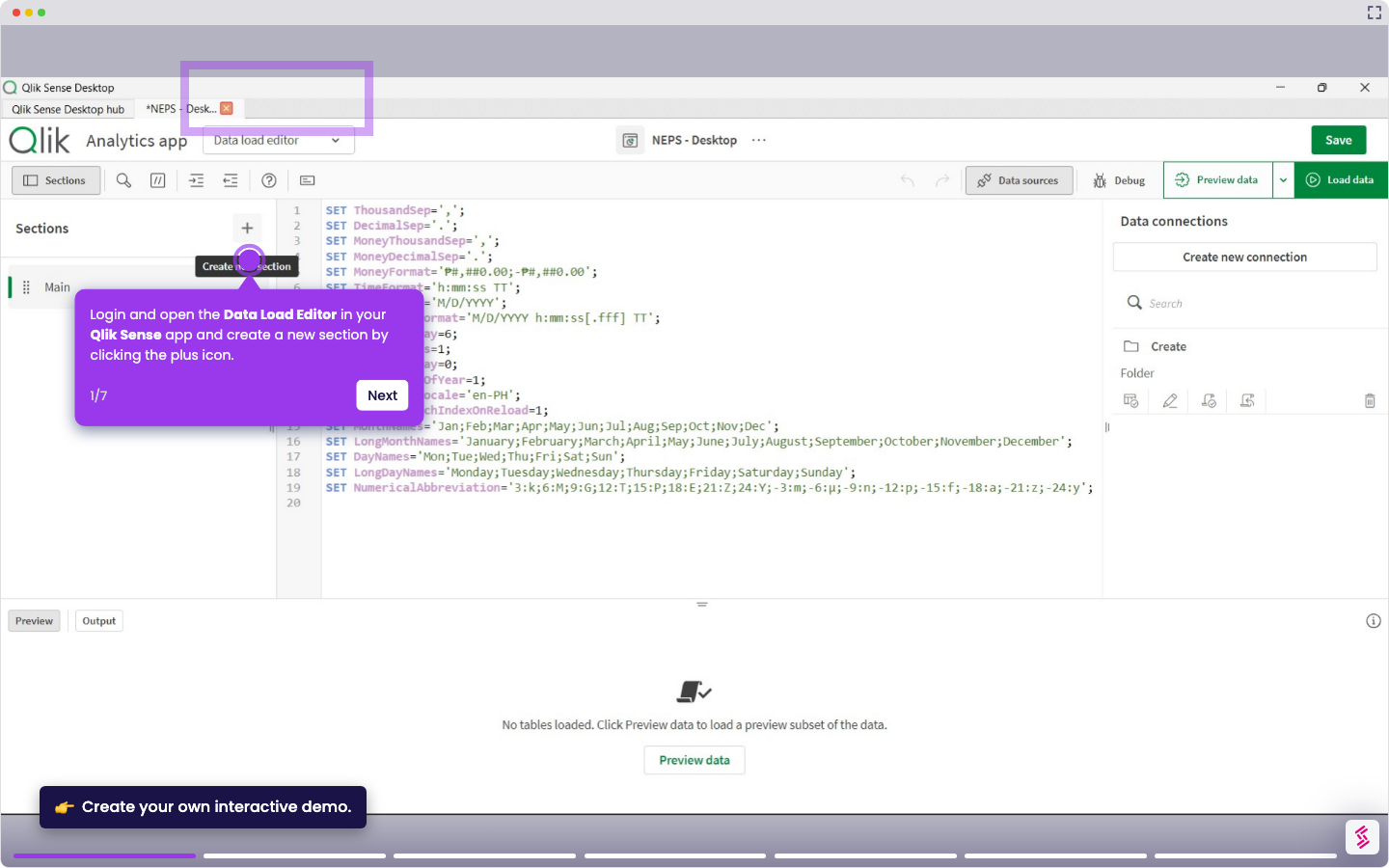
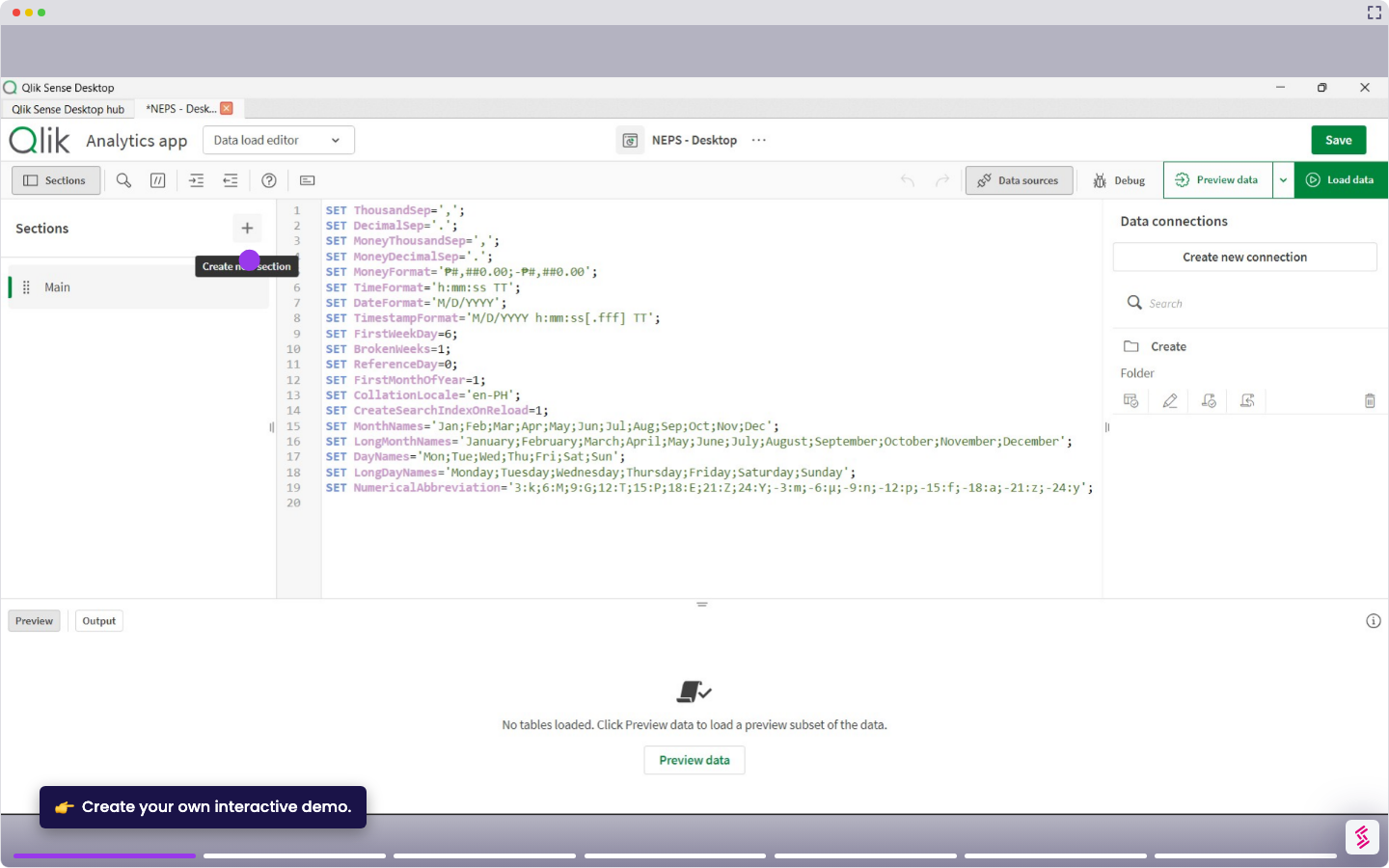
- Log in and open your Qlik Sense app, and click Data load editor from the top menu.
- Click Create new connection in the Data connections panel on the right.
- Select your database server (for example, Azure SQL Database) from the list of available database connectors.
- Enter your connection details, including host, port, database name, schema, username, and password, then click Test Connection to verify.
- Click Create to store the connection. You can now access the saved connection, browse the available tables, and select the ones you want to load into your app.