.svg)
.gif)
.svg)



Quick summary
This guide shows how to integrate Microsoft Teams with Zoho using Make.com to automate real-time notifications. By connecting a Zoho trigger to a Teams action, teams can stay updated on important CRM events without manual effort.
Steps
- Go to your Make.com dashboard and click '+Create a new scenario'.
- In the scenario editor, click the add icon, search for 'Zoho', and click on it.
- Choose a trigger event for Zoho.
- Click 'Create a connection' to link your Zoho account.
- Select an account to continue to Zoho.
- Edit your scenario by adding the relevant details for Zoho and click 'OK'.
- In the scenario editor, click the add icon, search for 'Microsoft Teams', and click on it.
- Choose an action event from Microsoft Teams.
- Set up the workflow to define how Zoho triggers result in actions in Microsoft Teams and click 'OK'.
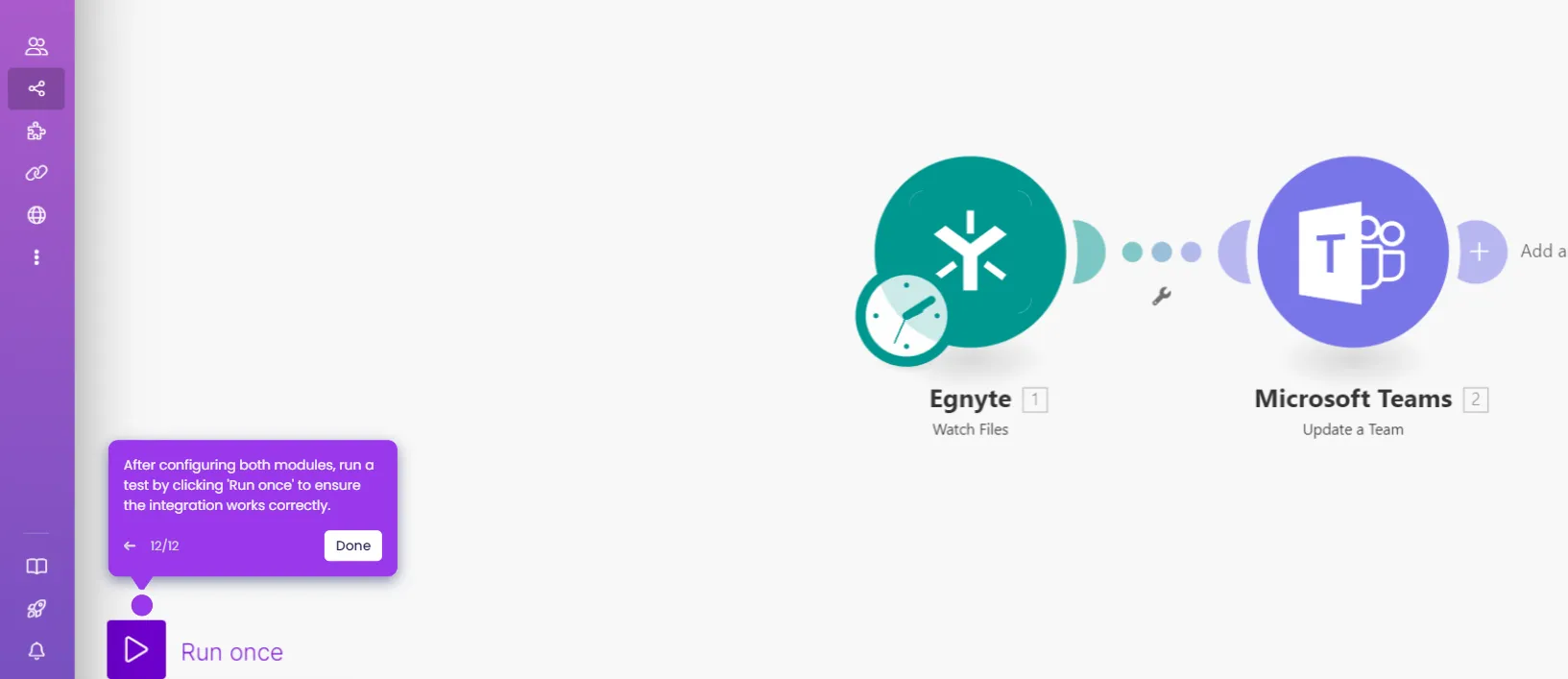
- Click 'Run Once' to test the integration and confirm that the workflow sends the correct message to Microsoft Teams based on Zoho objects.
- Confirm the integration is live — your team will now receive automated real-time notifications in Microsoft Teams based on Zoho activity.