Follow these steps:
- Open your Dynamics 365 and navigate to 'App Settings'.
- Go to the 'App Extensions' and click 'Partner Apps'.
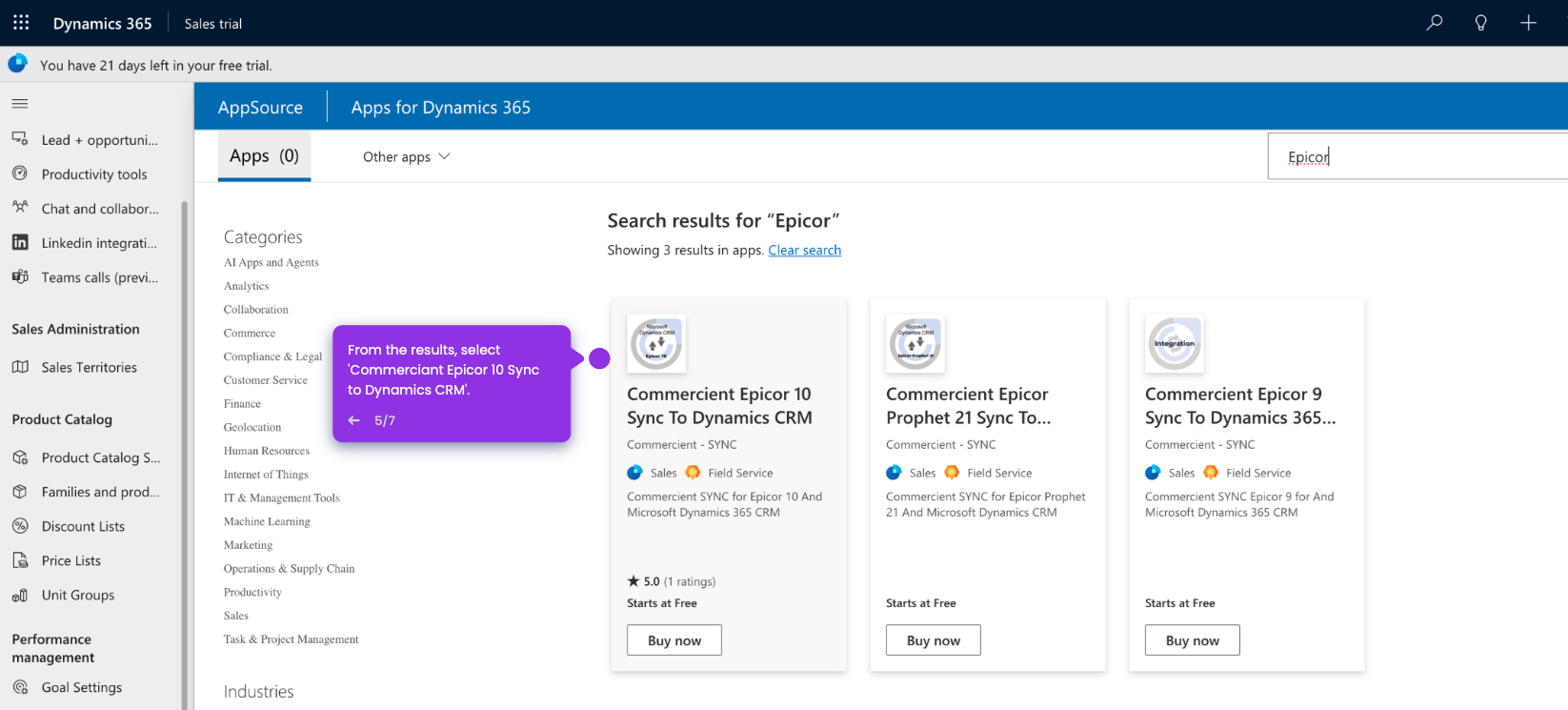
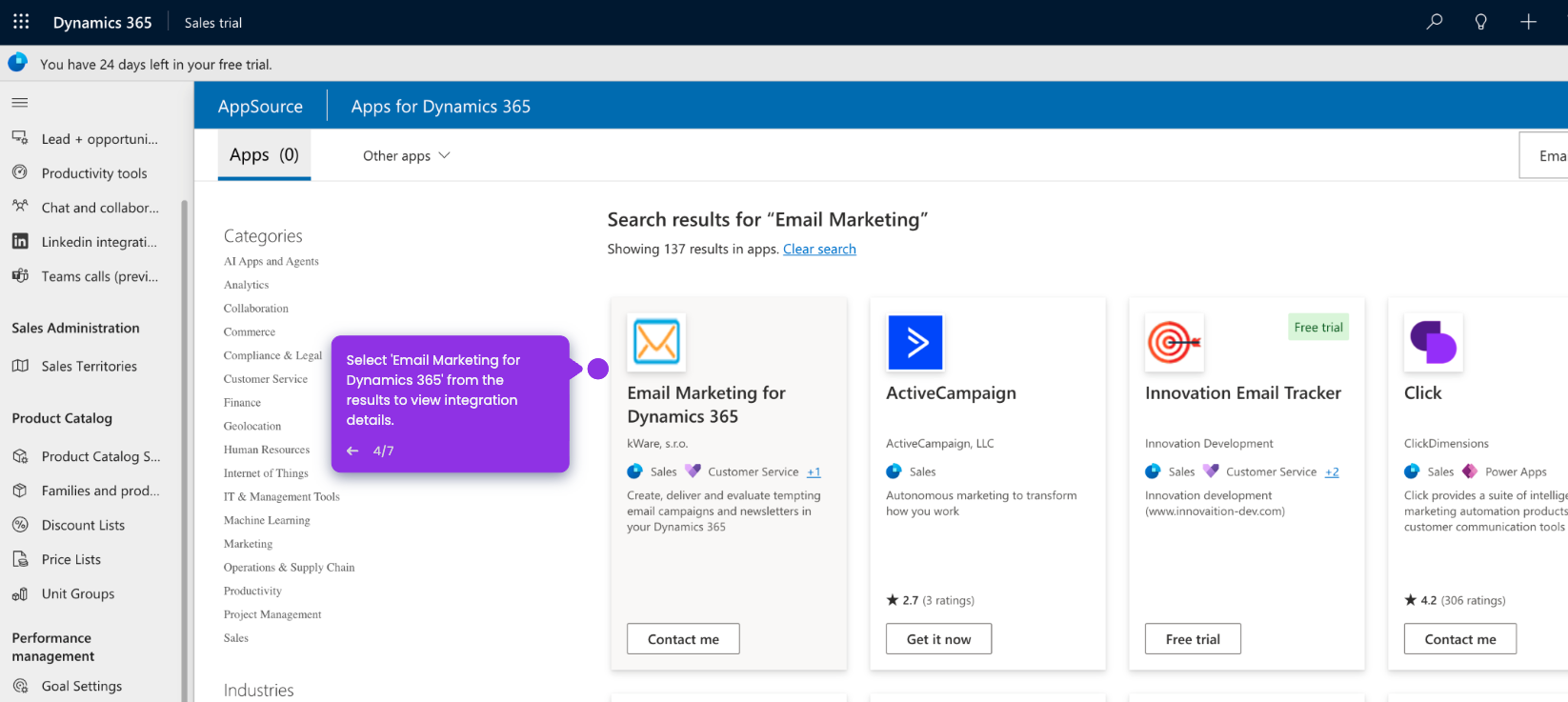
- Then, go to the search bar and type 'Adobe Sign'.
- From the results, select 'Adobe Acrobat Sign for Microsoft Dynamics 365'.
- Click 'Get It Now' to start the integration process.
- Confirm the action by clicking 'Get it now' to continue.
- Select your target environment.
- Confirm each box by checking the prompts.
- Hit 'Install' to integrate Adobe Acrobat Sign with Dynamics 365.