This tutorial shows how to upload and install a visualization extension in Qlik Sense through the Administration panel so it becomes available across your apps.
Notes:
- You need administrator access to install extensions in Qlik Sense.
- Extensions are uploaded as .zip files, available from sources like Qlik Market or GitHub.
- Once installed, extensions appear under Custom Objects in the Assets panel when editing any app.
- Download the extension .zip file from garden.qlik.dev or your chosen source and do not extract it.
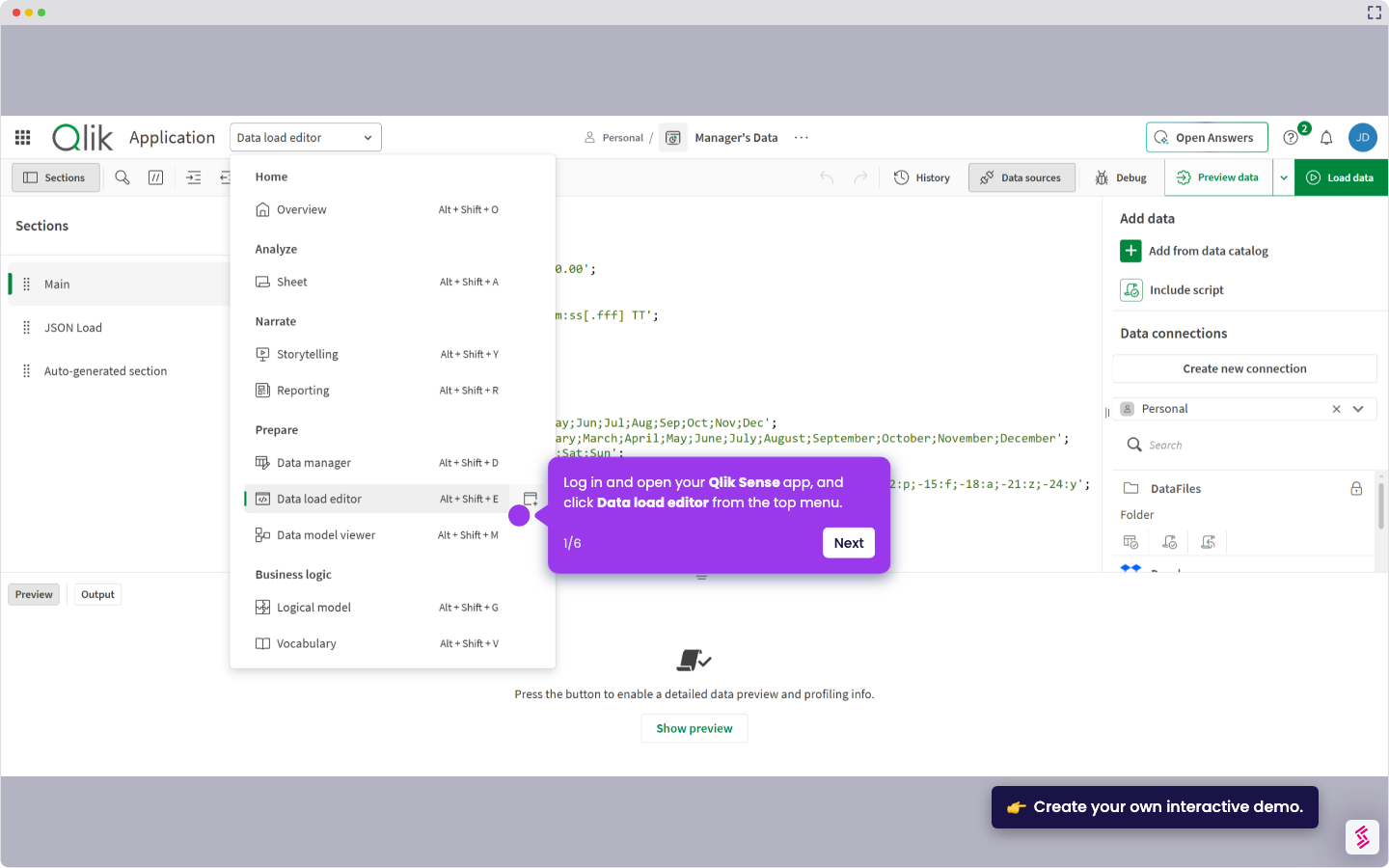
- Login, then click the Navigation Menu icon at the top left of the Qlik Sense interface to open the main menu.
- Go to Administration, then click Extensions in the left sidebar.
- Click Add in the top right of the Extensions page.
- Drag and drop your .zip file into the upload area, or click to browse and select the file manually, then click Upload.
- Open any app in Edit mode and check the Assets panel under Custom Objects under the Extensions list to confirm the extension is available.