This tutorial shows how to export data from a table or visualization in Qlik Sense into an Excel file for offline use.
Notes:
- You can export data from most visualizations such as tables, charts, and straight tables.
- The exported file is saved as an Excel (.xlsx) file on your computer.
- Export options may vary slightly depending on your Qlik Sense version.
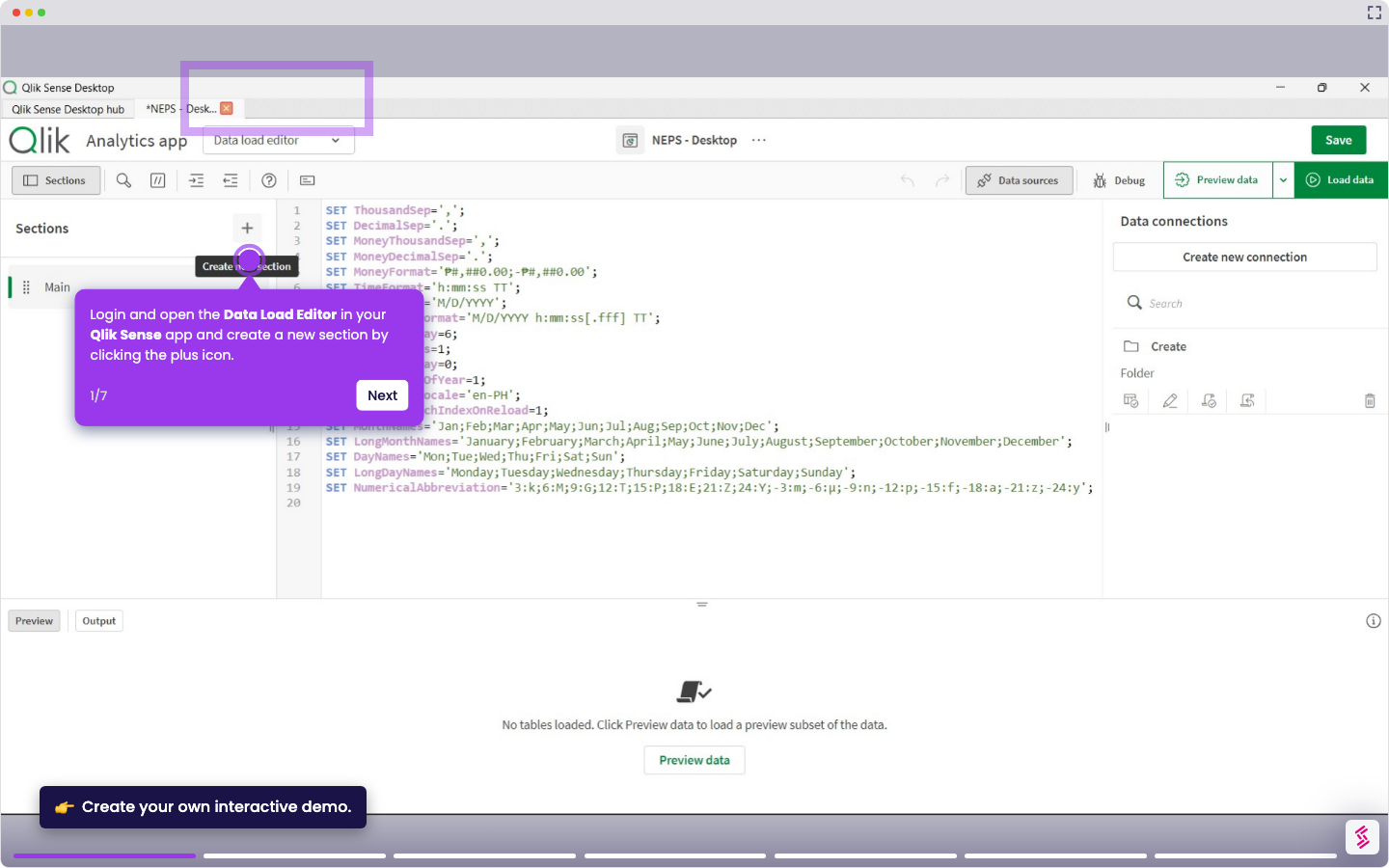
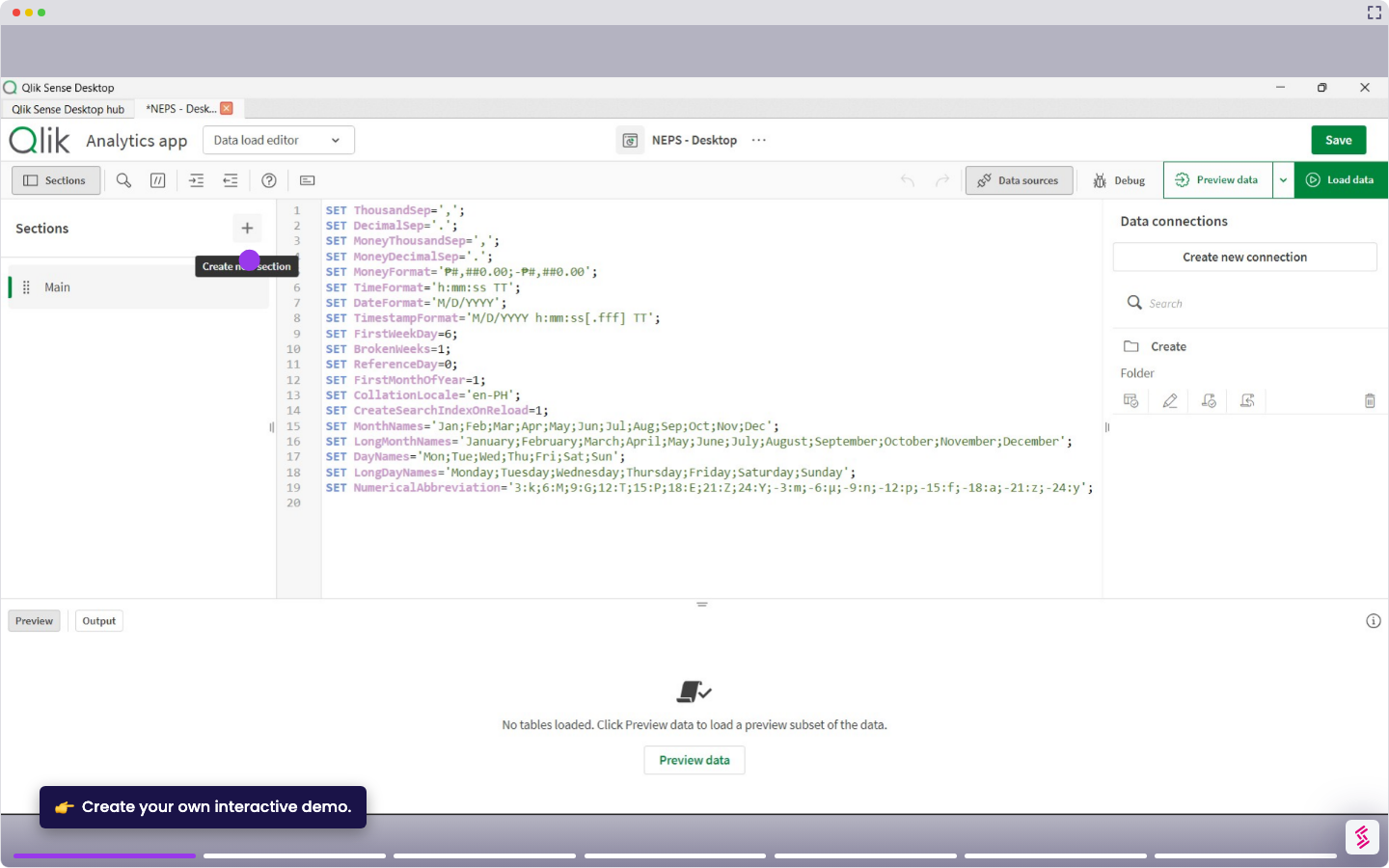
- Login and open the Qlik Sense app and click your app from the hub to launch it.
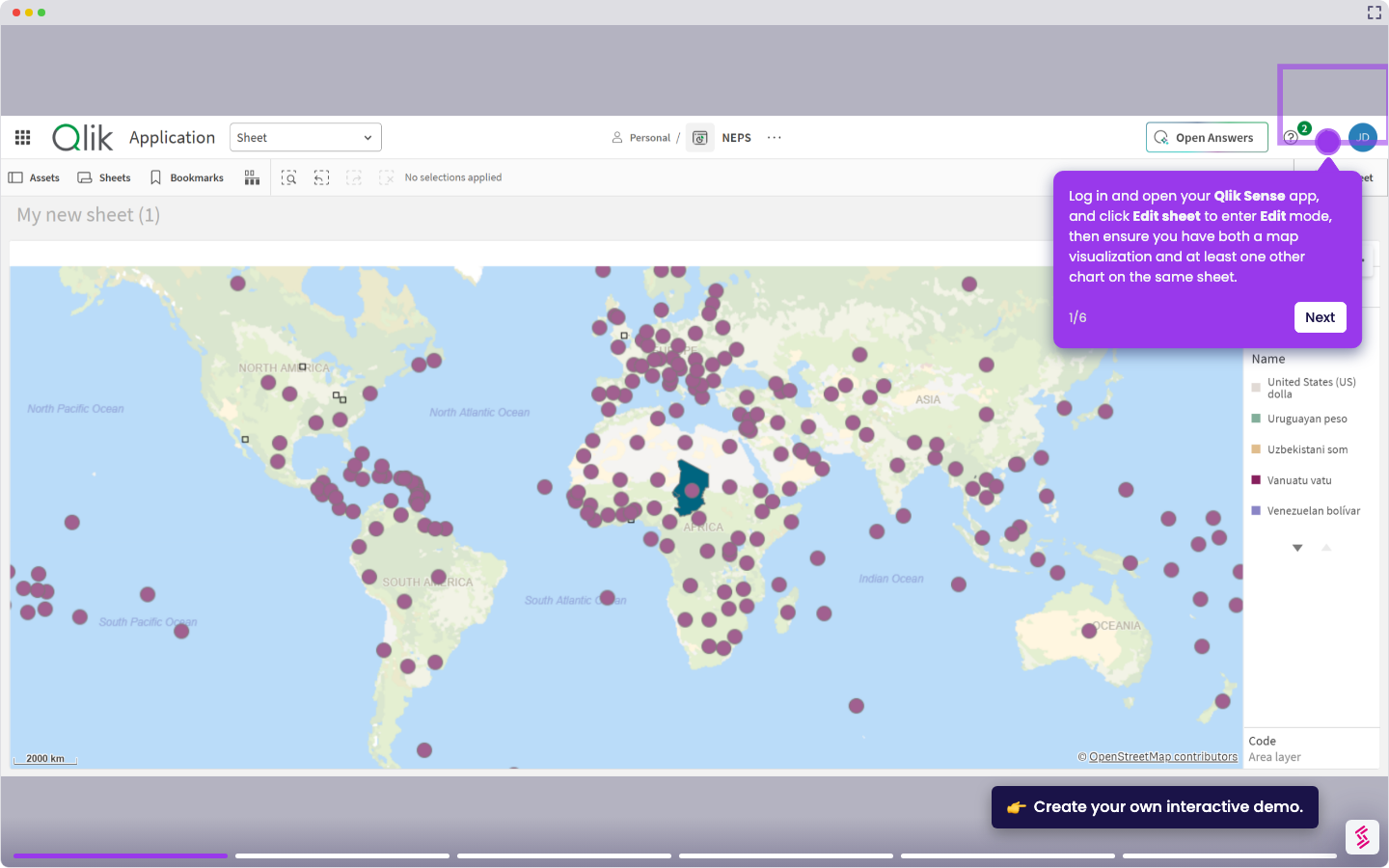
- Go to Analyze from the top menu and open a sheet with a table or chart.
- Hover over the visualization you want to export and click the More actions (three dots) menu.
- Click the Download button at the bottom of the menu to proceed.
- In the Download dialog box, then select Data to download the data as an Excel file.
- When the download is finished, open the downloaded Excel file to verify the exported data.