Quick summary
This tutorial shows you how to create an organogram in PowerPoint using the built-in SmartArt Hierarchy feature. In just a few clicks, you can insert an Organization Chart and populate it with your team's structure.
Steps
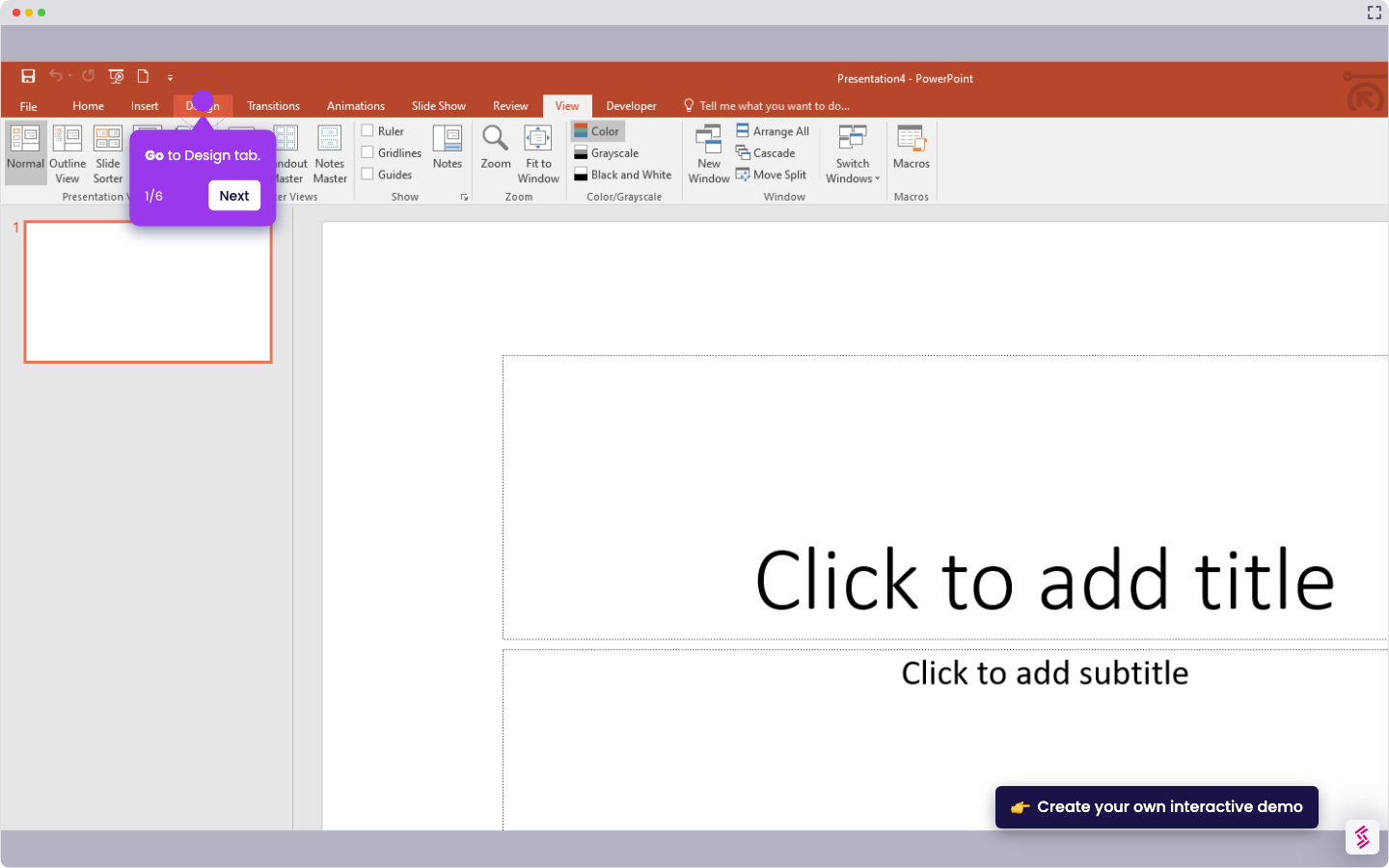
- Go to the Insert tab in PowerPoint.
- Click SmartArt from the Insert menu.
- Select "Hierarchy" from the left menu in the SmartArt dialog.
- Choose the Organization Chart layout from the available options.
- Click OK to insert the chart into your slide.
- Type your text in each box to fill in the organogram.