This tutorial shows how to create variables that store values or expressions, so you can reuse them in set analysis and formulas across your app. Notes:
- You need an app open in Qlik Sense to create variables.
- Variables can store static values (like a name or number) or dynamic expressions (like a field reference or formula).
- You can organize variables using tags to group them by purpose (for example, Sales, Finance, or by time period like Last Year or Current Month).
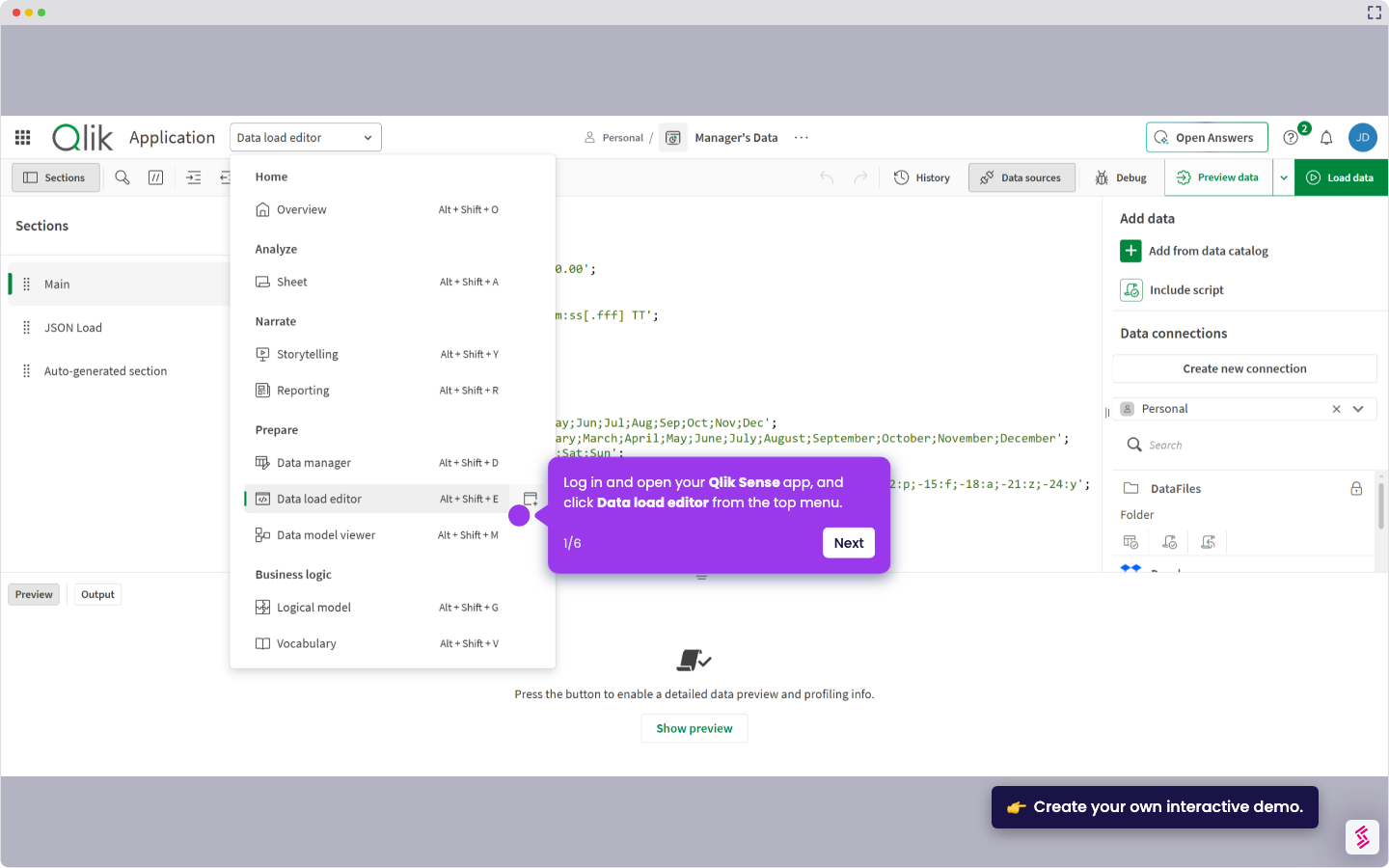
- Login and open your Qlik Sense app then click the Edit icon in the top menu to enter edit mode.
- In the bottom left corner, click the Variable icon to open the Variables panel.
- Click the Create new button to open the New Variable dialog.
- Enter a unique name for your variable (for example, V_EmployeeName, V_SalesRegion, or V_CurrentYear).
- Add a Description to explain what the variable does (for example, "Employee name to filter data").
- In the Definition field, enter the value or expression your variable will use (for example, a static value like "Seth" or a field reference like =[EmployeeID]).
- Optionally, add a Tag to organize it with related variables (for example, tag all sales-related variables with "Sales" or group by time period like "Last Year"), then click Create to save.
- See the variable you created listed in the Variables panel.