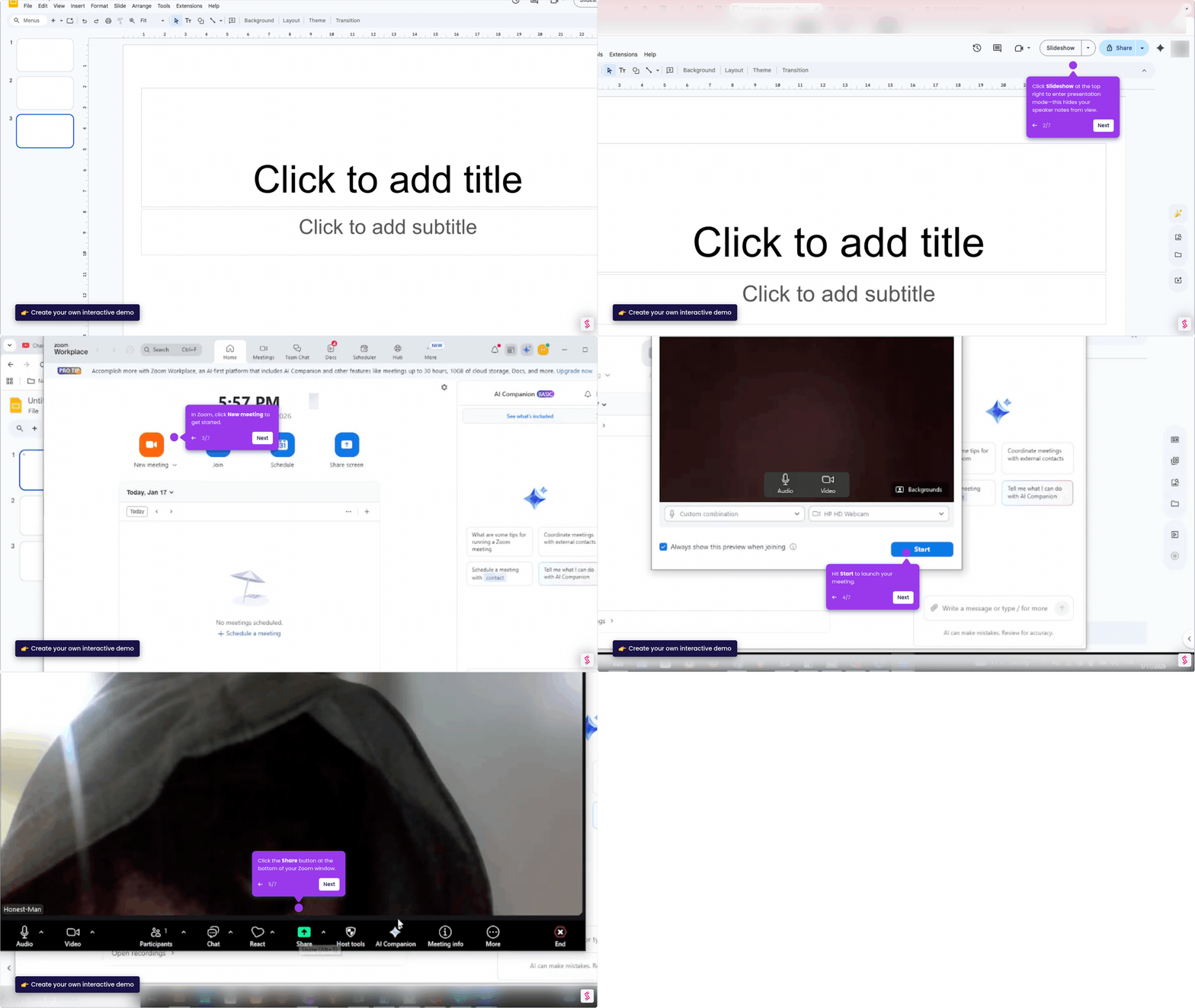
This interactive demo was created free with Storylane in 2 minutes. Create your own demo
Start free
All Tutorials /Zoom

How to Annotate on Zoom

Updated on:
May 11, 2026
By:
Madhav Bhandari
Use this interactive demo to learn how to draw and annotate on your screen during a Zoom meeting.

Quick summary

Zoom's annotation feature lets you draw, write, and highlight directly on a shared screen during a live meeting. You can access it from the Annotate button in the top menu bar after starting screen share.


Steps

  1. On Zoom's main dashboard, click 'New Meeting' to get started.
  2. Head over to the menu bar and click 'Share'.
  3. Select the specific screen you want to share and tap 'Share' to proceed.
  4. Go to the top menu bar and click 'Annotate'.
  5. Use your mouse cursor to annotate your screen — write remarks, point out elements, or draw anything.
  6. To modify your annotations, open the menu bar at the left corner and access the available customization options.


📌 Why this matters

Zoom's annotation feature is essential for anyone who needs to communicate visually during remote meetings, online training sessions, or collaborative reviews. It allows hosts and participants to draw, highlight, and write directly on a shared screen in real time, making complex ideas easier to understand without switching tools. This built-in screen annotation capability reduces miscommunication, speeds up feedback cycles, and keeps all participants engaged during live presentations. For educators, sales teams, and remote workers, knowing how to annotate on Zoom is a foundational skill for more effective virtual collaboration.
Your product deserves an interactive demo
Start free
Similar Articles
Zoom

How to Share YouTube Audio on Zoom

Madhav Bhandari
Director of Marketing @ Storylane
Zoom

How to Add PowerPoint to Zoom

Madhav Bhandari
Director of Marketing @ Storylane
How to Share Google Slides in ZoomHow to Share Google Slides in Zoom
Zoom

How to Share Google Slides in Zoom

Madhav Bhandari
Director of Marketing @ Storylane
No items found.
Platform
Interactive Demos
Sandbox Demos
Buyer Hub
RepX
Integrations
Solutions
Product Marketers
Growth & Demand Gen
Sales Reps & AEs
Presales & SEs
Customer Success
Product Managers
Customers
Demo Showcase
Customer Stories
Finer Demos Club
Features
Demo Signals
Personalization
Deal Intelligence
Resources
Blog
The Plot
Tutorials
Help Docs
What’s New
Demo Dundies
Company
Careers
Pricing
Partners
Contact
Trust Center
Backed by
Chrome Extension Icon
Chrome extension
Download
Desktop app
Download
Built in San Francisco Bay Area - ©2026 Storylane
Privacy PolicyTerms & Conditions
X Corp (formerly Twitter)LinkedIn
This website uses cookies to ensure you get the best experience on our website. Learn More
Got it
This website uses cookies to ensure you get the best experience on our website. Learn More
Got it