This tutorial shows how to create filter panes on a sheet so you can limit data across multiple dimensions at once, such as filtering by time period, product category, and region simultaneously.
Notes:
- You need an app with data and visualizations already created to add filters effectively.
- A filter pane can contain up to 1,000 dimensions, and each dimension added is placed to the right of or below the previous one depending on available space.
- Filter selections are reflected in all visualizations on the sheet - when you select a value in a filter pane, the charts and tables update automatically to show only matching data.
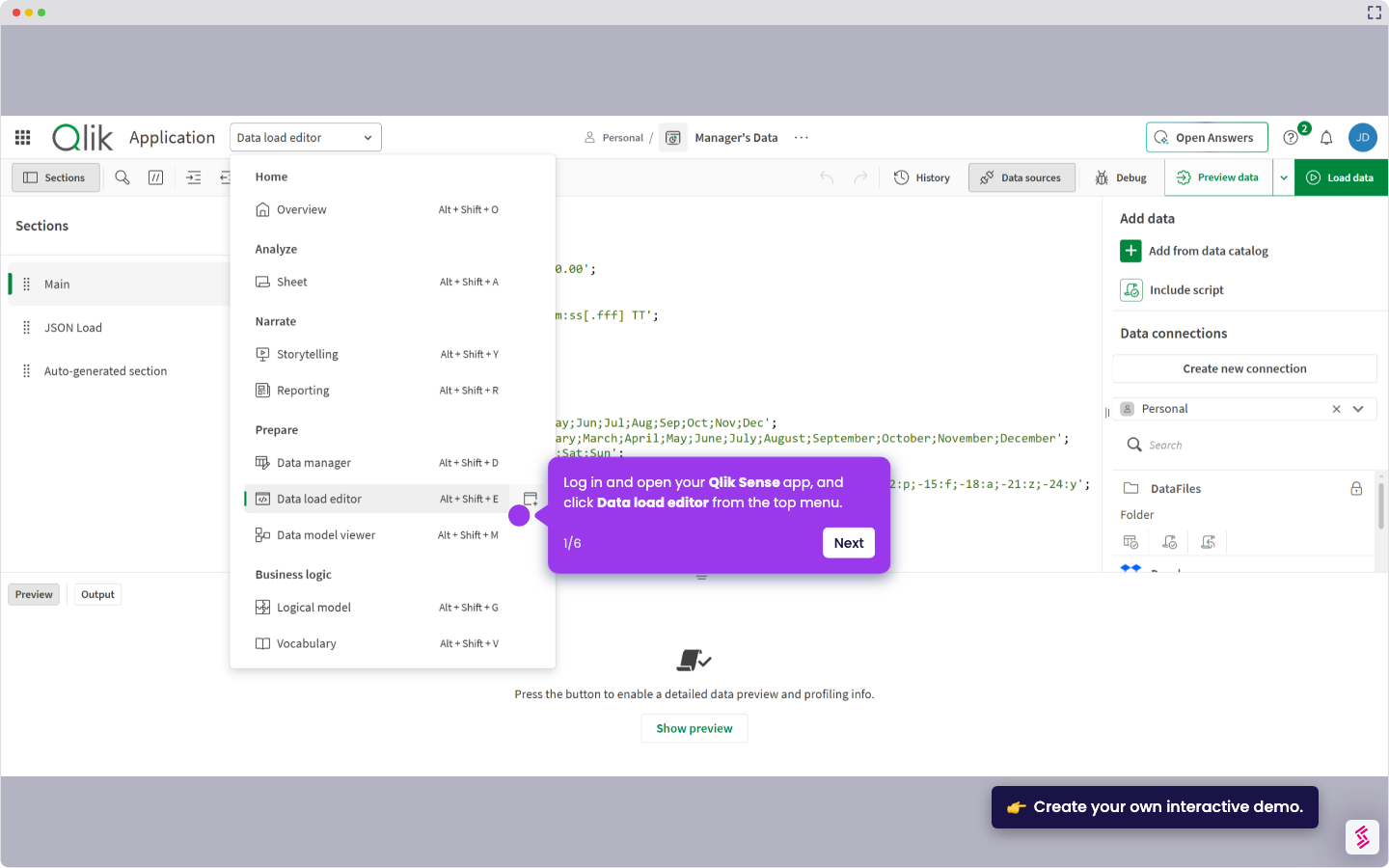
- Login and open your Qlik Sense app and go to the sheet where you want to add filters, click Edit sheet to enter edit mode.
- In the Assets panel on the left, click Charts then find and drag an empty Filter pane object onto the sheet canvas.
- Click Add dimension on the Filter pane to open the dimension selection dialog.
- Select a field or dimension from your data (for example, Name, Category, or Brand) and click it to add it to the Filter pane.
Note: To add more filter dimensions, click Add dimension again and repeat step 5 as needed (you can add up to 1,000 dimensions). - When finished adding dimensions, click Edit sheet again to exit edit mode and activate the filters.
- Use the filter pane during analysis by clicking values to refine your selection. The colors indicate the following:
- Green: Selected values
- White: Possible values
- Light gray: Alternative values
- Dark gray: Excluded values