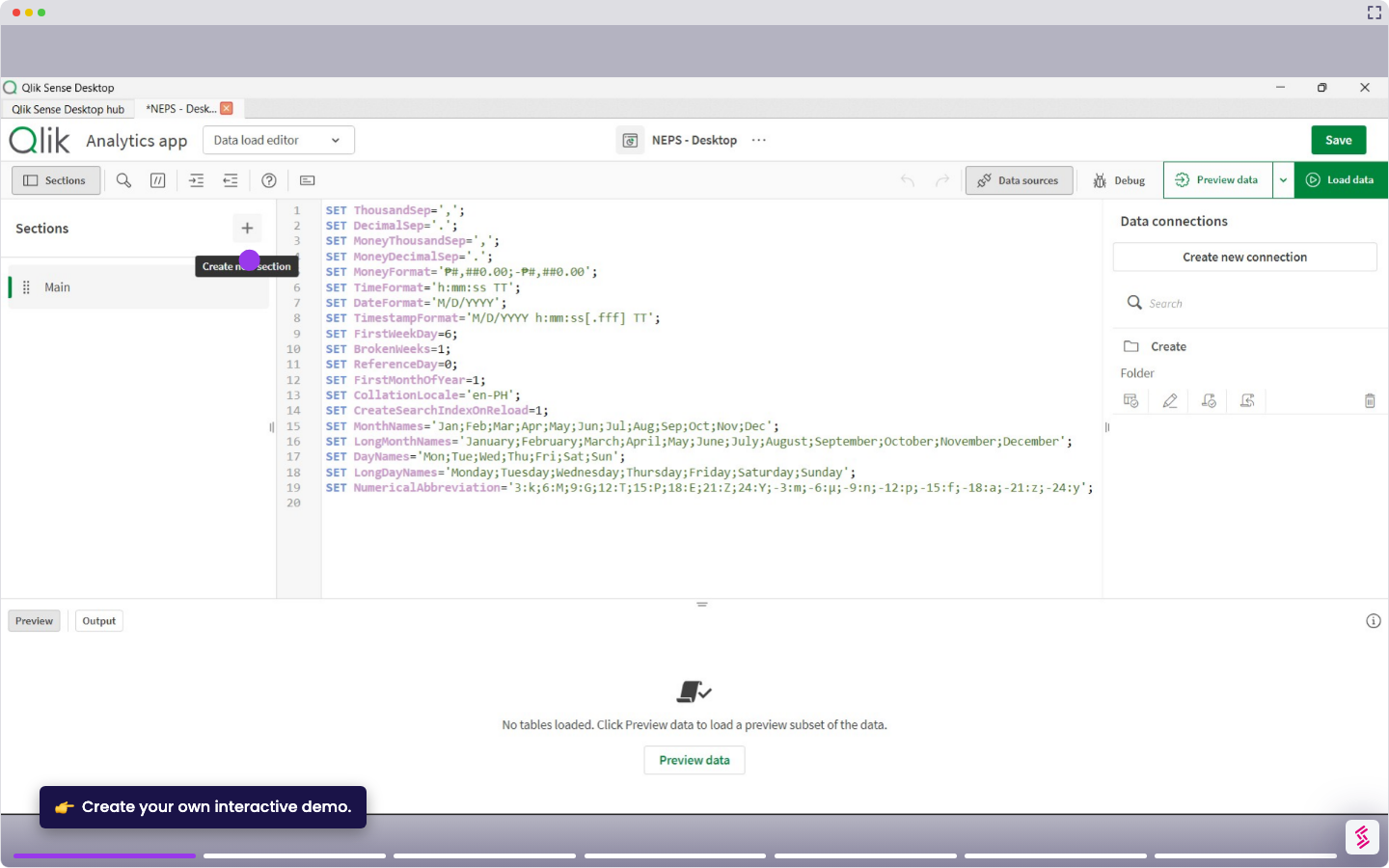
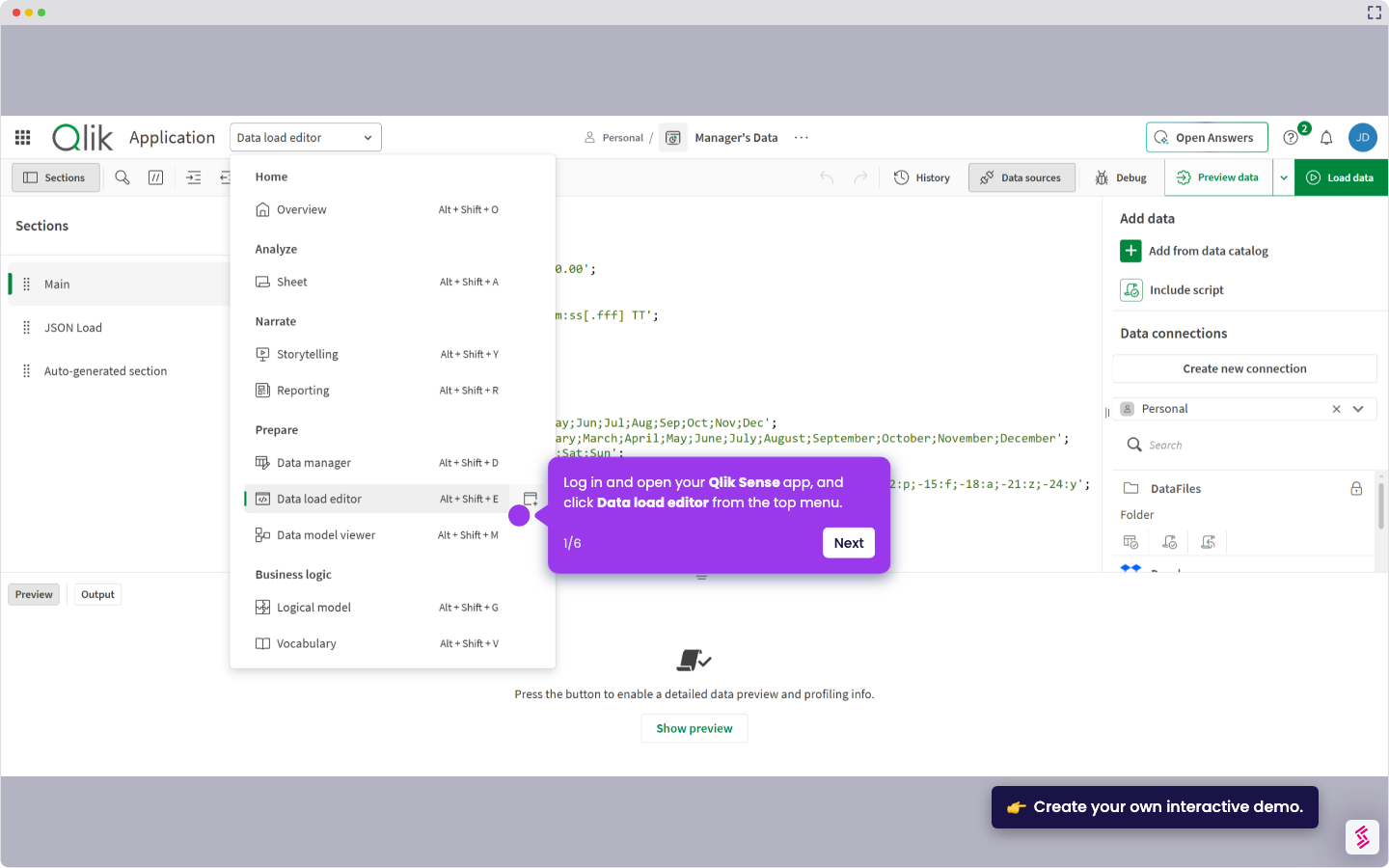
This tutorial shows how to manually install a visualization extension in Qlik Sense Desktop by placing it in the correct local folder so it appears in your app's Assets panel.
Notes:
- Extensions are installed by copying files into a specific folder on your computer - no admin panel required.
- The extension must be extracted from its .zip file before copying.
- Qlik Sense Desktop must be restarted after adding an extension for it to appear in the app.
- Download the extension .zip file from garden.qlik.dev or your chosen source and extract it to a folder on your computer.
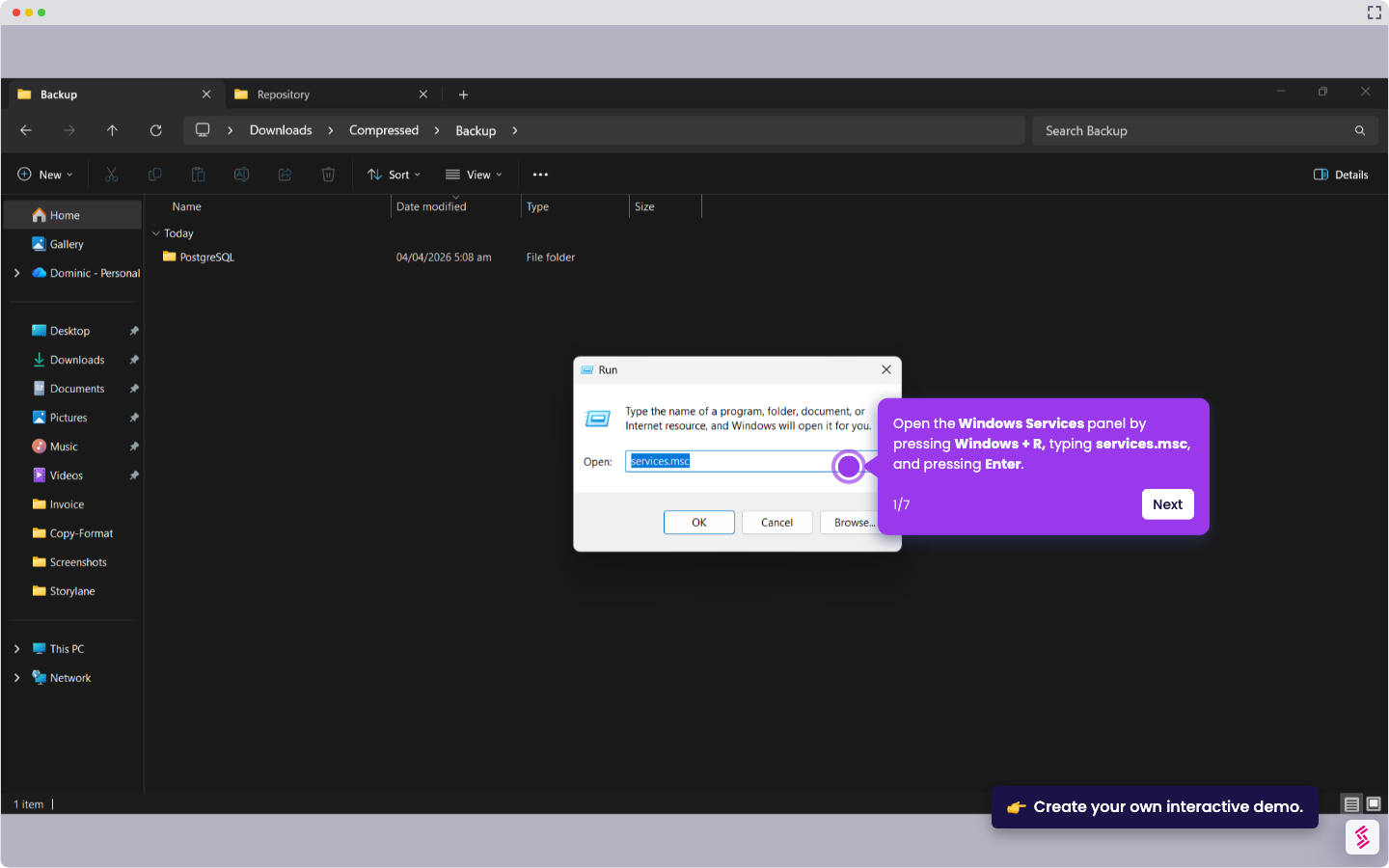
- Open File Explorer and navigate to C:\Users[username]\Documents\Qlik\Sense\Extensions.
- Copy and paste the extracted extension folder into the Extensions directory.
- Restart Qlik Sense Desktop to register the new extension, then sign in if prompted.
- Open your app and click the Edit sheet in the top right to enter Edit mode.
- The extension will appear under Custom objects in the Assets panel on the left.