.svg)
.gif)
.svg)



If you prefer the command-line interface, you can run Claude Code directly inside Cursor's terminal.
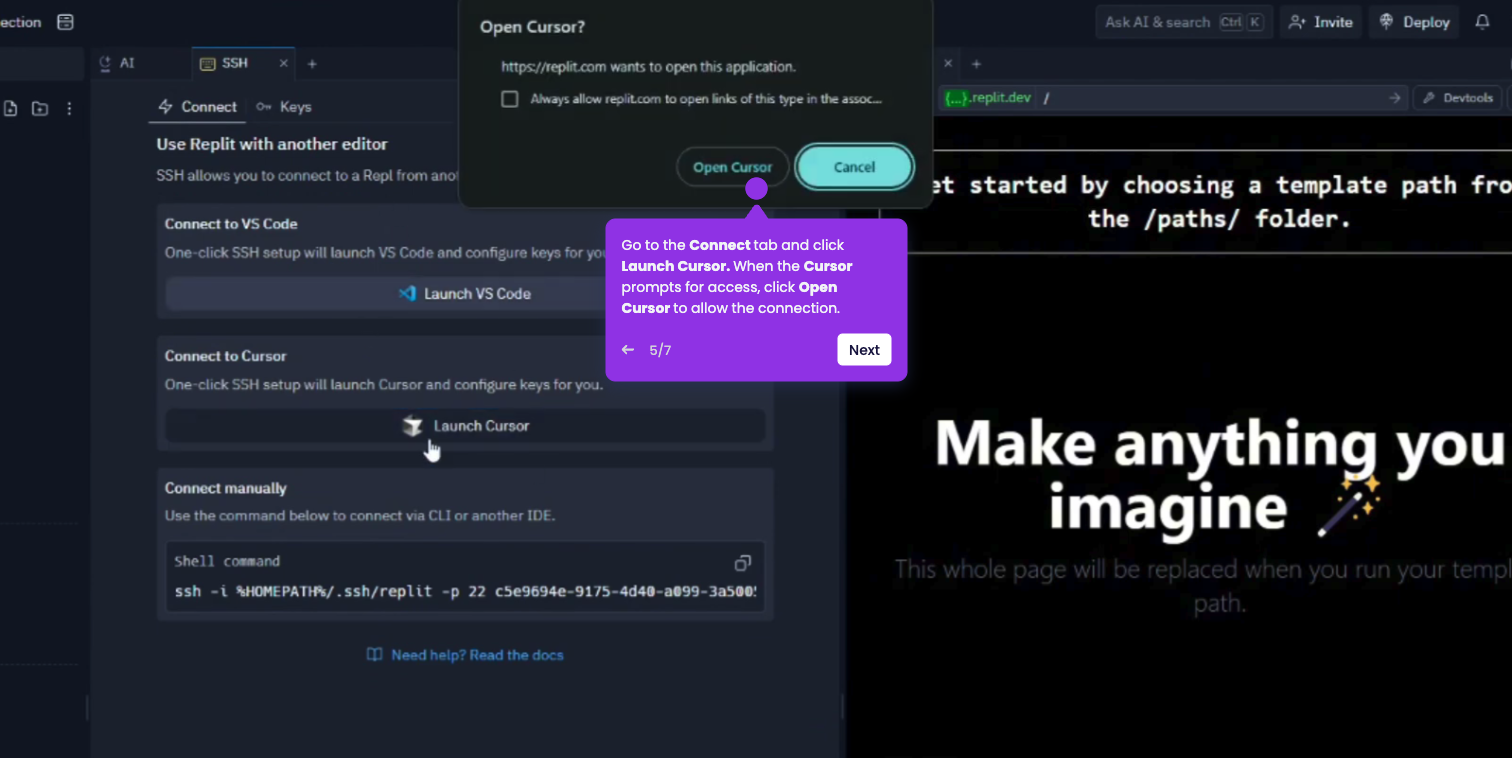
- Open the Cursor desktop application on your computer.
- Click File in the top-left toolbar and select Open Folder, and select a project.
- Open the Integrated Terminal by pressing Ctrl + on your keyboard.
- Ensure you have the tool installed globally by running: npm install -g @anthropic-ai/claude-code
- The first time you run this inside Cursor, the CLI will automatically detect the IDE and ask to sync. Use the /config command inside the session and set the diff tool to "auto".
- You’re all set!