In this tutorial, you’ll learn how to create labels in Adobe Acrobat.
Note: Acrobat works best when you start with a label template PDF (especially if you’re printing on label sheets).
- Download a label template in PDF format (https://www.adobe.com/express/templates/label)
- Open Adobe Acrobat, then open the downloaded template PDF.
- On the right-side pane, click Edit PDF.
- Use the editing tools to add text or insert images/logos, then resize and position them as needed.
- Copy and paste your text/images to fill all labels on the template.
- Click Close to exit Edit PDF.
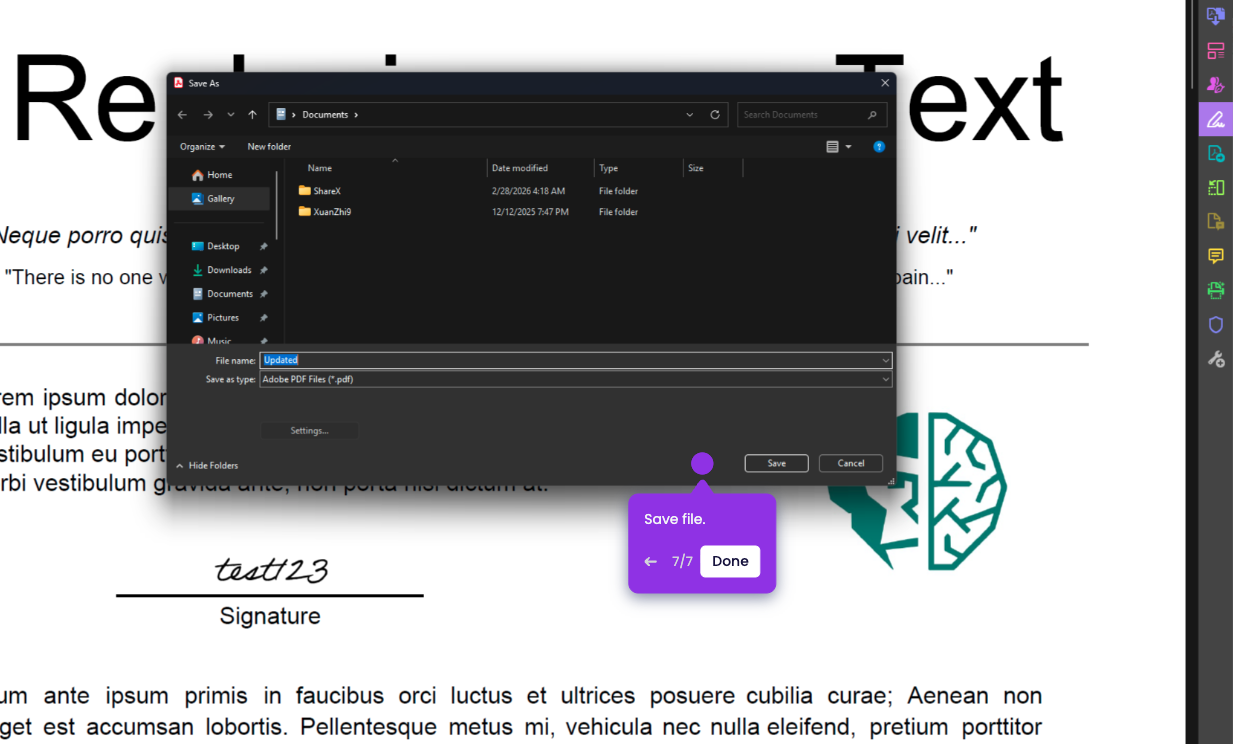
- Click File > Save As.
- Choose a folder, name the file, then click Save.