In this tutorial, you’ll learn how to create an invoice in Adobe Acrobat
Note: The easiest way is to design the invoice layout in Word/Excel first, then convert it to a fillable PDF in Acrobat.
- Create your invoice layout in Word or Excel, then save/export it as a PDF.
- Open Adobe Acrobat.
- On the top menu, click Tools.
- Click Prepare Form, then select the invoice PDF you created.
- Click Start. Acrobat will auto-detect form fields.
- Use the top toolbar to add or adjust fields (Text Field, Checkbox, Drop-down, etc.), then click on the page to place them.
- For totals, double-click a field, then go to Properties > Calculate. Choose Simplified Field Notation (or another calculation option). Enter your formula (example: Qty1*Price1, Subtotal*0.12, etc.)
- Click Close.
Recommended: Set the calculation order: in Prepare Form, open More (three dots), then choose Set Field Calculation Order, and make sure line totals calculate before subtotal/tax/total.
- Click Close to exit Prepare Form.
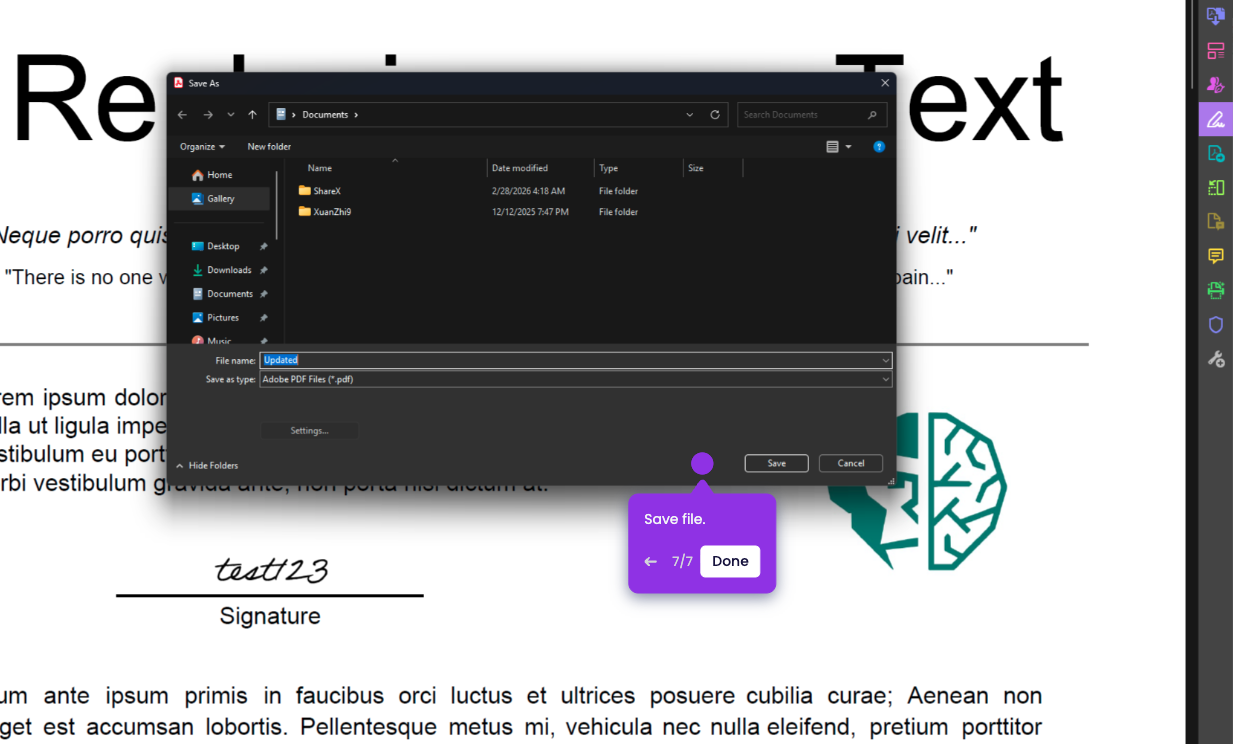
- Click File > Save As.
- Choose a folder, name the file, then click Save.