In this tutorial, you’ll learn how to create a template in Adobe Acrobat
- Open the PDF you want to use as a template in Adobe Acrobat Pro.
- On the right-side pane, click Organize Pages.
- Click the page you want to turn into a template.
- In the top toolbar, click More.
- Click Page Templates.
- Type a name for the template, then click Add.
- Confirm the template appears in the list, then click Close.
- Click Close to exit Organize Page options.
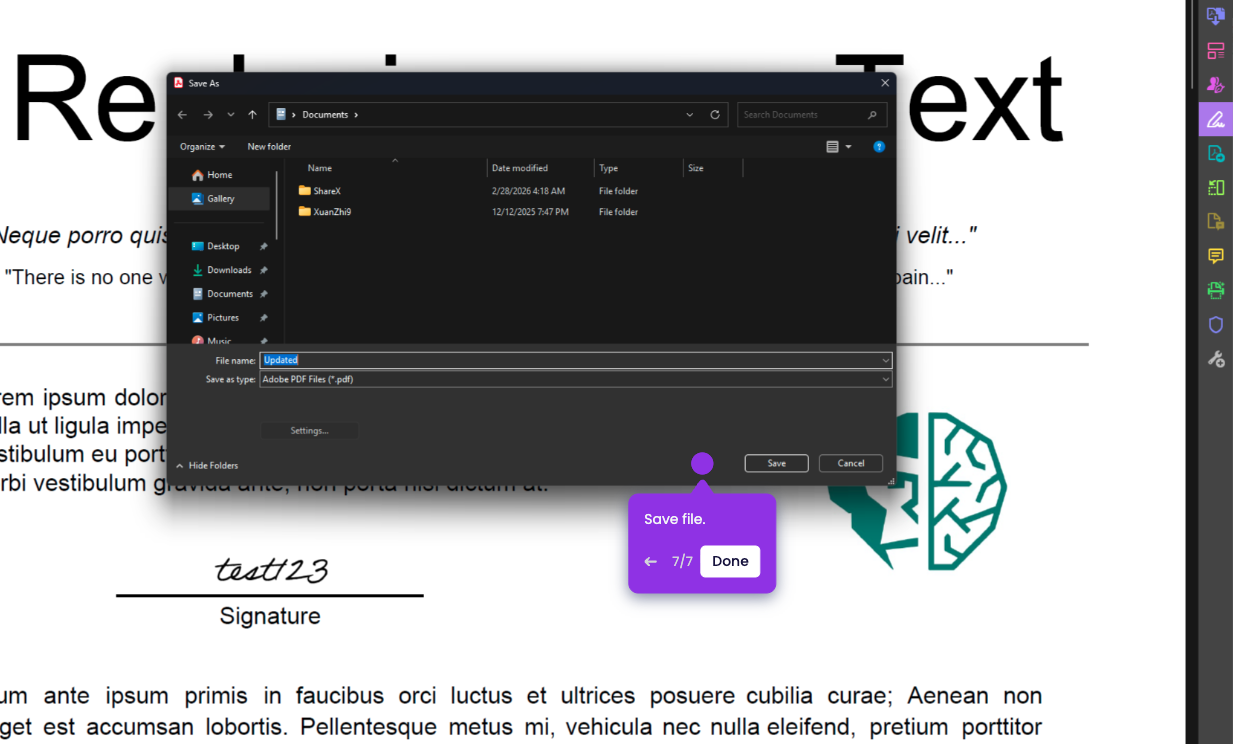
- Click File > Save As.
- Choose a folder, name the file, then click Save.